By
Face ID unlocks your iPhone, approves Apple Pay and fills in passwords just by looking at your phone. Sometimes you want to turn it off: for one app, for purchases, temporarily when you’re worried someone could force you to unlock, or completely. Here’s how to turn off Face ID on iPhone in every situation.
Short answer: go to Settings → Face ID & Passcode, enter your passcode, and under Use Face ID For turn off iPhone Unlock, Apple Pay, iTunes & App Store, Password AutoFill or Other Apps. To delete your face completely, tap Reset Face ID. To disable it temporarily, press and hold the side button and either volume button for two seconds until the power-off screen appears, then tap Cancel: iPhone will ask for your passcode next time.
Applies to: iPhone with Face ID on iOS 26 and iOS 27. Last checked in October 2026.
Turn off Face ID for unlocking or purchases
- Open Settings.
- Tap Face ID & Passcode and enter your passcode.
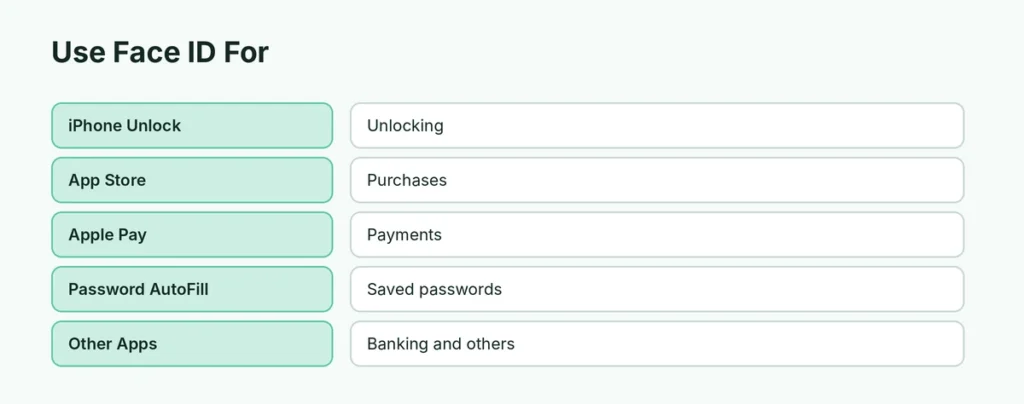
- Under Use Face ID For, turn off what you don’t want:
| Switch | What it controls |
|---|---|
| iPhone Unlock | Unlocking the phone with your face |
| iTunes & App Store | Approving app and media purchases |
| Wallet & Apple Pay | Approving payments |
| Password AutoFill | Filling saved passwords |
| Other Apps | Banking and other apps that use Face ID |
With iPhone Unlock off, you’ll type your passcode to unlock.
Turn off Face ID for one app
- Settings → Face ID & Passcode → Other Apps.
- Turn off the app (for example, a banking app).
The app will ask for its own password or your passcode instead.
Delete Face ID completely (Reset Face ID)

- Settings → Face ID & Passcode.
- Tap Reset Face ID.
Your face data is deleted from the phone. You can set it up again any time with Set Up Face ID. Remove an Alternate Appearance the same way (resetting removes both).
Disable Face ID temporarily
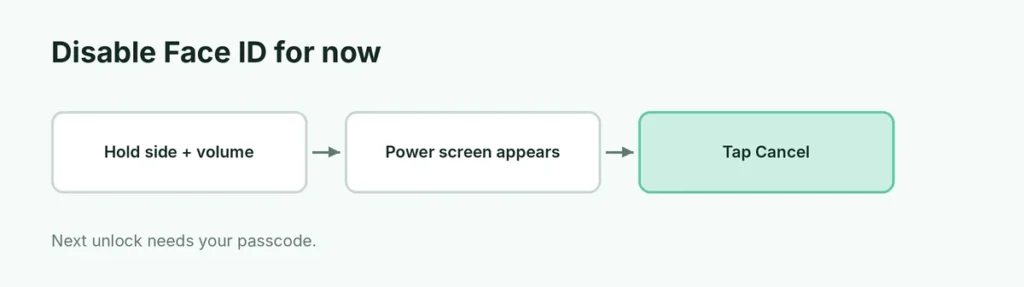
Useful if you’re traveling, at a protest, or worried someone could hold the phone to your face:
- Press and hold the side button + either volume button for about two seconds, then tap Cancel (or the X).
Face ID is now disabled until you enter your passcode. iPhone also requires the passcode after:
- restarting,
- not unlocking for 48 hours,
- five failed Face ID tries,
- using Emergency SOS.
Turn off “Require Attention for Face ID”
Settings → Face ID & Passcode → Require Attention for Face ID. Keep this on for security: it means your eyes must be open and looking at the phone. Turn it off only if needed for accessibility.
Face ID and Stolen Device Protection
If Stolen Device Protection is on, some actions need Face ID with no passcode option when you’re away from familiar places. Turning Face ID off can make those actions impossible until you’re home. Here’s more about Stolen Device Protection.
Face ID not working?
- Clean the TrueDepth camera at the top of the screen.
- Make sure nothing (case, screen protector) covers it.
- Try Face ID with a Mask if you wear masks.
- Reset Face ID and set it up again.
Related guides
The short version
In Settings → Face ID & Passcode, turn off the uses you don’t want (unlock, App Store, Apple Pay, AutoFill, apps), or tap Reset Face ID to remove it completely. For a quick temporary lock, hold the side + volume buttons and tap Cancel so iPhone requires the passcode.
Sources
- Apple Platform Support: Face ID, Touch ID, passcodes and passwords