By
By 
Not getting calls or notifications on your iPhone? A small moon icon on the Lock Screen or status bar usually means Do Not Disturb is on. It’s easy to switch on by accident, and it can also turn on automatically on a schedule. Here’s how to turn off Do Not Disturb on iPhone, stop it from coming back, and fix it if it keeps turning on by itself.
Short answer: swipe down from the top-right corner to open Control Center, then tap the Focus button (the moon icon) to turn Do Not Disturb off. Or go to Settings → Focus → Do Not Disturb and turn it off. If it keeps coming back, check Set a Schedule in that Focus, Share Across Devices (your iPad or Mac may be turning it on), and Sleep Focus in the Health app.
Applies to: iPhone on iOS 26 and iOS 27. Last checked in October 2026.
How to turn off Do Not Disturb (Control Center)
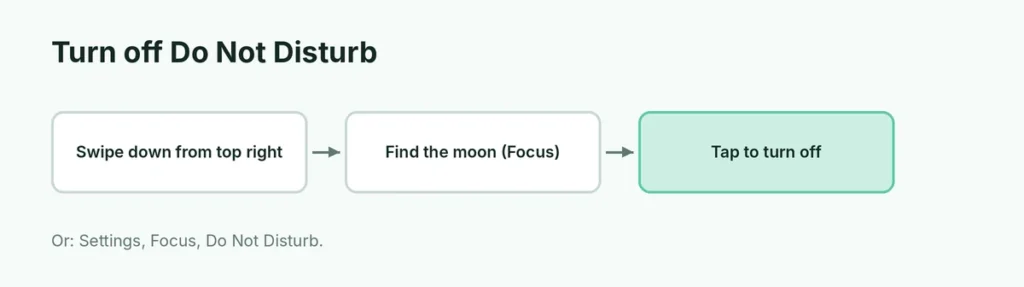
- Swipe down from the top-right corner of the screen.
- Find the Focus button with the moon icon (it’s highlighted when on).
- Tap it to turn Do Not Disturb off.
From the Lock Screen: touch and hold the moon icon on the Lock Screen and tap Do Not Disturb to turn it off.
How to turn off Do Not Disturb in Settings
- Open Settings.
- Tap Focus → Do Not Disturb.
- Turn off the switch at the top (or tap the Do Not Disturb toggle).
Why does Do Not Disturb keep turning on?
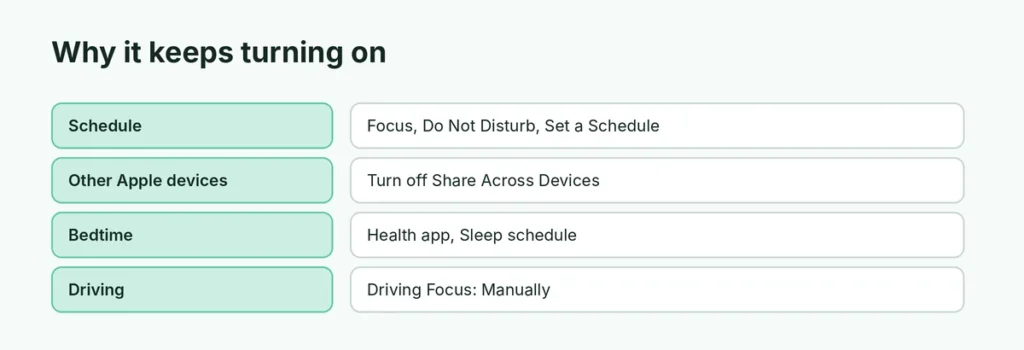
| Reason | Fix |
|---|---|
| A schedule turns it on | Settings → Focus → Do Not Disturb → Set a Schedule → delete or turn off the schedule |
| Another Apple device turns it on | Settings → Focus → turn off Share Across Devices |
| Sleep Focus at bedtime | Health app → Browse → Sleep → Full Schedule & Options → adjust or turn off |
| Driving Focus | Settings → Focus → Driving → change Turn On Automatically to Manually |
| Smart Activation | In the Focus settings, turn off Smart Activation |
| Apple Watch | Focus on the watch mirrors the iPhone; turn it off on either |
How to know if Do Not Disturb is on
- A moon icon appears in the status bar (top of the screen) or on the Lock Screen.
- Notifications arrive silently and the Lock Screen may be dimmed.
- Calls go to voicemail without ringing, unless the caller is allowed.
Do Not Disturb vs. Silent Mode
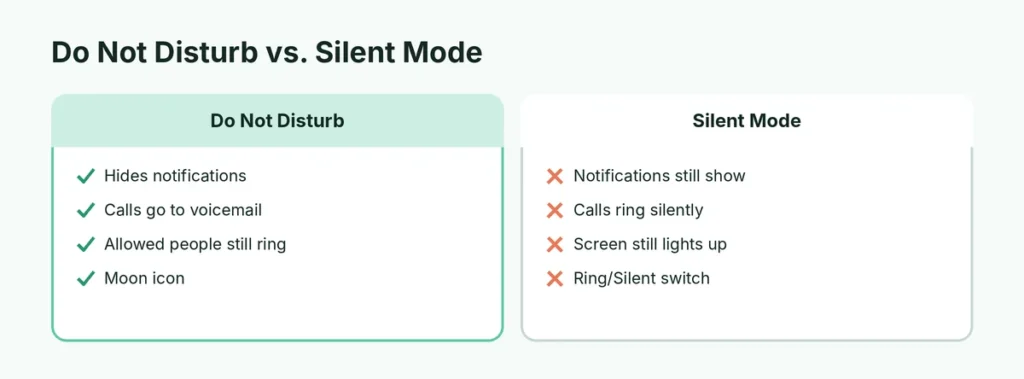
| Do Not Disturb | Silent Mode | |
|---|---|---|
| Calls | Go silent (unless allowed) | Ring silently; screen lights up |
| Notifications | Hidden or silent | Shown, no sound |
| How to turn off | Control Center → Focus | Ring/Silent switch or Action button |
If your iPhone is just quiet, check the Silent switch (or Action button on iPhone 15 Pro and later). If it’s buzzing too much instead, change the vibration options in Settings → Sounds & Haptics.
Let important calls through Do Not Disturb
If you want to keep Do Not Disturb on at night but still get calls from family:
- Settings → Focus → Do Not Disturb → People.
- Add the contacts you want to allow.
- Under Also Allow, choose Calls from Favorites.
- Turn on Allow Repeated Calls (if someone calls twice within three minutes, it rings).
Do Not Disturb turned on for a single chat?
In Messages, a moon next to a conversation means you hid alerts for that chat. Swipe left on it and tap the bell to turn alerts back on.
Related guides
- How to set up Screen Time on iPhone
- How to silence an Apple Watch
The short version
Open Control Center and tap the moon (Focus) button to turn off Do Not Disturb, or go to Settings → Focus → Do Not Disturb. If it keeps coming back, remove its schedule, turn off Share Across Devices, and check Sleep and Driving Focus settings.
Sources
- Apple: iPhone User Guide