By
Signing out of a Google account looks simple on a computer, but on Android there’s no “Sign out” button at all, and on a lost phone you’ll need to do it remotely. Here’s how to sign out of your Google account on every device, including how to sign out of a phone you no longer have.
Short answer: on a computer, click your profile picture (top right in Gmail or Google) → Sign out (or Sign out of all accounts). On Android, you remove the account instead: Settings → Passwords & accounts → tap the account → Remove account. On iPhone, in the Gmail app tap your profile picture → Manage accounts on this device → Remove from this device. To sign out of a device you don’t have, go to myaccount.google.com → Security → Your devices → choose the device → Sign out.
Last updated: November 2026.
How to sign out of a Google account on a computer
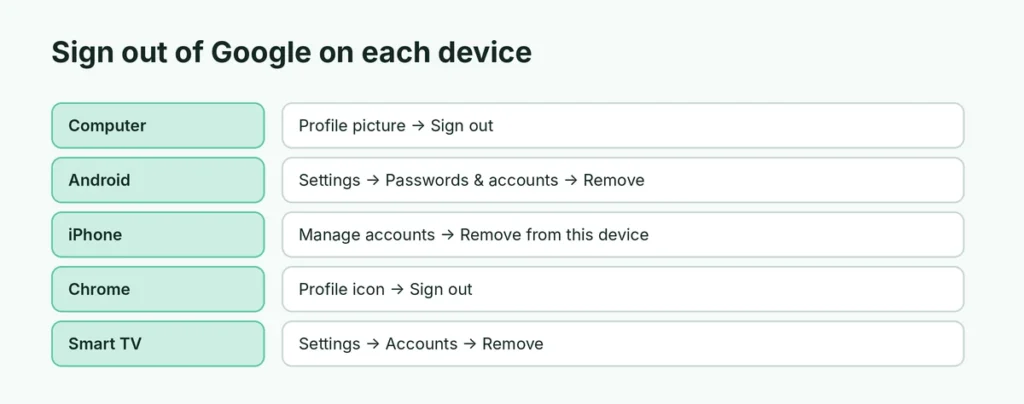
- Open gmail.com or google.com.
- Click your profile picture at the top right.
- Click Sign out, or Sign out of all accounts if you’re signed in to several.
On a shared or public computer, also close the browser and clear saved passwords if the browser asked to save yours.
How to sign out of Chrome
Chrome has its own sign-in for syncing:
- Click the profile icon at the top right of Chrome.
- Click the account name → Sign out (or Turn off sync).
- If asked, choose whether to clear bookmarks, history and passwords from this computer. On a computer that isn’t yours, choose to clear them.
How to sign out of a Google account on Android
Android doesn’t have a sign-out button for the phone’s Google account. Removing it is the same as signing out:
- Open Settings → Passwords & accounts (Samsung: Accounts and backup → Manage accounts).
- Tap the Google account.
- Tap Remove account and confirm.
What happens: the account’s emails, contacts and calendar are removed from the phone only. Everything stays safe online, and you can add the account again any time.
Before removing the only account on your phone: you’ll need a Google account to use the Play Store. If you’re giving the phone away, it’s better to factory reset the Android phone after removing the account.
How to sign out of the Gmail app only
If you want to stop seeing an account in Gmail but keep it on the phone for other apps:
- Android: open Gmail → profile picture → Manage accounts on this device → turn off Sync Gmail for that account (or remove it from the phone).
- iPhone: open Gmail → profile picture → Manage accounts on this device → Remove from this device.
How to sign out of a Google account on iPhone
Google apps on iPhone share the sign-in:
- Open the Gmail, Google or YouTube app.
- Tap your profile picture → Manage accounts on this device.
- Tap Remove from this device under the account.
If you added Gmail to Apple Mail, also go to Settings → Apps → Mail → Mail Accounts → Gmail → Delete Account (this only removes it from the iPhone).
How to sign out of Google remotely (lost or old phone)
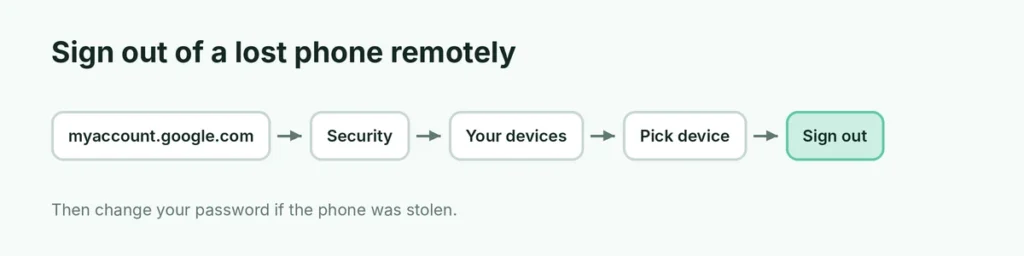
If your phone was lost or stolen, or you signed in on a friend’s device:
- On any computer or phone, go to myaccount.google.com.
- Click Security → scroll to Your devices → Manage all devices.
- Click the device you want to sign out of.
- Click Sign out and confirm.
Your account is signed out on that device within a few minutes. Then:
- Change your password if the device was stolen: how to change your Gmail password.
- Find or erase the phone: use Google’s Find Hub at google.com/android/find. Here’s how to find a lost Android phone.
How to sign out of YouTube
YouTube uses your Google account:
- Computer: click your profile picture → Sign out. This signs you out of all Google sites in that browser.
- Phone app: tap your profile picture → Switch account → Use YouTube signed out.
- Smart TV: open YouTube → Settings → Sign out, or sign out remotely from myaccount.google.com → Your devices.
How to sign out of Google on a smart TV or streaming device
Many TVs and Google TV devices show up in Your devices. If you can’t reach the TV (for example, in a hotel or an old house), sign out remotely from myaccount.google.com → Security → Your devices. On Google TV itself: Settings → Accounts & Sign In → choose the account → Remove.
Sign out of every device at once
Google doesn’t have a single “sign out everywhere” button, but changing your password signs you out of most devices automatically, except the one you’re using. That’s the fastest way to kick everyone else out of your account. Check Your devices afterward and sign out of anything still listed.
Why can’t I sign out of my Google account?
- “Remove account” is greyed out on Android: the account may be needed by a work profile, or it’s the only account used by Find Hub. Remove the work profile first, or add another Google account.
- Work or school device: your organization may block removing accounts.
- Signed out but still signed in: clear the browser cookies, or check you aren’t signed in to Chrome sync.
Will signing out delete anything?
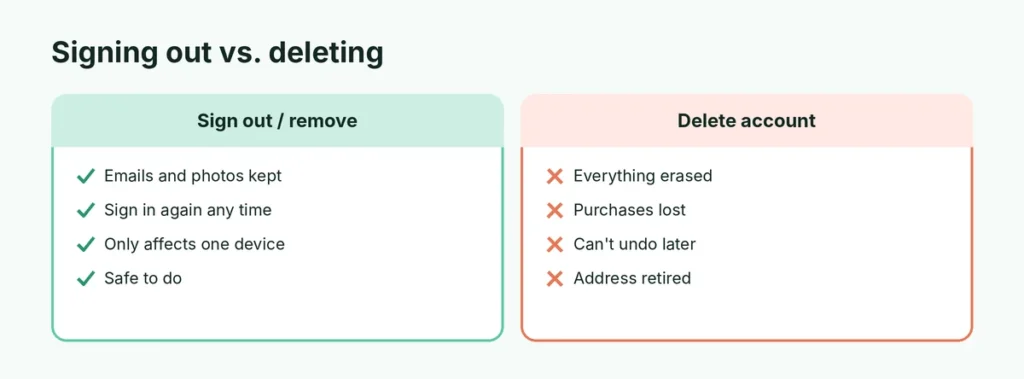
No. Signing out (or removing the account from a phone) never deletes your emails, photos, files or contacts. They stay in your Google account online. When you sign in again, everything syncs back. Only deleting the account removes data permanently.
How do I sign out of Google on someone else’s computer I can’t reach?
Use Your devices at myaccount.google.com → Security. Every browser and computer you’re signed in to is listed with its location and the last time it was used. Click it and choose Sign out. If you see a device you don’t recognize at all, sign out of it and change your password right away; someone else may have your login.
Related guides
The short version
On a computer, click your profile picture → Sign out. On Android, go to Settings → Passwords & accounts → the account → Remove account. On iPhone, open a Google app → profile picture → Manage accounts on this device → Remove from this device. For a lost phone, sign out remotely at myaccount.google.com → Security → Your devices, then change your password.