By
If you have more than one Google account, you’ve probably seen it: you open Gmail or Google Drive, and the wrong account loads first. Google doesn’t have a “set as default” button, but there’s a simple trick that works on a computer, plus separate settings for Android and the Chrome browser. Here’s how to change your default Google account.
Short answer: on a computer, Google uses the first account you signed in with as the default. Click your profile picture → Sign out of all accounts, then sign in to the account you want as default first. Add your other accounts after that. On Android, the main account is set per app: open the app (Gmail, Drive, Photos), tap your profile picture and choose the account. In Chrome, use a separate Chrome profile for each account.
Last updated: November 2026.
How Google chooses your default account
When you’re signed in to several Google accounts in one browser, Google treats the first one you signed in to as the default. It’s labeled “Default” in the account list when you click your profile picture. Every Google site (Gmail, Drive, YouTube, Calendar) opens with that account unless you switch.
There’s no setting to change this, so the only way is to sign out and sign in again in the right order.
How to change your default Google account on a computer
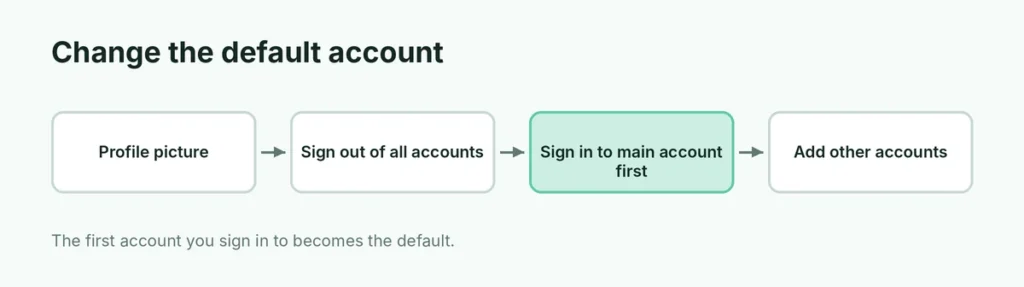
- Open google.com or gmail.com in your browser.
- Click your profile picture at the top right.
- Click Sign out of all accounts (in some layouts, first click Show more accounts).
- Click Sign in and sign in to the account you want as your default.
- Then click your profile picture → Add another account to sign in to your other accounts.
Now click your profile picture again: the first account shows Default next to it.
How to change the default Google account in Chrome
Chrome has its own sign-in (for syncing bookmarks and passwords), separate from the Google websites. If Chrome keeps using the wrong account:
Option 1: one Chrome profile per account (recommended)
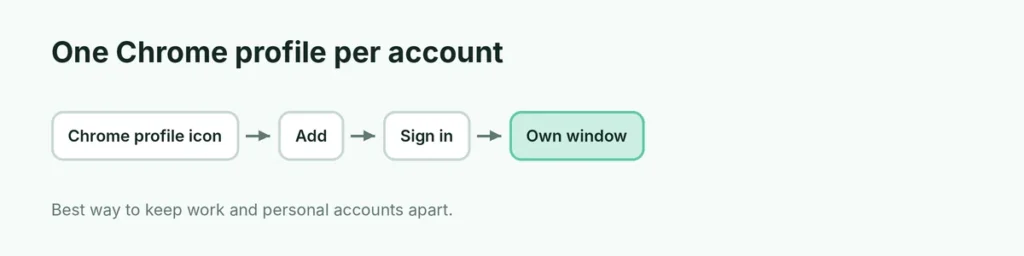
- Click the profile icon at the top right of Chrome (next to the three dots).
- Click Add (or Add Chrome profile).
- Sign in with your other Google account.
- Each profile opens in its own window with its own default account, bookmarks and history.
This is the cleanest way to keep work and personal accounts apart.
Option 2: change the synced account
- Open Chrome → three-dot menu → Settings → You and Google.
- Click Turn off next to the synced account (or Sign out).
- Turn sync on again with the account you want.
How to change the default Google account on Android
On Android, the first Google account added to the phone is the main account for the Play Store, backups and system services. To change which account apps use:
- Gmail, Drive, Photos, YouTube: open the app, tap your profile picture at the top right and tap the account you want. The app remembers your choice.
- Play Store: tap your profile picture and switch accounts before downloading.
- Google Assistant and Gemini: open the app, tap your profile picture and choose the account.
To change the phone’s main account completely:
- Add the new account first: Settings → Passwords & accounts → Add account → Google.
- Remove the old one: tap it → Remove account.
- The remaining account becomes the main one. Add the old account back later if you still want it on the phone.
Before removing an account, make sure your contacts, photos and WhatsApp backups are linked to the account you keep. Here’s how to back up an Android phone.
How to change the default Google account on iPhone
On iPhone, Google apps each have their own account switch:
- Open the Gmail, Google or YouTube app.
- Tap your profile picture at the top right.
- Tap the account you want to use.
To remove an account from all Google apps on the iPhone, tap your profile picture → Manage accounts on this device → Remove from this device.
How to make one account default for Google Drive or Docs
If Google Docs keeps opening files with the wrong account and shows “You need access”:
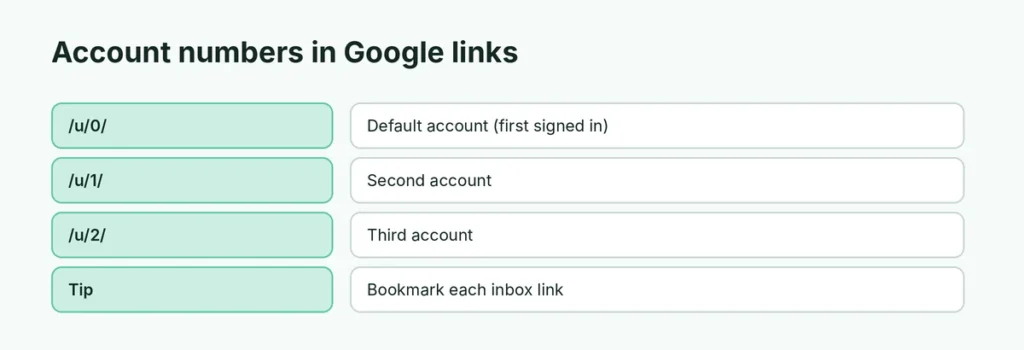
- Look at the URL. It often contains /u/0/ (default account) or /u/1/ (second account).
- Change the number to the account you want, for example /u/1/, and press Enter.
- Or click your profile picture on the page and switch to the right account, then reload.
For a permanent fix, sign out of all accounts and sign in with the correct one first, as above.
Use separate browsers or profiles for work and personal
Many people solve this problem for good by keeping accounts apart:
- Chrome profiles: one window per account (see above).
- Different browsers: work account in Chrome, personal account in Edge or Firefox.
- Incognito window: for a one-time sign-in to another account without changing anything.
Why does my default Google account keep changing?
- You signed out of the default account and signed in again later, so it’s no longer first.
- Clearing cookies signs you out of everything; the first account you sign in to next becomes the default.
- Chrome sign-in may be different from your website sign-in.
- Browser extensions that manage accounts can change the order.
Does changing the default account move my files or emails?
No. Changing which account is the default only changes which account opens first. Your emails, Drive files, photos and YouTube subscriptions stay in the account they belong to. If you need files from one account in another, share them from Google Drive (Share → enter the other email) or download and re-upload them.
How do I switch accounts quickly without changing the default?
You don’t always need to change the default. Click your profile picture on any Google page and pick another account; Gmail opens it in the same tab. A handy trick is to bookmark each account’s inbox: mail.google.com/mail/u/0/ for the first account and mail.google.com/mail/u/1/ for the second. Each bookmark always opens the right account.
Related guides
The short version
Google uses the first account you sign in to as the default. To change it on a computer, click your profile picture → Sign out of all accounts, then sign in to your main account first and add the others after. In Chrome, give each account its own profile. On Android and iPhone, switch accounts inside each app by tapping your profile picture.