By
In a busy WhatsApp group, a message can collect a row of 👍, ❤️ and 😂 reactions, and it’s natural to wonder who sent which one. WhatsApp shows you exactly that, on your phone and on WhatsApp Web. Here’s how to see who reacted to a message, how to change or remove your own reaction, and how to stop reaction notifications.
Short answer: tap the reaction emojis under the message. A panel opens showing All reactions with each person’s name, plus a tab for each emoji (for example, everyone who sent 👍). On WhatsApp Web or desktop, click the reactions under the message. To remove your own reaction, tap it in that list and choose Tap to remove, or long-press the message and tap your emoji again.
Applies to: WhatsApp on Android, iPhone, WhatsApp Web and desktop, November 2026.
Reactions at a glance
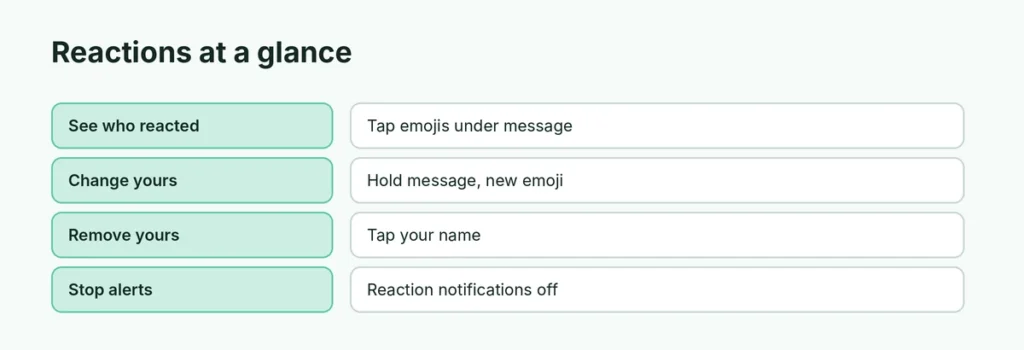
| You want to… | Do this |
|---|---|
| See who reacted | Tap the emojis under the message |
| See who sent one emoji | Tap that emoji’s tab in the panel |
| Change your reaction | Long-press the message, pick a different emoji |
| Remove your reaction | Tap your name in the panel, or tap your emoji again |
| Stop reaction alerts | Settings → Notifications → Reaction notifications off |
See who reacted on Android or iPhone
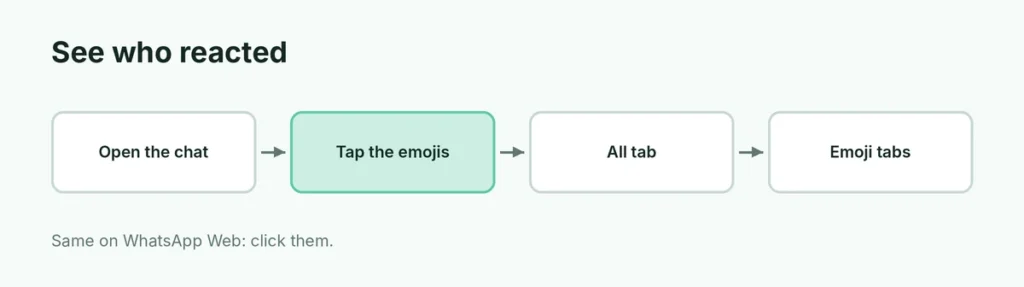
- Open the chat or group.
- Find the message and tap the small emoji bubble under it.
- The All tab lists everyone who reacted and their emoji.
- Tap an emoji’s tab to see only the people who used it.
See who reacted on WhatsApp Web or desktop
- Open the chat on WhatsApp Web or the desktop app.
- Click the reactions under the message.
- Use the tabs at the top to filter by emoji.
Change or remove your reaction
- Change it: long-press (or hover and click the smiley on the web) the message and pick a different emoji. Each person can have one reaction per message.
- Remove it: open the reactions panel and tap your own name (Tap to remove), or long-press the message and tap the emoji you used.
You can only remove your own reactions. Not even group admins can delete someone else’s.
Turn off reaction notifications
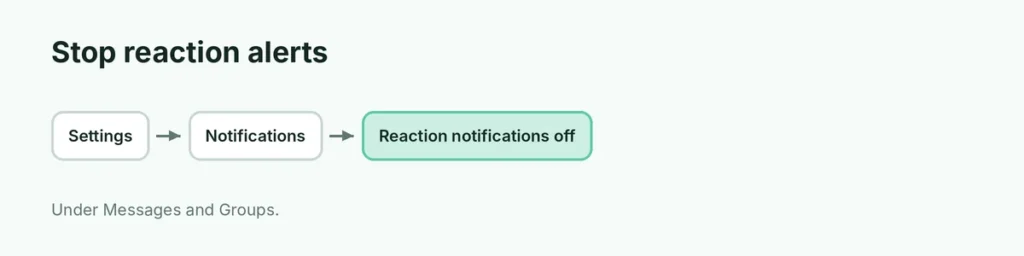
By default, WhatsApp notifies you when someone reacts to your message. To stop that:
- Go to Settings → Notifications.
- Turn off Reaction notifications under Messages, and again under Groups.
Good to know
- Reactions aren’t anonymous. Everyone in the chat can see who reacted with what.
- Disappearing messages: reactions disappear along with the message.
- Old WhatsApp versions show reactions without names; update the app if you only see the emojis.
Related guides
The short version
Tap the emoji bubble under any WhatsApp message to see who reacted; the All tab lists everyone and each emoji’s tab filters by reaction. On the web, click the reactions. Long-press the message to change your reaction, tap your own name to remove it, and turn off Reaction notifications in Settings → Notifications if the alerts bother you.