By
YouTube’s Autoplay starts the next video as soon as one ends. It’s great for music, but it can also keep you watching for hours or play something you didn’t choose for your kids. Here’s how to turn off autoplay on YouTube on a computer, phone, TV and when casting, plus how to stop videos playing silently in your home feed.
Short answer: on a computer, click the Autoplay switch at the bottom of the video player so it shows a pause icon. In the YouTube app, tap your profile picture → Settings → Autoplay and turn off Autoplay next video (or tap the switch at the top of the player). On a TV, open YouTube → Settings → Autoplay → Off. The setting is saved per device, so change it on each one.
Applies to: YouTube on computers, Android and iPhone apps, smart TVs and Chromecast, October 2026.
How to turn off autoplay on a computer
- Open any video on youtube.com.
- Look at the bottom of the video player for the Autoplay switch (a small toggle with a play/pause icon).
- Click it so it’s off.
YouTube remembers it in that browser while you’re signed in.
How to turn off autoplay in the YouTube app
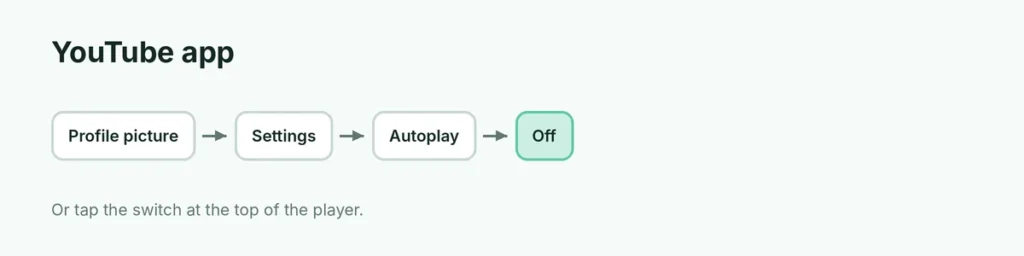
From Settings:
- Tap your profile picture (You tab).
- Tap Settings (gear).
- Tap Autoplay.
- Turn off Autoplay next video.
From the player: tap the video once and tap the Autoplay switch at the top of the player.
How to turn off autoplay on a TV
- Open the YouTube app on your smart TV, game console or streaming device.
- Go to Settings (gear icon on the left).
- Select Autoplay.
- Choose Off.
When casting from your phone: tap the bar at the bottom of your phone screen to open the queue and turn Autoplay off.
Stop videos playing in your home feed
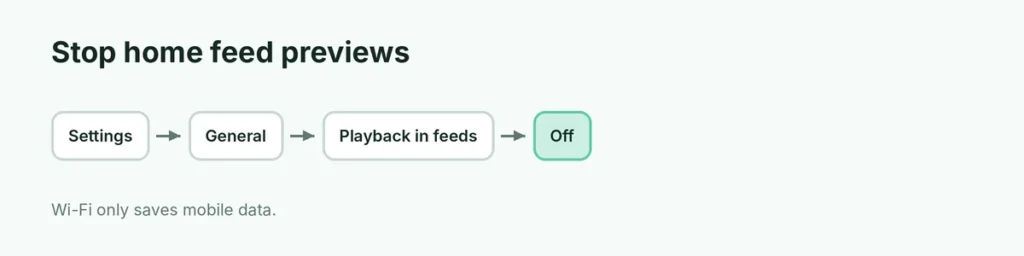
Videos can also start playing (muted) as you scroll the Home feed. That’s a different setting:
- In the YouTube app, go to Settings → General.
- Tap Playback in feeds.
- Choose Off (or Wi-Fi only to save data).
Autoplay settings at a glance
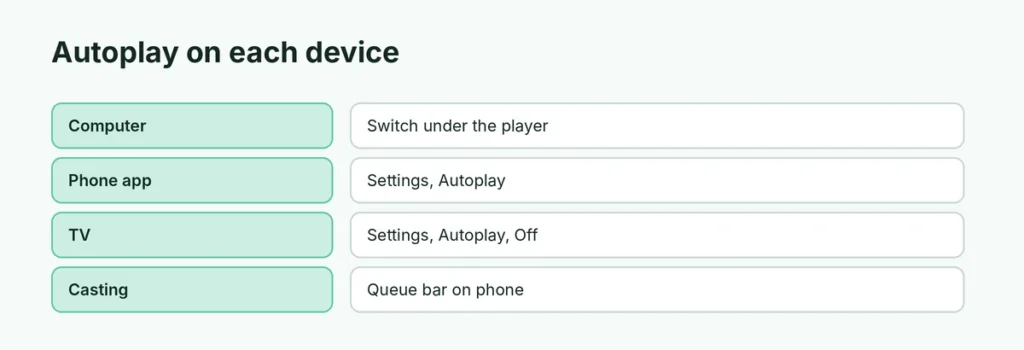
| Device | Where |
|---|---|
| Computer | Autoplay switch under the player |
| Android / iPhone app | Settings → Autoplay |
| TV app | Settings → Autoplay → Off |
| Casting | Queue bar on your phone |
| Home feed previews | Settings → General → Playback in feeds |
Autoplay keeps turning back on?
- Different device or browser: each one has its own setting.
- Signed out: sign in so the choice is saved.
- Cleared cookies: turn it off again.
- Supervised account: if a parent turned Autoplay off, you may not be able to turn it on, and the reverse.
Autoplay for kids and teens
YouTube turns Autoplay off by default for users aged 13 to 17. For younger children, use YouTube Kids or a supervised account, where parents can turn Autoplay off. Also consider YouTube Restricted Mode settings and screen time limits.
Why turn off autoplay?
- Avoid binge watching and save time.
- Save mobile data.
- Stop unexpected videos playing for kids.
- Keep your watch history cleaner, so recommendations stay relevant.
Related guides
- How to turn off YouTube Restricted Mode
- How to download YouTube videos legally
The short version
Click the Autoplay switch under the player on a computer, turn off Settings → Autoplay → Autoplay next video in the app, and choose Settings → Autoplay → Off on a TV. Turn off Playback in feeds to stop home-feed previews. Repeat on every device you use.
Sources
- YouTube Help: Autoplay videos