By
Saving your home address in Google Maps lets you get directions home with one tap, see your commute time, and say “Hey Google, take me home”. If you’ve moved, you’ll want to change it too. Here’s how to set, change or delete your home address in Google Maps on Android, iPhone and a computer.
Short answer: open Google Maps and tap You (or Saved) at the bottom → Labeled → Home. Type your address and tap it in the list to save it. To change it, go to Labeled → tap ⋮ next to Home → Edit home. To delete it, choose Remove home. On a computer, click Menu (three lines) → Saved → Labeled → Home.
Last updated: November 2026. Google Maps menus change often; if you don’t see “You”, look for “Saved”.
How to set your home address in Google Maps (Android and iPhone)
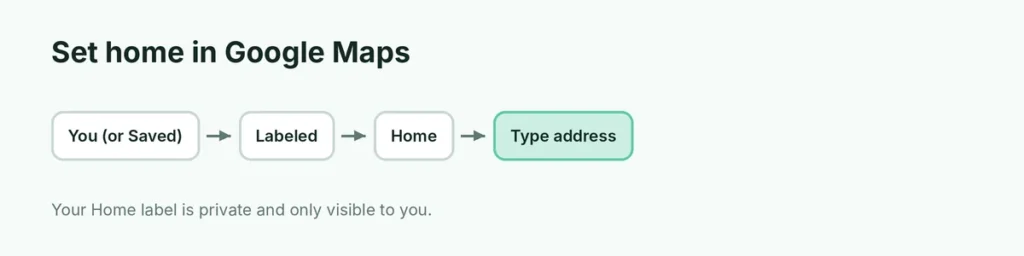
- Open the Google Maps app.
- Tap You at the bottom of the screen (on older versions, Saved).
- Tap Labeled (under “Your lists”).
- Tap Home.
- Type your address and tap the correct result.
Your home now shows a house icon on the map. Type “Home” in the search bar to get directions there.
Quick way: search for your address, tap it, then tap Label (or Save → Labeled) and choose Home.
How to change your home address in Google Maps
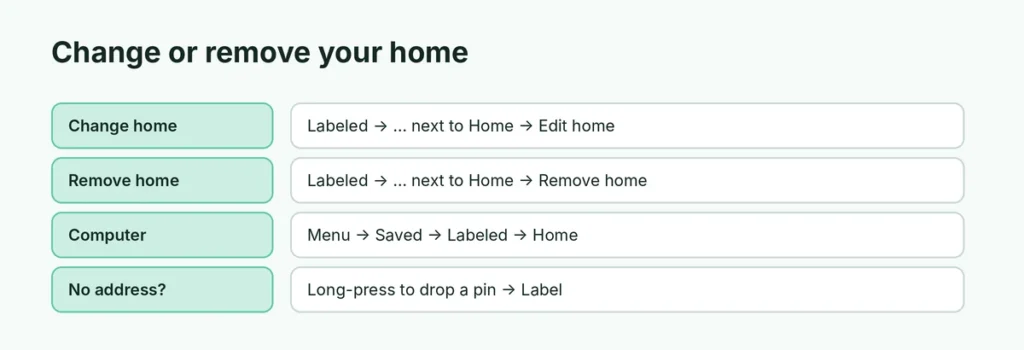
Moved house? Update it so directions and commute times are right:
- Open Google Maps → You (or Saved) → Labeled.
- Tap ⋮ (More) next to Home.
- Tap Edit home.
- Type the new address and select it.
How to delete your home address in Google Maps
- Open Google Maps → You → Labeled.
- Tap ⋮ next to Home.
- Tap Remove home.
The house icon disappears from your map.
How to set your home address in Google Maps on a computer
- Go to maps.google.com and sign in.
- Click Menu (three lines at the top left) → Saved.
- Click Labeled → Home.
- Type your address and click Save.
To change or remove it, open Saved → Labeled and click the X or Edit next to Home.
Your home address syncs across devices signed in to the same Google account.
How to set your work address too
Follow the same steps and tap Work instead of Home. With both saved, Google Maps can show:
- Commute times and traffic alerts,
- Leave by suggestions for getting to work on time,
- quick buttons for Home and Work when you open the Go tab.
Turn commute notifications on or off in Settings → Notifications → Commute.
Is my home address private in Google Maps?
Yes. Your Home and Work labels are private and only visible to you when signed in. They aren’t shown on your public Google profile or in reviews you write.
But be careful with these:
- Location sharing: if you share your real-time location with someone in Google Maps, they can see where you are, including at home.
- Photos and reviews you post may show places near your home.
- Your house on Street View: to blur it, open Street View of your home, click Report a problem at the bottom right and ask Google to blur it. This is permanent.
How to change your home address for Google Assistant and Gemini
Google Assistant and Gemini use the same home address as Google Maps. If voice commands like “Navigate home” take you to an old address:
- Update Home in Google Maps (steps above).
- Or go to myaccount.google.com → Personal info → Addresses → Home and edit it.
Both places are linked, so changing one updates the other.
Why can’t I change my home address in Google Maps?
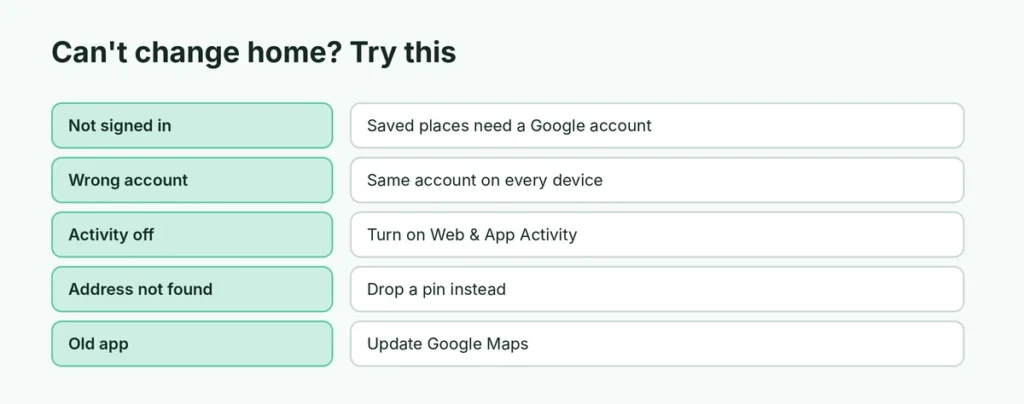
- Not signed in: saved places need a Google account. Tap your profile picture to sign in.
- Wrong account: check that you’re using the same account on all devices. Here’s how to change your default Google account.
- Web & App Activity is off: some saved features need Web & App Activity. Turn it on at myaccount.google.com → Data & privacy → Web & App Activity.
- Address not found: type a nearby street or drop a pin. Long-press the map at your home to drop a pin, then label it as Home.
- App out of date: update Google Maps from the App Store or Play Store.
How to set home in Google Maps without an exact address
New buildings and rural homes may not have a searchable address. Instead:
- Find your home on the map and long-press on it to drop a pin.
- Tap the pin’s info card at the bottom.
- Tap Label → choose Home.
Other useful Google Maps labels
You can add your own labels for places you go often, like Gym, Parents or School. Search for the place, tap Label, type a name and save it. Labeled places appear when you search and in You → Labeled.
Delete your Google Maps history
Your home address is separate from your location history (now called Timeline). To delete places you’ve visited:
- Android and iPhone: Google Maps → profile picture → Your Timeline → ⋮ → Settings and privacy → Delete Timeline data.
- Timeline is now stored on your phone, not in your Google account, so it isn’t on the computer anymore.
Why does Google Maps show the wrong location for my home?
If directions to “Home” end at the wrong spot, the address may point to the middle of a street or a large building. Fix it by setting a pin instead of an address: zoom in on your exact entrance, long-press to drop a pin, then Label it as Home. You can also suggest a correction to Google: tap the place → Suggest an edit → Change name or other details. If your whole house is shown in the wrong place on the map, choose Report a data problem.
Can other people see my home address on Google Maps?
Not from your labels. But if you leave a review or post photos while at home, or turn on location sharing, people may be able to work out where you live. Check Your contributions in your Google Maps profile and turn off location sharing in Profile picture → Location sharing if you no longer need it.
Related guides
The short version
Open Google Maps → You (or Saved) → Labeled → Home, type your address and select it. To change it, tap ⋮ next to Home → Edit home; to delete it, tap Remove home. On a computer, use Menu → Saved → Labeled. Your home label is private and also sets “home” for Google Assistant and Gemini.