By
Sharing a Google Calendar is the easiest way to keep a family, team or partner on the same schedule. You can share your whole calendar, create a shared calendar for a group, or just send one event. Here’s how to do each, including from your phone, and how to choose what people can see and change.
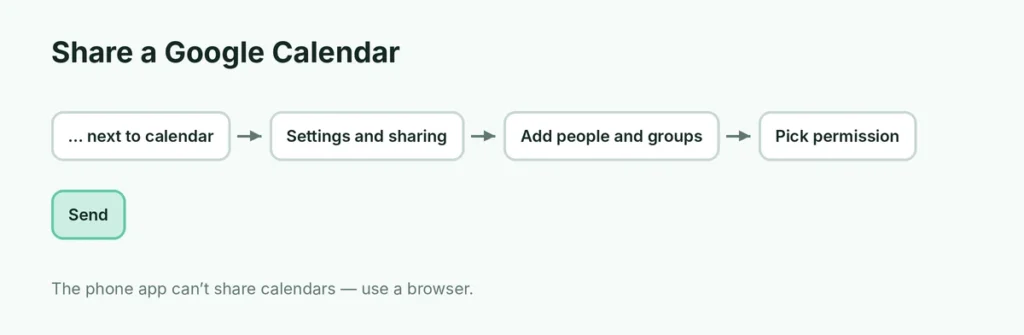
Short answer: on a computer, open calendar.google.com, point to the calendar under My calendars on the left, click ⋮ → Settings and sharing → Share with specific people or groups → Add people and groups. Enter their email, choose a permission (for example See all event details or Make changes to events) and click Send. The Google Calendar phone app can’t share a whole calendar; use a browser on your phone or a computer.
Last updated: November 2026.
How to share a Google Calendar on a computer
- Open calendar.google.com.
- On the left, under My calendars, point to the calendar you want to share.
- Click ⋮ (Options) → Settings and sharing.
- Scroll to Share with specific people or groups and click + Add people and groups.
- Type the person’s email address (or a Google Group).
- Choose the permission (see the table below).
- Click Send.
The person gets an email and the calendar appears in their Other calendars list after they accept.
Google Calendar sharing permissions explained
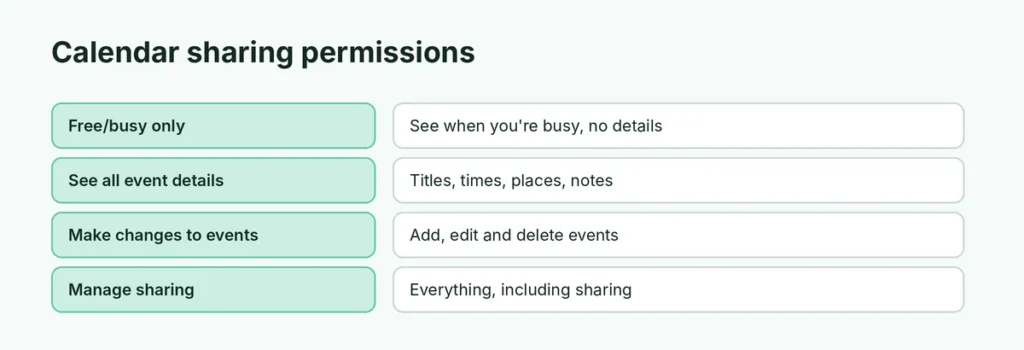
| Permission | What they can do |
|---|---|
| See only free/busy (hide details) | See when you’re busy, but not what you’re doing |
| See all event details | See every event’s title, time, place and notes |
| Make changes to events | Add, edit and delete events |
| Make changes and manage sharing | Everything, including sharing with others |
Tip: for coworkers, free/busy is often enough. For a partner or family calendar, Make changes to events lets everyone add plans.
How to share a Google Calendar from iPhone or Android
The Google Calendar app doesn’t have sharing settings. Do this instead:
- Open Chrome or Safari on your phone and go to calendar.google.com.
- Tap the three-dot menu (Chrome) or aA (Safari) and choose Desktop site.
- Follow the computer steps above.
Once shared, the calendar shows up in the other person’s Google Calendar app automatically.
How to create a shared family or team calendar
Instead of sharing your personal calendar, create a new one for the group:
- On a computer, click + next to Other calendars → Create new calendar.
- Give it a name, such as Family or Marketing team, and click Create calendar.
- Open its Settings and sharing and add people with Make changes to events.
Everyone can now add events that everyone sees, while your personal calendar stays private.
Google Family: if you use a Google family group (Google One or Family Link), there’s already a Family calendar shared with all family members.
How to share a single event (invite someone)
To share one event, not your whole calendar:
- Open the event and click Edit (pencil).
- Under Add guests, type email addresses.
- Click Save → Send.
Guests get an invitation and can reply Yes, No or Maybe. This works in the phone app too: open the event → Edit → Add people.
How to share Google Calendar with someone who doesn’t use Google
People with Outlook, iPhone Calendar or another app can still see your calendar:
- In Settings and sharing, scroll to Integrate calendar.
- Copy the Secret address in iCal format.
- Send it to the person. They add it as a subscribed calendar in Outlook or Apple Calendar.
Be careful: anyone with the secret address can see your events. If it’s shared by mistake, click Reset next to it to make a new link.
To share with everyone, you can also tick Make available to public under Access permissions, which is useful for a club or business schedule but not for personal calendars.
How to stop sharing a Google Calendar
- Open Settings and sharing for the calendar.
- Under Share with specific people or groups, click the X next to the person’s name.
They lose access immediately.
How to add a calendar someone shared with you
- From the email: click Add this calendar in the invitation email.
- Manually: on a computer, click + next to Other calendars → Subscribe to calendar and type the person’s email.
- On your phone: shared calendars appear in the app’s menu. Tap the menu (three lines) and tick the calendar to show it. If it doesn’t appear, open Settings in the app, tap the calendar and turn on Sync.
Why can’t someone see my shared calendar?
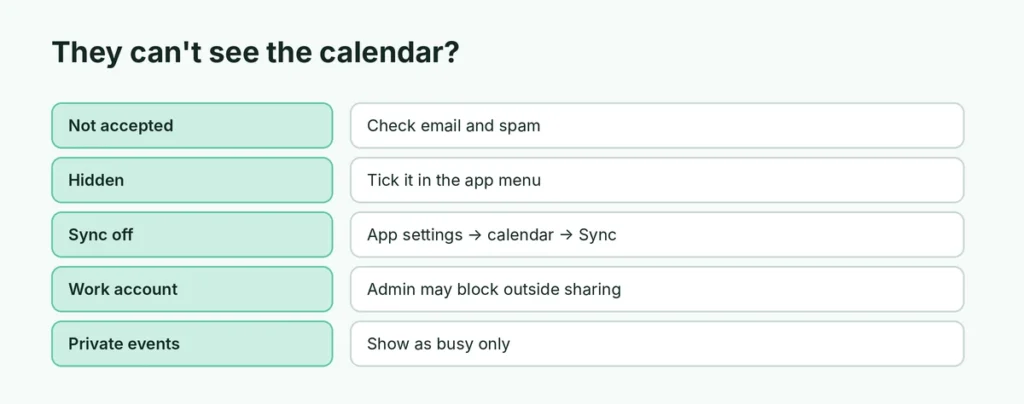
- They haven’t accepted the invitation. Ask them to check their email, including spam.
- The calendar is hidden in their app. Tell them to tap the menu and tick it, and turn on sync in the app’s settings.
- Work or school account: your organization may block sharing outside the company.
- Wrong account: they may be signed in with another Google account. Here’s how to change your default Google account.
- Private events: events marked Private only show as “busy” to others, even with full access.
Make a single event private
Open the event → Edit → choose Private under the visibility setting (it may say Default visibility) → Save. People you share with see busy instead of the details, unless they have Make changes and manage sharing.
Related guides
The short version
On a computer, open calendar.google.com → point to the calendar → ⋮ → Settings and sharing → Add people and groups, enter emails, pick a permission and click Send. On a phone, use the browser in Desktop site mode, since the app can’t share calendars. Create a separate shared calendar for family or teams, invite people to single events with Add guests, and remove access any time with the X next to their name.