By
Looking for the switch to turn off Google Assistant? Things changed in 2026: Google started replacing Google Assistant with Gemini on Android phones and tablets from September 4, 2026. So on most phones, the “assistant” that answers “Hey Google” is now Gemini. Here’s how to turn off the assistant on Android, stop “Hey Google” listening, stop the power button opening it, and handle Google Home speakers.
Short answer: go to Settings → Apps → Default apps → Digital assistant app and choose None. To stop “Hey Google”, open the Gemini app (or the Google app on older phones) → Settings → turn off Hey Google / Voice Match. To stop the power button opening it, change Press and hold power button to Power menu (Pixel: Settings → System → Gestures; Samsung: Settings → Advanced features → Side button).
Applies to: Android phones and tablets, Google Home/Nest speakers and Android Auto, October 2026.
What happened to Google Assistant?
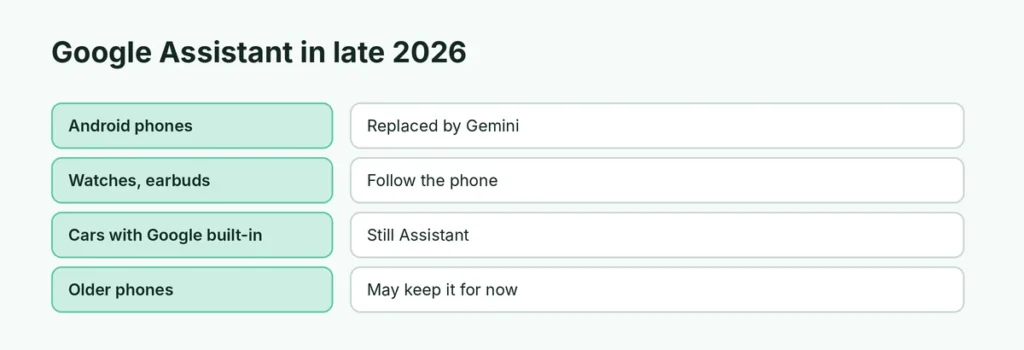
| Device | Status in late 2026 |
|---|---|
| Android phones and tablets | Being replaced by Gemini from Sept 4, 2026 |
| Wear OS watches, earbuds | Follow the phone’s assistant (Gemini) |
| Android Auto | Moving to Gemini |
| Cars with Google built-in | Assistant still available for now |
| Older phones without Gemini support | May keep Assistant for now |
On updated phones you can’t switch back to Google Assistant. The steps below turn the assistant off instead.
Option 1: Set the default assistant to None
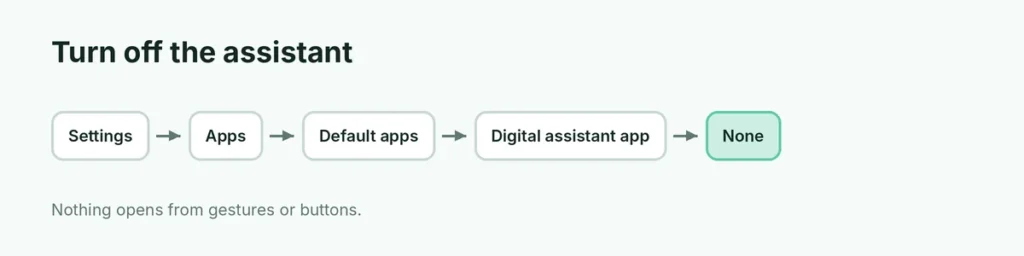
- Open Settings → Apps.
- Tap Default apps.
- Tap Digital assistant app (or Device assistance app).
- Tap Default digital assistant app and choose None.
No assistant opens when you swipe from a corner or long-press the home button.
Option 2: Turn off “Hey Google”
- Open the Gemini app (or the Google app if your phone still has Assistant).
- Tap your profile picture → Settings.
- Find “Hey Google” & Voice Match (wording varies).
- Turn off Hey Google.
Your phone stops listening for the wake word.
Option 3: Stop the power button opening the assistant
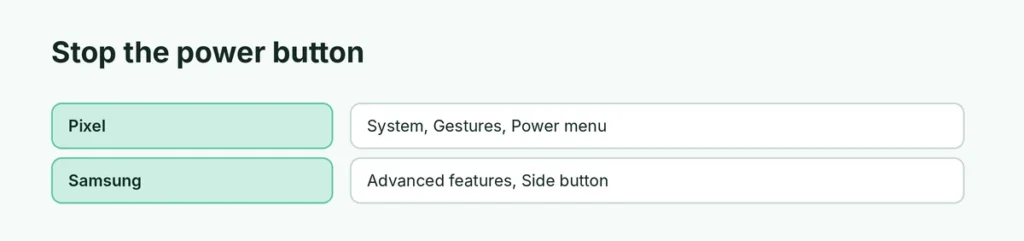
- Pixel: Settings → System → Gestures → Press and hold power button → Power menu.
- Samsung: Settings → Advanced features → Side button → Press and hold → Power off menu.
Option 4: Lock Screen access
To stop the assistant answering when the phone is locked, look for Gemini on lock screen or Lock screen personal results in the Gemini app settings and turn it off.
Google Home and Nest speakers
Smart speakers and displays are their own devices:
- Mute the microphone with the switch on the back or side of the speaker.
- In the Google Home app, choose the device → Settings to change voice and personal results.
- Unplug or remove the device in the Home app if you don’t use it.
Android Auto
In Android Auto settings on your phone, look for “Hey Google” detection or assistant settings and turn them off. Exact options depend on your car and app version.
Delete your voice and assistant activity
- For Gemini: open Gemini → Settings → Gemini Apps Activity → turn off Keep Activity and delete past chats.
- For older Assistant data: visit myactivity.google.com and delete Assistant activity.
For more Gemini options, see how to turn off Gemini.
Related guides
The short version
Google Assistant is being replaced by Gemini on Android phones, so turn the assistant off instead: set Digital assistant app to None, turn off Hey Google in Gemini settings, and set the power button to the power menu. Mute Google Home speakers with their mic switch.