By
Instagram not loading your feed, stuck on “Couldn’t refresh feed”, crashing on open, or not sending messages? Most of the time it’s a quick fix on your phone, and sometimes Instagram itself is down. Here’s how to find out which, and the fixes that actually work on iPhone and Android, in the order to try them.
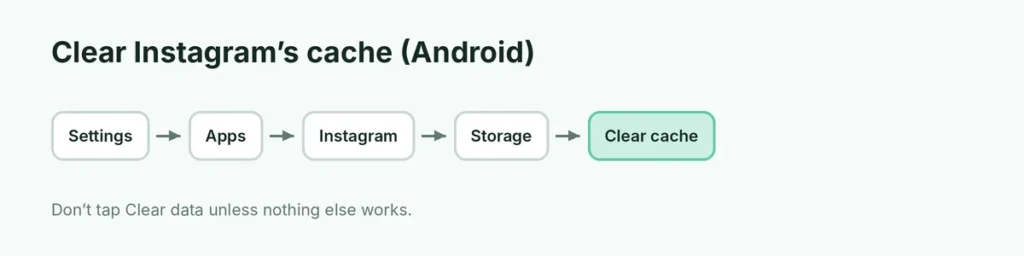
Short answer: first check if Instagram is down for everyone (search “Instagram down” or check a status site like Downdetector). If it isn’t: switch between Wi-Fi and mobile data, force close and reopen the app, update Instagram, and restart your phone. On Android, clear the cache (Settings → Apps → Instagram → Storage → Clear cache). On iPhone, delete and reinstall the app (your photos and messages are saved in your account). Turn off any VPN.
Last updated: November 2026.
Step 1: Is Instagram down right now?
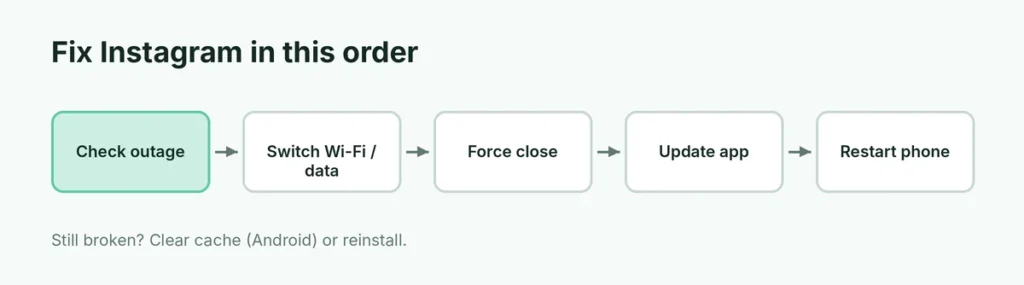
Before changing anything on your phone, check if the problem is on Instagram’s side:
- Search “is Instagram down” in Google, or open a site like Downdetector, which shows reports from other users.
- Ask a friend if their Instagram works.
- Check if Facebook and WhatsApp also aren’t working. They run on Meta’s servers, so outages often hit all three.
If Instagram is down, there’s nothing to fix: wait an hour and try again.
Step 2: Check your internet connection
- Open a website or YouTube to see if the internet works at all.
- Switch from Wi-Fi to mobile data, or the other way around.
- Turn Airplane mode on for 10 seconds, then off.
- If Instagram works on one connection but not another, restart your router or check your data plan.
Mobile data allowed? On iPhone, go to Settings → Apps → Instagram and make sure Mobile Data is on. On Android, check Settings → Apps → Instagram → Mobile data → Background data.
Step 3: Force close and reopen Instagram
- iPhone: swipe up from the bottom and pause, then swipe the Instagram card up and away. Open it again.
- Android: open Recent apps and swipe Instagram away, or go to Settings → Apps → Instagram → Force stop.
Step 4: Update the Instagram app
Old versions stop working properly. Open the App Store or Play Store, search Instagram and tap Update if it appears. While you’re there, update your phone’s system too (Settings → General → Software Update on iPhone; Settings → System → Software update on Android).
Step 5: Restart your phone
A simple restart clears temporary glitches. Hold the power button (and volume button on newer phones) and choose Restart. On Samsung Galaxy phones, press Side button + Volume down together and tap Restart.
Step 6: Clear Instagram’s cache (Android)
A corrupted cache is a common cause of crashes and feeds that won’t load.
- Open Settings → Apps → Instagram.
- Tap Storage (or Storage & cache).
- Tap Clear cache.
Don’t tap Clear data unless the other fixes fail. It signs you out (you’ll need your password).
Step 7: Reinstall Instagram (iPhone and Android)
iPhone doesn’t have a cache button, so reinstalling is the equivalent:
- Long-press the Instagram icon → Remove App → Delete App (iPhone), or Uninstall (Android).
- Install it again from the App Store or Play Store.
- Sign in.
Your account is safe: posts, followers and messages are stored on Instagram’s servers. Just make sure you know your password, or can get a login code, before deleting.
Step 8: Turn off VPN, Data Saver and ad blockers
- VPN apps can block Instagram or trigger security checks. Turn the VPN off and try again.
- Data Saver on Android (Settings → Network & internet → Data Saver) and Low Data Mode on iPhone can stop feeds from loading.
- Battery saver may stop Instagram from refreshing in the background.
Fixes for specific Instagram problems
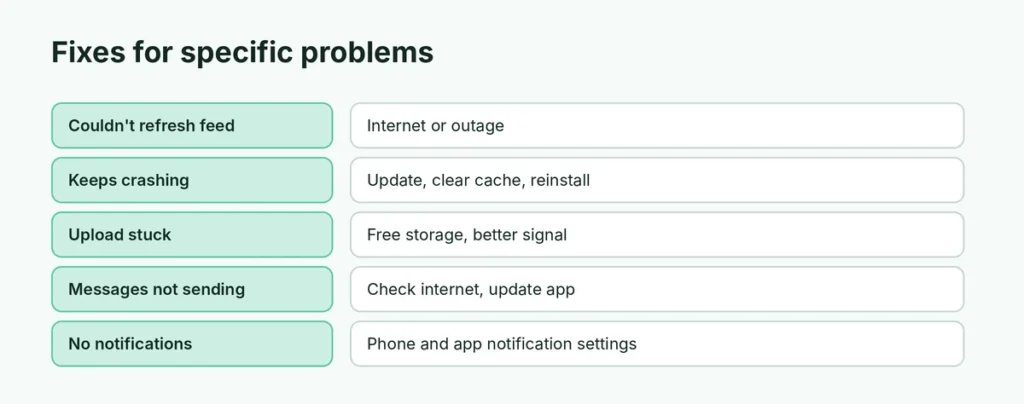
“Couldn’t refresh feed”: usually internet or an outage. Try Steps 1 to 3, then clear the cache.
Instagram keeps crashing: update the app, restart the phone, clear the cache, then reinstall. Free up storage if your phone is almost full.
Can’t post or upload stuck: check storage space and connection, then try a smaller video. Make sure Upload at highest quality isn’t failing on slow data (☰ → Data usage and media quality).
Messages not sending: check internet, update the app, and make sure you’re not restricted or the other person hasn’t blocked you.
Reels or stories not loading: turn off Data saver in Instagram (☰ → Data usage and media quality) and Low Data Mode on your phone.
Music not available on stories: music isn’t available in every country, for business accounts in some cases, or for some songs. Switching a business account to creator can help.
Notifications not working: check Settings → Notifications → Instagram on your phone, and ☰ → Notifications in the app. Turn off Focus or Do not disturb.
Can’t log in to Instagram?
- Tap Forgot password? on the login screen and get a link by email or text.
- If you use two-factor authentication, use your authenticator app or a backup code.
- If you think you were hacked, go to instagram.com/hacked on any browser and follow the steps.
- If Instagram says your account is suspended, follow the in-app steps to appeal.
Instagram not working on a computer?
- Try a different browser or an Incognito/private window.
- Clear the browser cache and cookies for instagram.com.
- Disable browser extensions, especially ad blockers.
When nothing works
If you’ve tried everything and Instagram still doesn’t work:
- In the app, shake your phone or go to ☰ → Help → Report a problem and describe it.
- Check that your phone’s date and time are set automatically.
- Try your account on another phone. If it works there, the problem is your device; a full system update or factory reset is the last resort.
Related guides
The short version
Check if Instagram is down for everyone first. If not, switch between Wi-Fi and mobile data, force close the app, update it and restart your phone. On Android, clear Instagram’s cache; on iPhone, delete and reinstall the app. Turn off VPNs and data-saver modes, and use Report a problem in the app if nothing helps.