By
A factory reset wipes your Google Nest Doorbell back to how it came out of the box, which you’ll need before selling it, giving it to a new owner, moving it to a different Google account, or fixing a doorbell that won’t reconnect. The steps are different for each model, and the reset button is tiny, so here’s exactly where it is on each Nest doorbell, how long to hold it, and what the lights mean.
Short answer: on the Nest Doorbell (battery) and Nest Doorbell (wired, 2nd gen), push an unfolded paperclip into the reset pin hole on the back and hold it for about 12 seconds: at 10 seconds the light blinks yellow four times with a countdown tone, and at 12 seconds it turns solid yellow with a confirmation tone. Then release, and remove the doorbell in the Google Home app. Try a restart first (hold the same hole for 5 seconds), because a factory reset deletes all settings and video history.
Applies to: Google Nest Doorbell (battery), Nest Doorbell (wired, 2nd gen) and the original Nest Hello wired doorbell, managed in the Google Home app, October 2026.
Restart or factory reset?
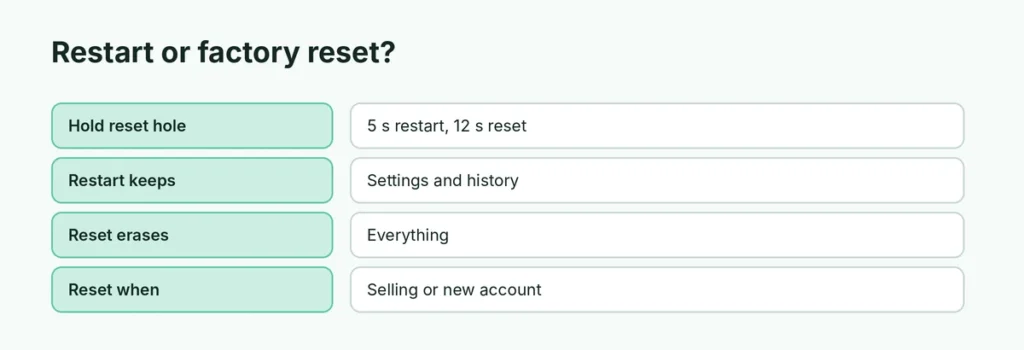
| Restart | Factory reset | |
|---|---|---|
| Hold the reset hole | 5 seconds | 12 seconds |
| Light | Solid white | Blinks yellow, then solid yellow |
| Keeps settings and video history | Yes | No, everything is erased |
| Use it when | It’s offline, slow or glitchy | Selling it, new owner, new account, nothing else works |
Where the reset hole is
- Nest Doorbell (battery): on the back, below the USB port. Take it off the mount first using the release tool.
- Nest Doorbell (wired, 2nd gen): on the back, above the QR code (and above the two wire terminal screws).
- Nest Hello (wired, 1st gen): on the back near the top; remove it from its base with the release tool at the bottom.
How to factory reset the Nest Doorbell (battery) or wired 2nd gen
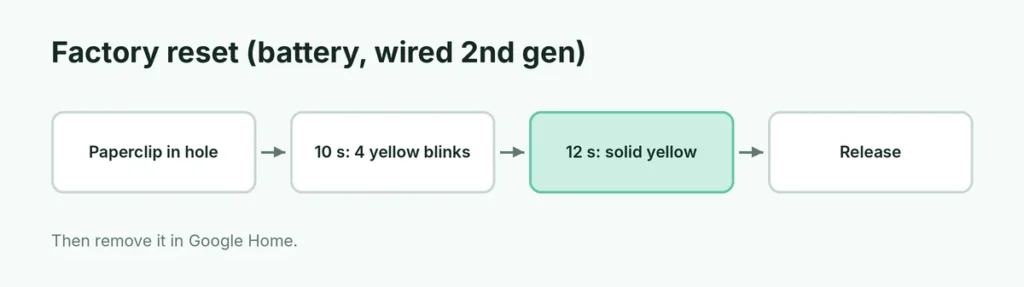
- Remove the doorbell from its mount if you need to reach the back.
- Push an unfolded paperclip or pin into the reset hole and hold it.
- At 10 seconds, the light blinks yellow four times and you hear a countdown tone. Keep holding.
- At 12 seconds, the light turns solid yellow with a confirmation tone. Release.
- The doorbell now shows as Offline in the app. Remove it from your home (below) before setting it up again or handing it over.
How to factory reset the original Nest Hello (wired)
- Remove the doorbell from its base with the release tool.
- Hold the reset button on the back and the big doorbell button on the front together for about 10 seconds.
- It chimes, the light ring spins blue, flashes yellow, then all lights go off. Release both buttons.
- A chime and a slowly pulsing blue ring mean the reset is done.
Don’t unscrew the doorbell wires; you only need to lift it off the base.
Remove the doorbell from the Google Home app
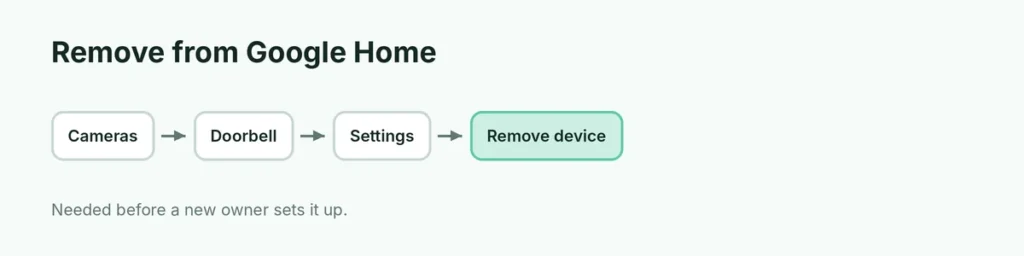
- Open Google Home, tap Home → Cameras and choose the doorbell.
- Tap the player, then Settings (gear) at the top right.
- Scroll to Remove device and tap Confirm.
This step matters when you sell or give it away: until it’s removed, the doorbell stays linked to your account and the new owner can’t set it up.
Factory reset not working? Fixes
- You let go too early. Wait for the solid yellow light and the confirmation tone at 12 seconds.
- The battery is flat. Charge the battery doorbell over USB for a while, then try again.
- Wired doorbell without enough power: check the chime transformer and wiring if the light never comes on.
- Wrong hole. Some models have a small speaker or mic hole nearby; use the one in the positions listed above.
- Still stuck? Contact Google Nest support from the Google Home app, especially if the doorbell is under warranty.
Related guides
- How to port forward on Google Wifi and Nest Wifi
- How to factory reset an Android phone
- How to change your default Google account
The short version
Hold a paperclip in the reset hole on the back of a Nest Doorbell (battery or wired 2nd gen) for 12 seconds, until the light turns solid yellow with a tone, then remove the doorbell in Google Home → Cameras → Settings → Remove device. On the original Nest Hello, hold the back reset button and the front doorbell button together for about 10 seconds. Restart first (5 seconds) if you only want to fix a glitch.
Sources
- Google Nest Help: Restart or factory reset a Nest camera or doorbell
- Google Nest Community: Nest Doorbell won’t factory reset