By
Parental controls protect kids from unsuitable content and limit screen time, but there are good reasons to turn them off: your child is older, you set them on your own phone by mistake, or a restriction is blocking an app update. Here’s how to turn off parental controls on iPhone, Android, Google Play and Windows, and what to do if you forgot the PIN.
Short answer: on iPhone, go to Settings → Screen Time → Content & Privacy Restrictions and turn it off (you’ll need the Screen Time passcode). On Android 17 or later, go to Settings → Parental controls → Manage parental controls PIN → Delete PIN, which turns off on-device controls. For a child’s Google account, the parent changes or stops supervision in the Family Link app. For Google Play restrictions, clearing the Play Store’s data resets the PIN. On Windows, a parent manages it in Microsoft Family Safety.
Applies to: iPhone on iOS 26, Android 17 and later, Google Play, Family Link and Windows 11. Last checked in October 2026.
A note for teens: these controls belong to your parent or guardian. If a rule feels too strict, the best way is to talk to them; they can change it in a minute.
Turn off parental controls on iPhone (Screen Time)
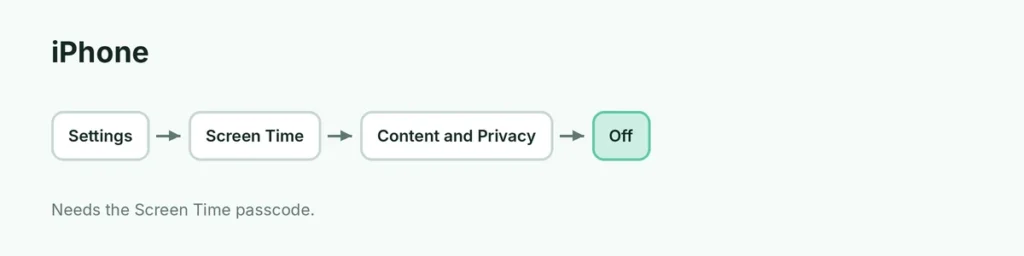
- Open Settings → Screen Time.
- Tap Content & Privacy Restrictions.
- Turn off Content & Privacy Restrictions (enter the Screen Time passcode).
To remove all Screen Time limits: Settings → Screen Time → turn off App & Website Activity.
On a child’s iPhone (Family Sharing): the parent opens Settings → Screen Time on their own iPhone, taps the child’s name and changes or turns off the limits. Here’s our full guide to Screen Time on iPhone.
Turn off parental controls on Android (Android 17+)
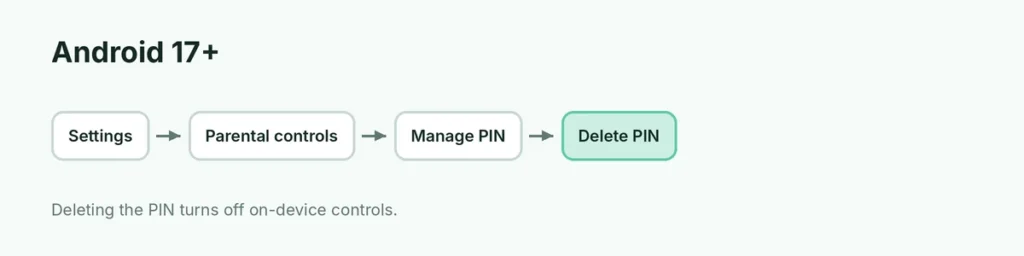
- Open Settings → Parental controls.
- Tap Manage parental controls PIN.
- Tap Delete PIN.
Deleting the PIN turns off all on-device controls, including Google Play content filters. You can also turn off single controls:
| Control | Where |
|---|---|
| Daily limit | Parental controls → Daily limit → Use daily limit off |
| Downtime | Parental controls → Downtime → Use downtime off |
| Web filters | Parental controls → Web content filters |
Google Play content restrictions
On older Android versions, Google Play has its own restrictions with a PIN:
- Know the PIN: Play Store → profile → Settings → Family → Content restrictions (wording varies) and turn them off.
- Forgot the PIN: Settings → Apps → Google Play Store → Storage → Clear data. This resets the restrictions and the PIN.
Family Link (child’s Google account)
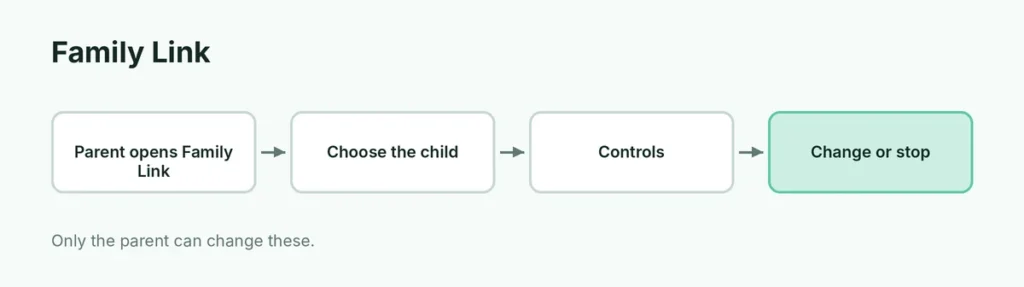
If the child’s account is supervised with Family Link, only the parent can change it:
- Open the Family Link app on the parent’s phone.
- Choose the child.
- Tap Controls to change limits, or go to the account settings to stop supervision (available when the child is old enough or under the rules for your country).
You can also manage settings at g.co/YourFamily.
Windows (Microsoft Family Safety)
A parent signs in at family.microsoft.com, chooses the child and changes Screen time, Content filters or removes the child from the family group. Changes apply to Windows and Xbox.
Forgot the Screen Time passcode on iPhone?
- Settings → Screen Time → Change Screen Time Passcode (or Turn Off Screen Time Passcode).
- Tap Forgot Passcode?
- Enter the Apple Account email and password used to set it.
Related guides
The short version
On iPhone, turn off Screen Time → Content & Privacy Restrictions; on Android 17+, Delete PIN in Parental controls; for Google Play, turn off content restrictions or clear Play Store data if you forgot the PIN. Family Link and Microsoft Family Safety are managed by the parent from their own device.
Sources
- Android Help: Set up parental controls on an Android device
- Google Play Help: How to set up content restrictions on Google Play