By
New to Instagram, or helping a parent or friend get started? This beginner’s guide walks through everything step by step: creating an account, setting up your profile, posting photos, stories and reels, finding people to follow, sending messages, and staying safe. No experience needed.
Short answer: download Instagram from the App Store or Play Store, tap Create new account and sign up with your phone number or email. Add a profile photo and short bio. Then: tap + to share a post, story or reel; tap the magnifying glass to search and follow people; tap the heart on posts you like; and tap the paper plane (or Messenger icon) to send messages. Switch to a private account in ☰ → Account privacy if you only want approved people to see your posts.
Last updated: November 2026.
How to create an Instagram account
- Install Instagram from the App Store (iPhone) or Play Store (Android). You can also use instagram.com on a computer.
- Tap Create new account.
- Enter your mobile number or email and the code Instagram sends you.
- Create a password (use one you don’t use anywhere else).
- Enter your birthday (you must be at least 13; teens get extra protections automatically).
- Choose a username (your @name). You can change it later.
- Agree to the terms, and add a profile photo when asked.
If you already have Facebook, you can sign up with it and link the accounts in Accounts Center.
Understand the Instagram screen
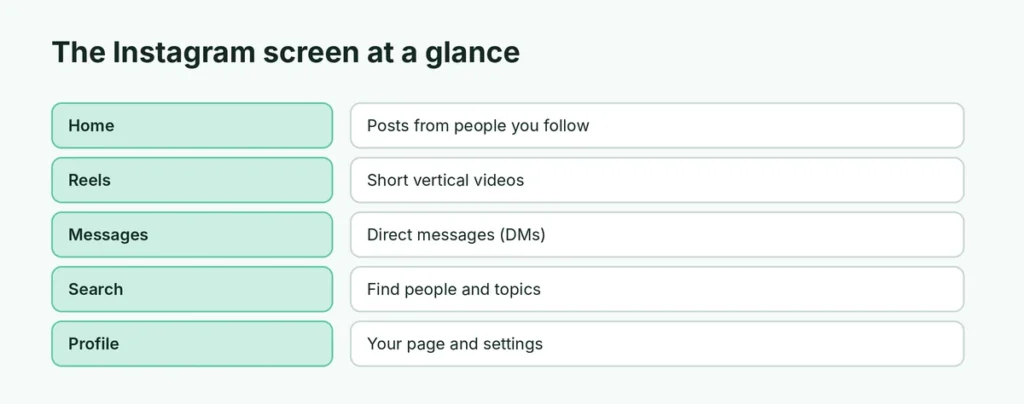
At the bottom of the app, you’ll see five icons:
| Icon | What it does |
|---|---|
| Home (house) | Your feed: posts from people you follow and suggestions |
| Reels (play button) | Short vertical videos |
| Messages (paper plane) | Direct messages (DMs) |
| Search (magnifying glass) | Find people, hashtags, places and topics |
| Profile (your photo) | Your profile, settings and saved posts |
The + button (top or bottom, depending on your version) creates new posts. Stories appear as circles at the top of the Home feed.
How to set up your profile
- Tap your profile picture → Edit profile.
- Add a name, bio (a short line about you), links and pronouns if you want.
- Change your profile photo: choose a clear photo of your face or your logo.
- Tap Done or the checkmark.
For businesses: go to ☰ → Account type and tools → Switch to professional account. You’ll get contact buttons and insights about your followers.
How to post a photo or video on Instagram
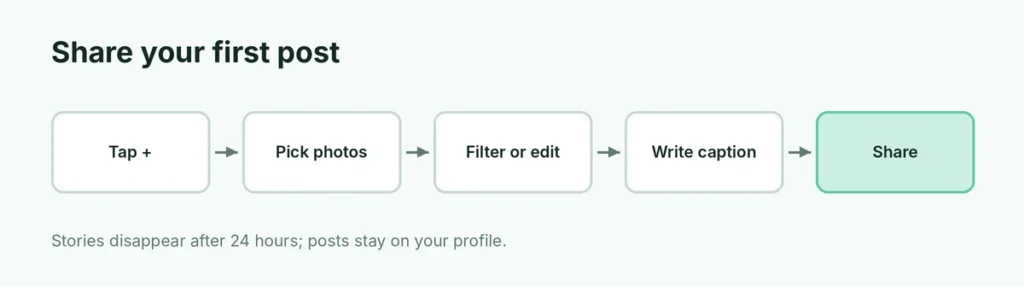
- Tap + and choose Post.
- Select one photo or video, or tap the stack icon to select up to 20 (a carousel).
- Tap Next. Choose a filter or tap Edit to change brightness, contrast and more.
- Tap Next, write a caption, add hashtags (#travel), tag people and add a location.
- Tap Share.
Your post appears on your profile and in your followers’ feeds.
How to post a story
Stories disappear after 24 hours.
- Swipe right from the Home feed, or tap + → Story.
- Take a photo or video, or swipe up to choose one from your gallery.
- Add text, stickers, music, polls or links using the icons at the top.
- Tap Your story to share with everyone, or Close Friends to share with a small list.
To keep a story on your profile after 24 hours, add it to a Highlight.
How to make a reel
- Tap + → Reel.
- Record clips by holding the record button, or choose videos from your gallery.
- Add audio (music or sounds), text and effects.
- Tap Next, write a caption and tap Share.
Reels are the best way to reach people who don’t follow you yet.
How to find and follow people
- Tap the magnifying glass and type a name, username or topic.
- Allow Instagram to find your contacts (optional) in ☰ → Follow and invite friends.
- Tap Follow on profiles you like.
On a private account, the person must approve your follow request first.
How to like, comment, share and save
- Like: double-tap a photo or tap the heart.
- Comment: tap the speech bubble and write a comment.
- Share: tap the paper plane to send a post to a friend or add it to your story.
- Save: tap the bookmark to save it in your private Saved collection.
How to send messages on Instagram
- Tap the Messages icon (paper plane).
- Tap the pencil (new message) and choose a person.
- Type a message, send a photo, voice note or GIF, or start a video call with the camera icon.
Messages from people you don’t follow go to Message requests, where you can accept or delete them.
Privacy and safety basics for beginners
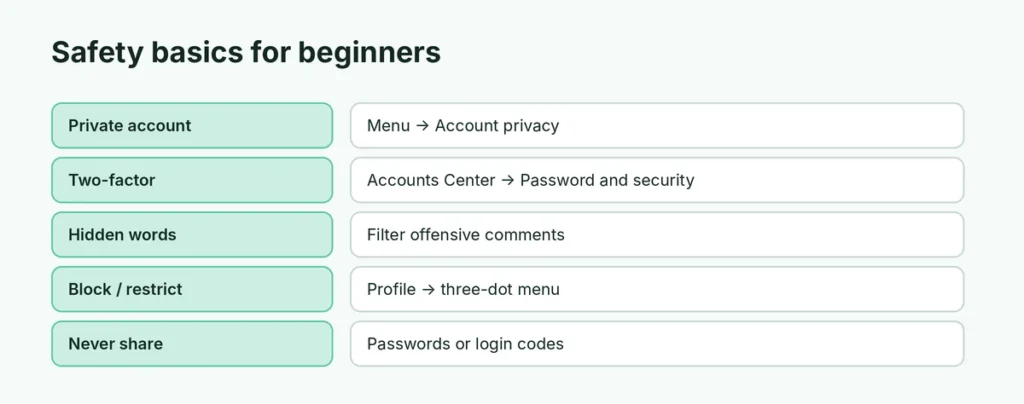
- Private account: ☰ → Account privacy → Private account. Only approved followers see your posts. Here’s how private accounts hide your followers list.
- Two-factor authentication: ☰ → Accounts Center → Password and security → Two-factor authentication. Use an authenticator app like Google Authenticator.
- Block or restrict anyone who bothers you: open their profile → ⋮ → Block or Restrict.
- Hidden words: ☰ → Hidden words filters offensive comments and messages.
- Time limits: ☰ → Time management sets a daily reminder.
- Never share your password or codes. Instagram won’t DM you asking for them.
Does Instagram tell people when you screenshot?
Only for disappearing photos and videos in DMs. Stories and posts don’t send any alert. Here’s the full guide on Instagram screenshot notifications.
Common beginner questions
Is Instagram free? Yes. Some creators offer paid subscriptions, and Meta Verified is an optional paid blue badge, but the app itself is free.
Can I use Instagram on a computer? Yes, at instagram.com. You can browse, post, comment and message from a browser.
Can I have more than one account? Yes, up to five accounts in the app. Tap your username at the top of your profile → Add Instagram account.
Why is my feed showing people I don’t follow? Instagram shows suggested posts. Tap the Instagram logo at the top → Following to see only accounts you follow, in time order.
Related guides
The short version
Install Instagram, tap Create new account, and set up your profile with a photo and bio. Use + to share posts, stories (24 hours) and reels; the magnifying glass to find and follow people; and the paper plane to message. Turn on a private account and two-factor authentication right away to stay safe.