By
Yes, you can port forward with Google’s routers. If your home Wi-Fi is a Google Wifi, Nest Wifi or Nest Wifi Pro system, port forwarding is done in the Google Home app, not in a web page like most routers. You might need it for a game server, a security camera, a NAS drive or remote desktop. Here’s how to set it up, what to do first so it keeps working, and how to fix it when the port still looks closed.
Short answer: in the Google Home app, tap Wifi → Settings (gear) → Advanced networking → Port management → Add. Pick IPv4, choose the device, enter the internal and external ports, choose TCP, UDP or both, and tap Save. First give that device a reserved IP address so the rule doesn’t break when its address changes. Many games and devices open ports automatically through UPnP, so you may not need a manual rule at all.
Applies to: Google Wifi, Google Nest Wifi and Nest Wifi Pro managed in the Google Home app on iPhone and Android, October 2026. If your Google router sits behind another router from your internet provider, see the double NAT section below.
Before you start
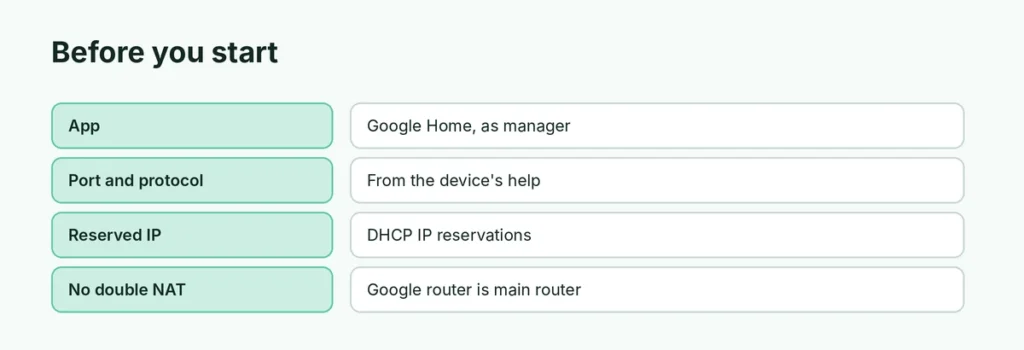
| You’ll need | Why |
|---|---|
| The Google Home app, signed in as a home manager | Port settings are only in the app |
| The port number(s) and protocol (TCP/UDP) | Check the game, camera or app’s help page |
| A reserved IP for the device | So the rule keeps pointing at the right device |
| Your Google router as the main router | Port forwarding won’t work if another router is in front (double NAT) |
Step 1: Reserve an IP address for the device
- In the Google Home app, tap Wifi → Settings → Advanced networking.
- Tap DHCP IP reservations → Add (the +).
- Choose the device, confirm its current address, and tap Save.
Now the device keeps the same local address, and your port forwarding rule won’t break after a restart.
Step 2: Add the port forwarding rule
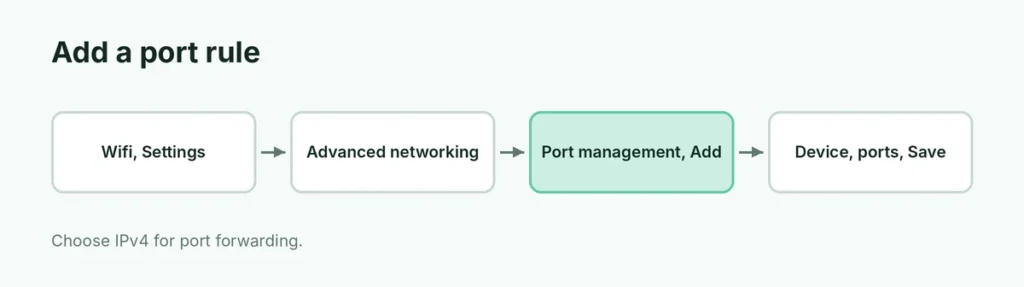
- In the Google Home app, tap Wifi → Settings → Advanced networking.
- Tap Port management, then Add.
- Choose the IPv4 tab (port forwarding). Use IPv6 only if your app specifically needs port opening for IPv6.
- Select the device from the list.
- Enter the internal port (on the device) and the external port (on the internet). For a range, the internal and external ranges must be the same size.
- Choose TCP, UDP or TCP/UDP.
- Tap Save.
Example: a Minecraft Java server usually uses TCP port 25565 for both internal and external ports.
Do you even need it? UPnP
Google routers support UPnP, which lets games consoles and many apps open the ports they need automatically. If your Xbox, PlayStation or game says your NAT type is open or moderate, you may not need a manual rule. You can check UPnP in Advanced networking in the Google Home app.
Port still closed? Fixes
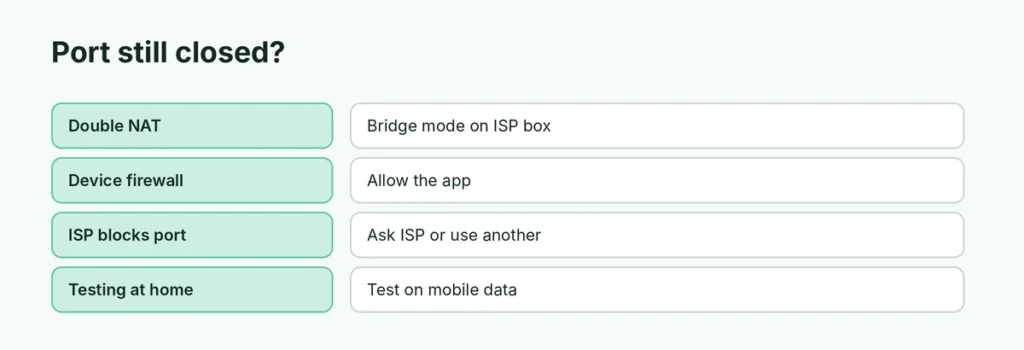
- Double NAT: if your internet provider’s modem is also a router, it blocks the traffic before it reaches your Google Wifi. Either set the provider’s box to bridge mode, or forward the same port on that box to your Google router.
- Wrong device or port: check the device’s reserved IP and the port numbers in its manual.
- Device firewall: a Windows PC or NAS may block the port itself; allow the app in its firewall.
- Your provider blocks the port: some ISPs block common server ports (such as 80 or 25), and some use carrier-grade NAT, which makes port forwarding impossible without asking them for a public IP.
- Testing from inside your home: test from mobile data or an online port checker, not from a device on the same Wi-Fi.
Is port forwarding safe?
Every open port is a way into one device on your network. Keep it safe:
- Only forward the ports you need, to one device, and delete rules you no longer use.
- Keep that device updated with a strong password.
- Prefer a VPN or the app’s cloud access for cameras and remote desktop instead of opening ports, where possible.
Related guides
- Android hotspot not working? How to fix it
- Wi-Fi Calling not working on iPhone? Fixes
- How to reset network settings on iPhone
The short version
Reserve the device’s IP in Google Home → Wifi → Settings → Advanced networking → DHCP IP reservations, then add a rule under Port management → Add → IPv4 with the device, ports and protocol. UPnP may already handle games. If the port is still closed, check for double NAT with your provider’s router, the device firewall and ISP blocks.
Sources
- Google Nest Help: Port forwarding or port opening
- Google Nest Community: Port forwarding configuration