By
Want to get rid of an old Gmail address but keep using YouTube, Google Photos and the Play Store? Google lets you delete just Gmail while keeping the rest of your Google account. Here’s how to do it safely, what you lose, and how it differs from deleting your whole Google account.
Short answer: go to myaccount.google.com → Data & privacy → scroll to Delete a Google service → Delete a service → sign in → click the trash icon next to Gmail. Google asks for a different, non-Gmail email address to keep your account working, and sends a verification link to it. Once you confirm, your Gmail address and all its emails are permanently deleted. Download your emails first if you want to keep them.
Last updated: November 2026.
Delete Gmail vs. delete your Google account
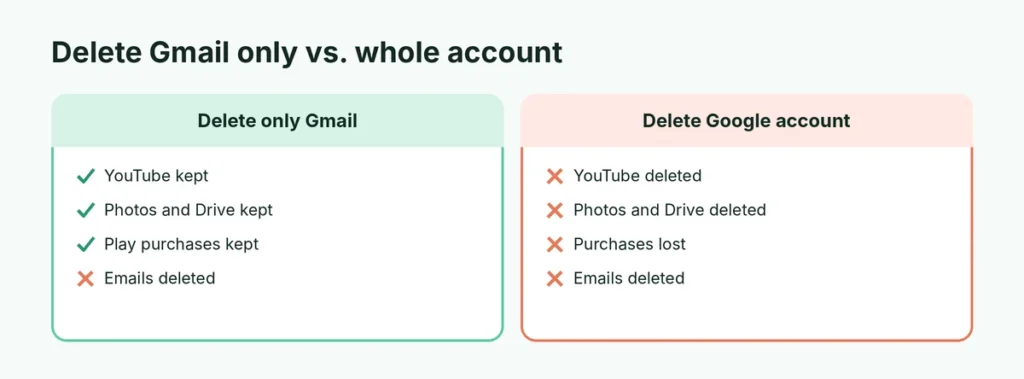
| Delete only Gmail | Delete whole Google account | |
|---|---|---|
| Gmail emails | Deleted | Deleted |
| Gmail address | Can’t be used again | Can’t be used again |
| YouTube, Photos, Drive, Play Store | Kept (sign in with another email) | Deleted |
| Purchases (apps, movies) | Kept | Lost |
| Android phone sign-in | Still works | Removed |
If you want to delete everything, see how to delete a Google account instead.
Before you delete: 4 things to do
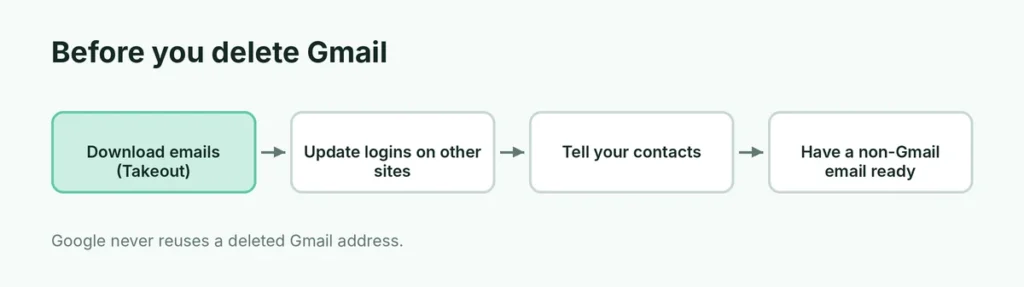
- Download your emails: go to takeout.google.com, click Deselect all, tick Mail, and click Next step → Create export. Google emails you a download link.
- Update other accounts: change the email address on your bank, social media, Amazon, Apple ID and any service that uses this Gmail address for sign-in or password resets.
- Tell your contacts your new email address.
- Have another email ready that isn’t a Gmail address (for example Outlook or Yahoo). You’ll need it to keep signing in to your Google account.
How to delete your Gmail account (step by step)
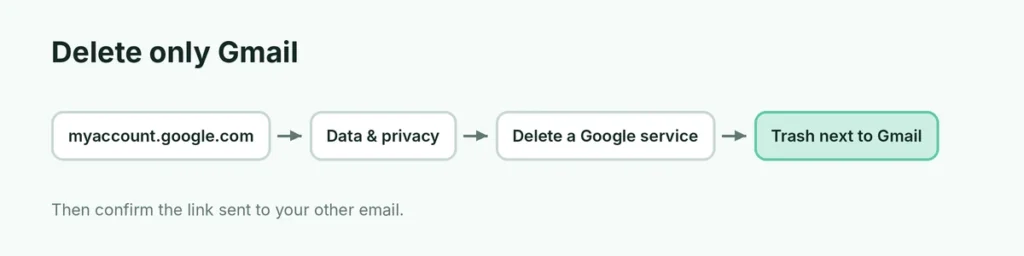
- Go to myaccount.google.com and sign in.
- Click Data & privacy in the left menu.
- Scroll down to Download or delete your data → Delete a Google service.
- Sign in again if asked.
- Next to Gmail, click the trash icon.
- Enter an email address that isn’t Gmail to use with your Google account, and click Send verification email.
- Open that email and click the verification link.
- Confirm you want to delete Gmail.
Your Gmail address is removed. You’ll now sign in to YouTube, Drive and other Google services with the other email address.
Delete Gmail on a phone
The steps are the same in a phone browser, or:
- Android: Settings → Google → Manage your Google Account → Data & privacy → Delete a Google service.
- iPhone: Gmail app → profile picture → Manage your Google Account → Data & privacy → Delete a Google service.
What happens after you delete Gmail
- All emails are deleted and can’t be recovered after a short time.
- Nobody can ever use your old Gmail address again, including you.
- Emails sent to the old address bounce back to the sender.
- Your Google account stays, with Drive, Photos, YouTube, Calendar and purchases.
- You sign in with your non-Gmail email from now on.
Can I recover a deleted Gmail account?
Sometimes, if you act quickly. Try account recovery at accounts.google.com/signin/recovery soon after deleting. After a while, the data is permanently erased and can’t be restored. That’s why downloading your emails first matters.
Alternatives to deleting Gmail
If you just want fewer emails or more privacy, you may not need to delete anything:
- Unsubscribe from newsletters (link at the top of most marketing emails).
- Create filters to archive or delete unwanted emails automatically.
- Forward everything to a new address: here’s how to forward emails in Gmail.
- Change your password if you’re worried about security: how to change your Gmail password.
- Sign out of the account on devices you don’t use.
Delete Gmail from your phone (but keep the account)
If you only want to remove a Gmail account from your phone, not delete it:
- Android: Settings → Passwords & accounts → tap the account → Remove account.
- iPhone Gmail app: profile picture → Manage accounts on this device → Remove from this device.
The account still exists and you can sign in again later.
How long does it take to delete a Gmail account?
Removing Gmail from your account happens right after you confirm the verification link. Your inbox stops working immediately. Behind the scenes, Google takes some time to fully erase the data from its systems, which is why a quick recovery is sometimes possible right after deleting.
Can I delete a Gmail account I can’t sign in to?
No. You must sign in to delete Gmail. If you’ve forgotten the password, first use Forgot password? on the sign-in page to get back in, then delete it.
If it’s an old account you no longer use and can’t recover, it will be deleted automatically if it stays inactive for two years, under Google’s inactive account policy. You can also set what happens to an account you stop using in myaccount.google.com → Data & privacy → Make a plan for your digital legacy (Inactive Account Manager).
Can I get my old Gmail address back after deleting it?
No. Google never reuses deleted Gmail addresses, so no one, including you, can create an account with that address again. This protects you: nobody can take over your old address and receive your password reset emails. Just be sure you’ve moved everything important before deleting.
How do I delete a Gmail account on a Samsung phone?
Deleting and removing are different on Samsung too:
- To delete Gmail permanently: Settings → Google → Manage your Google Account → Data & privacy → Delete a Google service → Gmail.
- To only remove it from the phone: Settings → Accounts and backup → Manage accounts → the Gmail account → Remove account.
Will deleting Gmail delete my contacts and photos?
No. Google Contacts, Google Photos and Drive are separate services. They stay in your Google account after Gmail is deleted. Only your emails and the Gmail address go. If you want to delete those too, delete them separately, or delete the whole Google account.
Related Gmail guides
The short version
To delete only Gmail, go to myaccount.google.com → Data & privacy → Delete a Google service → trash icon next to Gmail, add a non-Gmail email and confirm the link. Download your emails with Google Takeout and update your other accounts first. Your Google account, YouTube, Photos and Drive stay; to delete everything, delete the whole Google account instead.