By

Clicked Archive and now an important email has vanished from your inbox? Don’t worry: archived emails aren’t deleted. They’re just moved out of the inbox and kept in All Mail. Here’s how to find them on a computer or phone, and how to move them back.
Short answer: archived Gmail emails are in All Mail. On a computer, click More in the left menu → All Mail. On the phone app, tap the menu (three lines) → All mail. Or search for the email with the search bar; archived emails show up in search results. To find only archived emails, search -in:inbox -in:sent -in:drafts -in:trash -in:spam. To move one back, open it and click Move to Inbox.
Last updated: November 2026.
What “Archive” does in Gmail
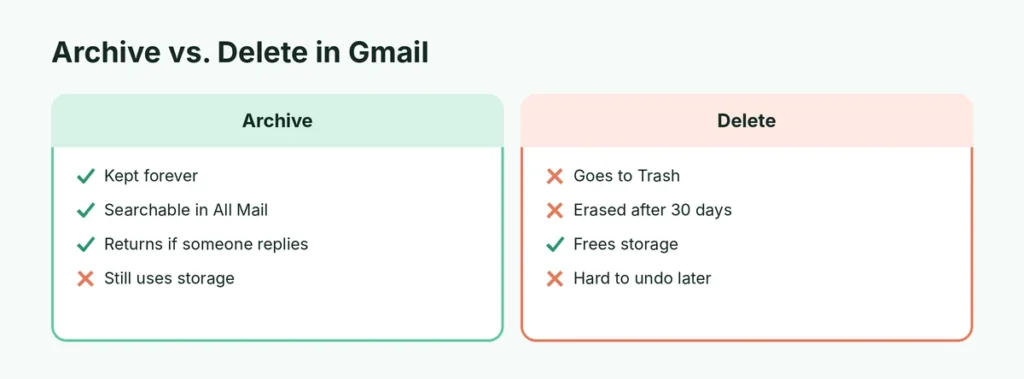
Archiving removes an email from your Inbox without deleting it. It keeps your inbox tidy while keeping everything searchable. Archived emails:
- stay in All Mail forever (unless you delete them),
- still count toward your 15 GB of free storage,
- come back to the Inbox automatically if someone replies to them.
Archive vs. Delete: deleted emails go to Trash and are erased after 30 days. Archived emails are kept.
Find archived emails on a computer

- Open mail.google.com.
- In the left menu, click More (scroll down if needed).
- Click All Mail.
All Mail shows every email: inbox, archived, sent and labeled (but not Spam or Trash). Archived emails are the ones without an “Inbox” label next to the subject.
Find archived emails on iPhone or Android
- Open the Gmail app.
- Tap the menu (three lines) at the top left.
- Scroll down and tap All mail.
Show only archived emails (search trick)
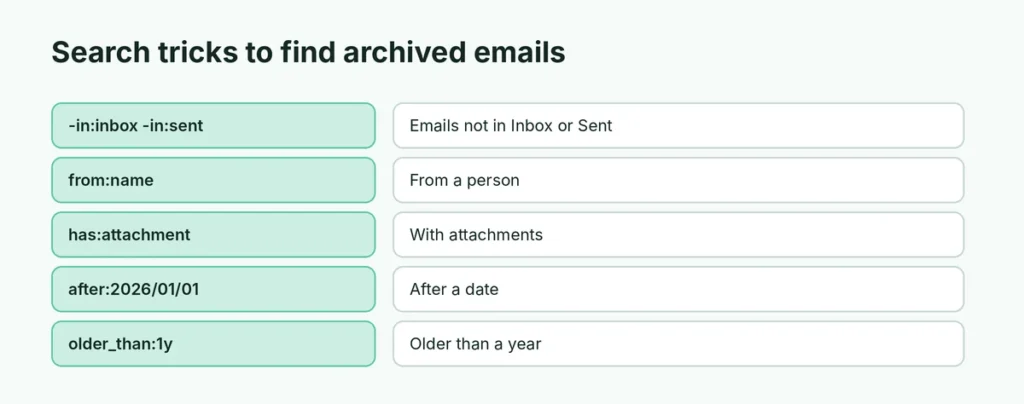
Type this in the Gmail search bar:
-in:inbox -in:sent -in:drafts -in:trash -in:spam
This shows emails that aren’t in your inbox, sent, drafts, trash or spam, which means they’re archived (or only in a label). Add a name or keyword to narrow it down, for example:
-in:inbox -in:sent from:amazon
Use search to find a specific archived email
You don’t need to open All Mail: Gmail’s search covers archived emails too. Useful search operators:
| Search | Finds |
|---|---|
from:name | Emails from a person |
subject:invoice | Emails with a word in the subject |
has:attachment | Emails with attachments |
after:2026/01/01 | Emails after a date |
older_than:1y | Emails older than one year |
label:receipts | Emails with a label |
Click the filter icon (sliders) in the search bar to use a simple form instead.
Move an archived email back to the Inbox
Computer: open the email (or tick it in All Mail) and click Move to Inbox (the icon with a downward arrow) at the top.
Phone: open the email, tap ⋮ (top right) → Move to Inbox.
Archived by accident? Undo it
Right after archiving, Gmail shows “Conversation archived” – Undo at the bottom. Click Undo to bring it back instantly.
Swipe to archive on the phone: change it
In the Gmail app, swiping an email left or right archives it by default. If you keep archiving by mistake:
- Android: Settings → General settings → Swipe actions → change Right swipe or Left swipe to Mark as read, Snooze or None.
- iPhone: Settings → Swipe actions (or Email swipe actions).
You can also choose whether the trash button shows Archive or Delete: Android → Settings → General settings → Default notification action; iPhone and Android → Settings → Archive or delete actions (varies by version).
Can’t find the email even in All Mail?
- Check Trash: deleted emails stay there for 30 days.
- Check Spam: Gmail may have filtered it; open Spam and click Not spam.
- Check filters: Settings → See all settings → Filters and Blocked Addresses. A filter may be skipping the inbox or deleting emails.
- Check forwarding: someone may have set up forwarding to another address. Here’s how to check Gmail forwarding settings.
- Emptied Trash? After 30 days, deleted emails are gone for good.
Where is the archive folder in Gmail?
There isn’t one, and that’s what confuses most people. Gmail uses labels, not folders. When you archive, Gmail simply removes the Inbox label from the email. The email keeps any other labels and always stays in All Mail, which is the closest thing to an “archive folder”.
If you’d like a dedicated archive folder, create a label called Archive, select emails, click the Label icon and choose it. Then click Archive to remove them from the inbox.
How do I archive emails in Gmail?
- Computer: select one or more emails and click the Archive icon (a box with a downward arrow) at the top. Or press E if keyboard shortcuts are on.
- Phone: swipe an email left or right, or open it and tap the Archive icon at the top.
- Many at once: search for the emails (for example,
older_than:1y), tick the select all box, click Select all conversations that match this search, then Archive.
Do archived emails get deleted automatically?
No. Unlike Trash and Spam, which empty after 30 days, archived emails stay in your account until you delete them. The only time they might disappear is if your account becomes inactive for two years and Google deletes it under its inactive account policy, or if your storage is full for a long time.
Archive or delete: which should I use?
| Use Archive for | Use Delete for |
|---|---|
| Receipts and orders | Spam that got through |
| Conversations you might need later | Promotions you’ll never read |
| Work emails and documents | Duplicates and test emails |
| Anything you’d hate to lose | Emails with large, useless attachments |
When in doubt, archive. Gmail search is fast, so a big archive doesn’t slow anything down.
Archived emails in Outlook or Apple Mail
If you read Gmail in Apple Mail or Outlook, archived emails appear in a folder called All Mail or [Gmail]/All Mail. Moving an email back to Inbox there also moves it back in Gmail.
Free up space by deleting old archived emails
Archived emails still use storage. To clean up, search older_than:2y has:attachment larger:10M to find big old emails and delete what you don’t need.
Related Gmail guides
The short version
Archived Gmail emails are in All Mail: on a computer, click More → All Mail; in the app, tap the menu → All mail. Search finds them too, and -in:inbox -in:sent -in:drafts -in:trash -in:spam shows only archived messages. Open one and choose Move to Inbox to bring it back. If it’s not in All Mail, check Trash, Spam and your filters.