By
WhatsApp downloads photos, videos and voice notes automatically, which can eat your mobile data and fill your phone with memes from busy groups. You can stop it completely, allow it only on Wi-Fi, or keep downloads but stop them appearing in your gallery. Here’s how to turn off auto-download on WhatsApp for Android and iPhone.
Short answer: on Android, tap ⋮ → Settings → Storage and data → under Media auto-download, open When using mobile data, When connected on Wi-Fi and When roaming, untick every type and tap OK. On iPhone, go to Settings → Storage and Data → Media Auto-Download and set Photos, Audio, Video and Documents to Never. After that, media only downloads when you tap it.
Applies to: WhatsApp on Android and iPhone, November 2026.
Your options at a glance
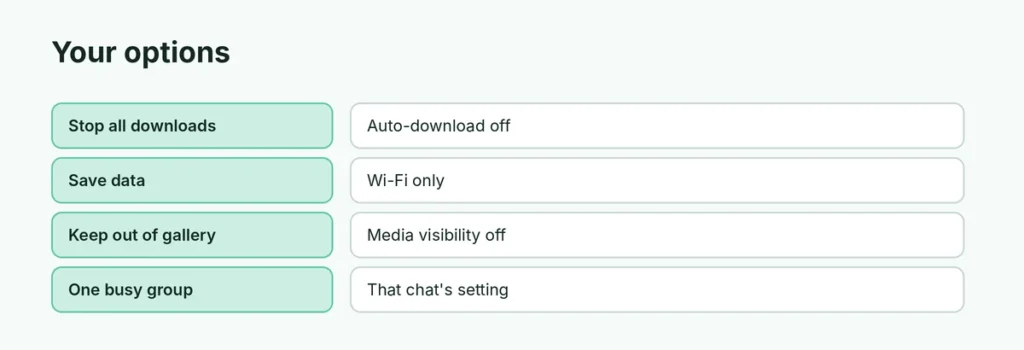
| You want to… | Setting |
|---|---|
| Stop all automatic downloads | Media auto-download: untick everything (Android) or set all to Never (iPhone) |
| Save mobile data only | Auto-download on Wi-Fi only |
| Keep downloads out of your gallery | Media visibility off (Android) or Save to Photos off (iPhone) |
| Stop downloads from one busy group | That chat’s Media visibility or Save to Photos setting |
Turn off auto-download on Android
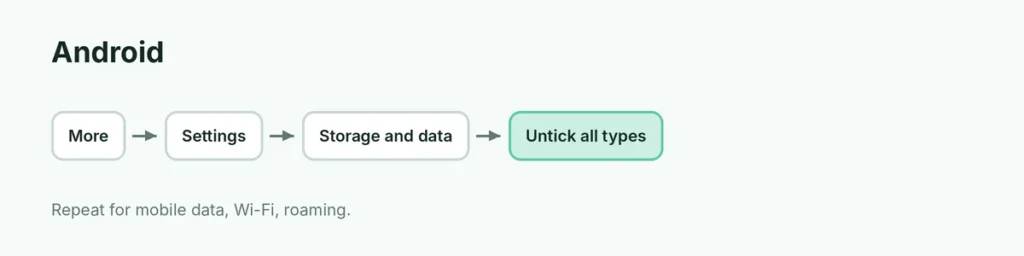
- Open WhatsApp and tap ⋮ (top right) → Settings.
- Tap Storage and data.
- Under Media auto-download, tap When using mobile data, untick Photos, Audio, Videos and Documents, and tap OK.
- Do the same for When connected on Wi-Fi and When roaming.
Turn off auto-download on iPhone
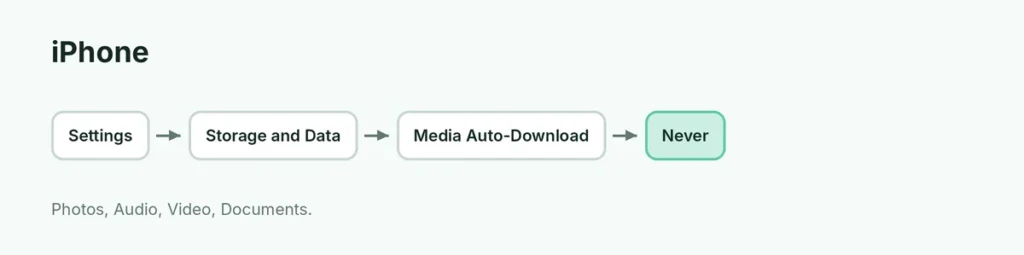
- Open WhatsApp and tap Settings (bottom right).
- Tap Storage and Data.
- Under Media Auto-Download, tap Photos and choose Never.
- Repeat for Audio, Video and Documents.
Choosing Wi-Fi instead of Never keeps automatic downloads but only on Wi-Fi.
Stop WhatsApp photos filling your gallery
Turning off auto-download stops the download. To also keep media you do open out of your photo gallery:
- Android: Settings → Chats → turn off Media visibility.
- iPhone: Settings → Chats → turn off Save to Photos.
For one chat or group only, open it, tap its name, then Media visibility (Android) or Save to Photos (iPhone) and choose No or Never.
Free up the space WhatsApp already uses
Go to Settings → Storage and data → Manage storage. You’ll see the biggest files and chats using the most space, and you can select and delete them. Deleting media here removes it from WhatsApp, so back up anything you want to keep first; see how to back up WhatsApp chats.
Related guides
- How to back up WhatsApp chats
- Android storage almost full? How to fix it
- Are WhatsApp international calls free?
The short version
Go to WhatsApp Settings → Storage and data → Media auto-download. On Android, untick every media type for mobile data, Wi-Fi and roaming; on iPhone, set Photos, Audio, Video and Documents to Never. Turn off Media visibility (Android) or Save to Photos (iPhone) to keep WhatsApp media out of your gallery.
Sources
- Guiding Tech: How to stop auto-download in WhatsApp
- Croma Unboxed: How to disable automatic downloading of photos and videos on WhatsApp