By
Forwarding an email in Gmail is one tap, but there’s more to it: forwarding several emails at once, sending an email as an attachment, or automatically forwarding every new message to another address. Here’s how to do each one on a computer, iPhone and Android.
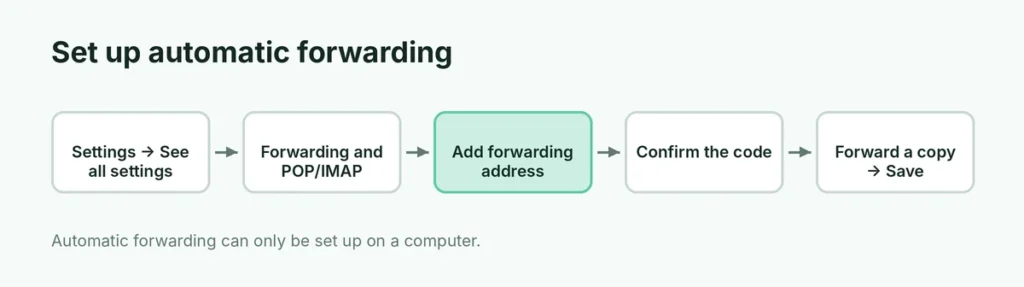
Short answer: open the email and click Forward (the arrow at the bottom, or ⋮ → Forward on the phone app), add the recipient and click Send. To forward all new emails automatically, go to Gmail on a computer → Settings (gear) → See all settings → Forwarding and POP/IMAP → Add a forwarding address, confirm it, then choose Forward a copy of incoming mail to. Automatic forwarding can only be set up on a computer.
Last updated: November 2026. Works on Gmail in a browser and the Gmail app for iPhone and Android.
How to forward one email on a computer
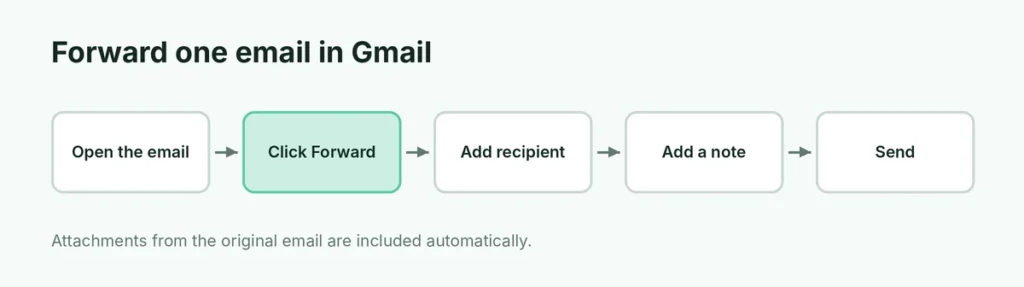
- Open mail.google.com and open the email.
- Click Forward at the bottom of the message (or the curved arrow at the top right → Forward).
- Type the recipient’s email address.
- Add a note above the forwarded message if you like.
- Click Send.
Attachments in the original email are included automatically. You can remove any you don’t want to send by clicking the X on the attachment.
How to forward an email on iPhone or Android
- Open the Gmail app and tap the email.
- Scroll to the bottom and tap Forward, or tap ⋮ (top right) → Forward.
- Enter the recipient, add a message, and tap the Send arrow.
How to forward multiple emails at once
Gmail doesn’t have a “forward selected emails” button, but there are two good workarounds:
Option 1: forward as attachments (computer)
- In your inbox, tick the boxes next to the emails you want.
- Click ⋮ (More) at the top → Forward as attachment.
- A new email opens with each message attached as an .eml file. Add the recipient and send.
The recipient can open each attachment to read the original email with all its details.
Option 2: forward a whole conversation
Open the conversation, click ⋮ at the top right → Forward all. Every message in the thread goes into one new email.
How to set up automatic forwarding (all new emails)
Use this if you’re switching to a new email address or want work and personal mail in one place.
- On a computer, open Gmail → Settings (gear icon) → See all settings.
- Click the Forwarding and POP/IMAP tab.
- Click Add a forwarding address and enter the address.
- Gmail sends a confirmation code to that address. Open it there and click the confirmation link (or copy the code).
- Back in Gmail settings, refresh, select Forward a copy of incoming mail to and pick the address.
- Choose what happens to the original in Gmail: keep it in the Inbox, mark as read, archive or delete.
- Click Save Changes at the bottom.
Tip: choose keep Gmail’s copy in the Inbox at first, so nothing is lost if the forwarding address has a problem.
Forward only certain emails automatically (filters)
To forward only emails from your boss, or with “invoice” in the subject:
- Add and confirm the forwarding address first (steps above).
- In the Gmail search bar, click the filter icon (sliders) and enter the conditions, such as From or Subject.
- Click Create filter.
- Tick Forward it to and choose the address.
- Click Create filter.
Why can’t I see “Forward” or automatic forwarding?
- On the phone app: automatic forwarding settings aren’t available in the Gmail app. Use a computer, or open Gmail in a phone browser and choose Desktop view.
- Work or school account: your administrator may have turned off automatic forwarding for security.
- Forwarding address not confirmed: the address only appears after you click the confirmation link.
Stop automatic forwarding
Go to Settings → See all settings → Forwarding and POP/IMAP → select Disable forwarding → Save Changes. To remove the address completely, choose it from the drop-down and click Remove address.
Forwarding and security
Scammers who break into an email account often add a hidden forwarding rule to copy your mail. Every few months:
- check Forwarding and POP/IMAP for addresses you don’t recognize,
- check Filters and Blocked Addresses for filters that forward or delete emails,
- change your password if you find anything strange. Here’s how to recover a Google account without your phone or email if you’re locked out.
Can I forward an email without the sender’s details showing?
When you forward a message, Gmail adds a “Forwarded message” block with the original sender’s name, address, date and subject. You can delete that block by hand before sending: click into the message body, select the header lines and press Delete. Keep in mind it’s polite (and often expected at work) to leave the original details so the recipient knows where the message came from.
If you only want to share the text, copy it into a new email instead of forwarding.
How do I forward an email with its attachments?
Regular Forward includes the attachments automatically, and you’ll see them as file chips at the bottom of the draft. Two things to know:
- Large files from Google Drive appear as Drive links, not attachments. Make sure the recipient has access: Gmail asks you to share the file when you send.
- Total size limit for attachments is 25 MB. If the forwarded email is bigger, Gmail turns the files into Drive links.
How do I forward an email to several people at once?
Many people forward receipts or tickets to family or coworkers. The fastest way:
- Open the email and tap ⋮ → Forward.
- Type several addresses in the To field, separated by commas.
- Or use Bcc if the people don’t know each other, so their addresses stay private.
Forwarding to Outlook, Yahoo or iCloud: does it work?
Yes. Automatic forwarding works to any email address. A few tips:
- Check the spam folder in the other inbox for the confirmation email.
- Some providers mark forwarded mail as spam at first. Mark a few as Not spam so they learn.
- If you forward everything to iCloud or Outlook, add your Gmail address as a contact there.
Is it safe to forward emails?
Forwarding is safe, but think about what you forward. Bank statements, one-time codes and password reset emails should never be forwarded, because anyone who gets them can use them. And if you receive a suspicious email, don’t forward it to friends to ask about it: report it with ⋮ → Report phishing instead.
Forward vs. Reply vs. Reply all
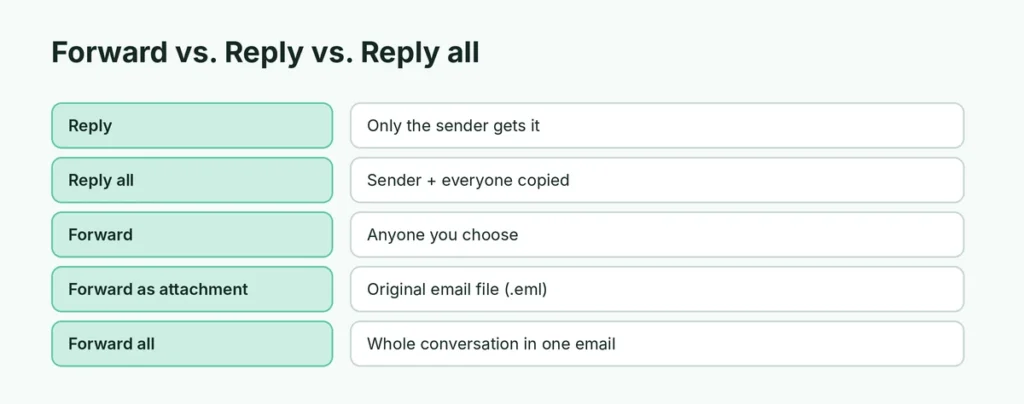
| Option | Who receives it | Use it to |
|---|---|---|
| Reply | Only the sender | Answer the sender privately |
| Reply all | Sender and everyone copied | Answer the whole group |
| Forward | Anyone you choose | Share the email with someone new |
| Forward as attachment | Anyone you choose | Send the original email file, including headers |
Forward emails to WhatsApp or other apps
On your phone, open the email, tap ⋮ → Print → Save as PDF, then share the PDF in WhatsApp. Or simply take a screenshot. To send it from your computer, use WhatsApp Web.
The short version
To forward one email, open it and click Forward. For several emails, select them and choose Forward as attachment. To forward everything automatically, go to Settings → See all settings → Forwarding and POP/IMAP, add and confirm the address, and choose Forward a copy of incoming mail. Use filters to forward only some emails, and check your forwarding settings regularly for anything you didn’t set up.