By
By 
Your iPhone uses your location for maps, weather, photos, Find My and many apps. Sometimes you want to stop that, for privacy, to save battery, or to stop sharing where you are with family or friends. Here’s how to turn off location on iPhone completely, for single apps, or just stop sharing it with people, and what each option really does.
Short answer: to turn off location for everything, go to Settings → Privacy & Security → Location Services and turn it off. To turn it off for one app, open the same screen, tap the app and choose Never. To stop sharing your location with family or friends without turning off GPS, open Settings → tap your name → Find My and turn off Share My Location.
Applies to: iPhone on iOS 26 and iOS 27. Last checked in October 2026.
Option 1: Turn off Location Services completely
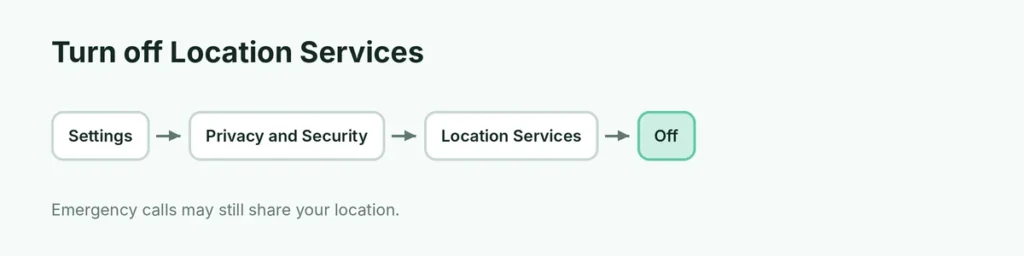
- Open Settings.
- Tap Privacy & Security.
- Tap Location Services.
- Turn off Location Services and tap Turn Off to confirm.
What changes: Maps can’t find you, weather won’t show your local forecast automatically, new photos won’t record where they were taken, and apps can’t use your location.
What doesn’t change: in an emergency call, your iPhone may still share your location with emergency services where the law allows.
Locked settings: if Stolen Device Protection is on, you may need Face ID to change some location settings. Here’s more about Stolen Device Protection.
Option 2: Turn off location for one app
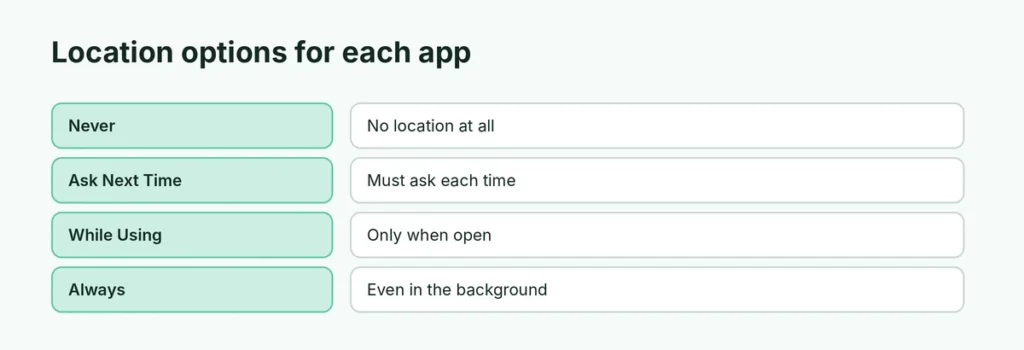
This is usually the better choice: keep Maps working, but stop apps that don’t need it.
- Go to Settings → Privacy & Security → Location Services.
- Tap the app.
- Choose one:
| Option | Meaning |
|---|---|
| Never | The app can’t use your location at all |
| Ask Next Time Or When I Share | The app must ask each time |
| While Using the App | Only while you’re using it |
| Always | Even in the background |
- Turn off Precise Location to share only your approximate area (good for weather or shopping apps).
Option 3: Stop sharing your location with people
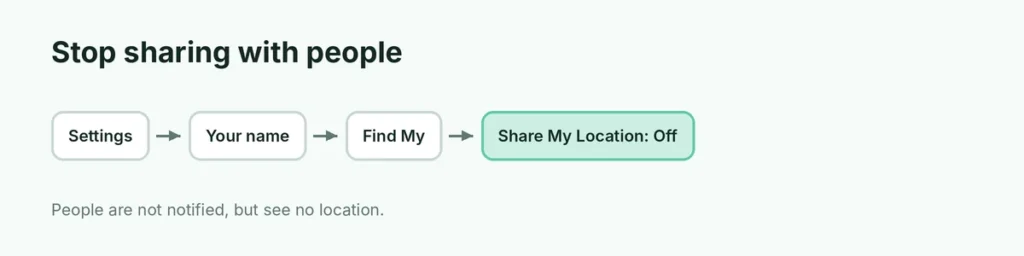
Turning off Location Services is not the only way to stop people seeing where you are:
- Open Settings and tap your name.
- Tap Find My.
- Turn off Share My Location.
Or open the Find My app → People → choose a person → Stop Sharing My Location.
Do they get a notification? No, Apple doesn’t send an alert when you stop sharing, but the person will see that your location is no longer available.
In Messages: if you shared your location in a chat, open the conversation, tap the person’s name and choose Stop Sharing My Location.
Turn off location in your photos
To stop new photos saving where they were taken:
- Settings → Privacy & Security → Location Services → Camera → Never.
To remove location from a photo before sharing: tap Share → Options (at the top) → turn off Location.
System Services: hidden location settings
At the bottom of Location Services, tap System Services. Here you can turn off things like Location-Based Alerts, Location-Based Suggestions and iPhone Analytics. Keep Find My iPhone and Emergency Calls & SOS on for safety.
Significant Locations (places you visit often) is here too. You can turn it off and tap Clear History.
Does turning off location save battery?
A little. GPS uses power, especially apps set to Always. Setting most apps to While Using or Never saves battery without breaking anything important.
Will turning off location turn off Find My?
Find My still exists, but with Location Services off it can’t report your iPhone’s current location. If your phone is lost or stolen, that makes it harder to find. Here’s how Find My iPhone works before you change it.
Related guides
The short version
Go to Settings → Privacy & Security → Location Services to turn location off completely, or tap any app and choose Never. To stop people seeing where you are, turn off Share My Location in Settings → your name → Find My. Keep Find My and emergency location on if you can.
Sources
- Apple Personal Safety User Guide: Manage location sharing