By
By 
iOS 26 brought Liquid Glass, Apple’s new see-through design for buttons, menus, the Control Center and the Lock Screen. It looks modern, but many people find the transparent effects hard to read. You can’t fully remove the new design, but you can make it much less transparent. Here’s how to turn off Liquid Glass effects on iPhone, step by step.
Short answer: on iOS 26.1 or later, go to Settings → Display & Brightness → Liquid Glass and choose Tinted instead of Clear. That makes menus and buttons more solid and easier to read. To remove see-through effects completely, go to Settings → Accessibility → Display & Text Size → turn on Reduce Transparency. You can also set Home Screen icons to Default in Edit → Customize.
Applies to: iPhone on iOS 26.1 and later, including iOS 27 (which adds a transparency slider). Last checked in October 2026.
Can you turn off Liquid Glass completely?
Not completely. Liquid Glass is Apple’s design for iOS 26 and later, so the shapes and animations stay. But the transparency, which is what most people dislike, can be reduced a lot with the settings below.
Option 1: Switch Liquid Glass to Tinted (iOS 26.1+)
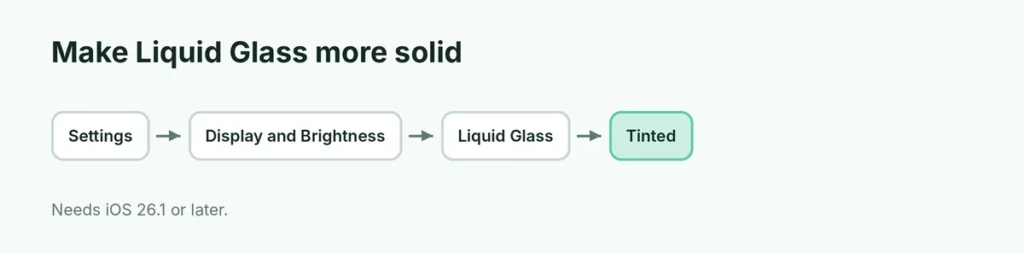
- Open Settings.
- Tap Display & Brightness.
- Scroll down and tap Liquid Glass.
- Choose Tinted.
Clear is the original, very see-through look. Tinted adds a solid color behind buttons and menus, making text clearer while keeping the new style.
Don’t see Liquid Glass? Update your iPhone: Settings → General → Software Update. The option arrived in iOS 26.1.
Option 2: Reduce Transparency (strongest)
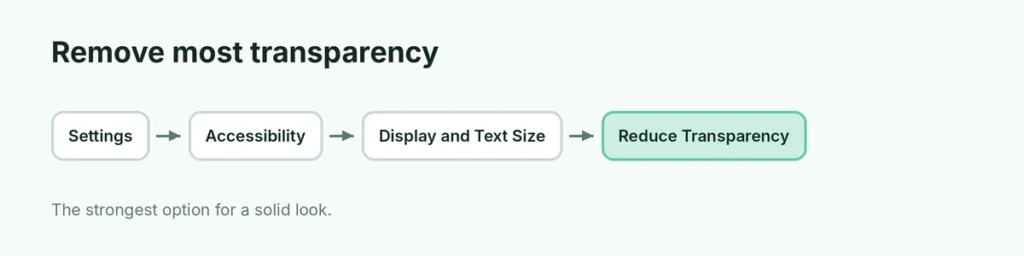
- Open Settings → Accessibility.
- Tap Display & Text Size.
- Turn on Reduce Transparency.
This removes most blur and see-through effects across the system: Control Center, Notification Center, the Dock, menus and the keyboard become more solid.
Option 3: Increase Contrast
In Settings → Accessibility → Display & Text Size, turn on Increase Contrast. It adds stronger borders and colors, making buttons easier to tell apart from the background.
Option 4: Change Home Screen icons back
If your icons look glassy or clear:
- Touch and hold an empty spot on the Home Screen.
- Tap Edit → Customize.
- Choose Default (full color) instead of Clear.
Here’s more about iPhone Home Screen themes and icon styles.
iOS 27: Liquid Glass slider
iOS 27 (released September 2026) adds a Liquid Glass translucency slider, so you can pick exactly how see-through the interface looks, between fully clear and more solid. Look for it in the Liquid Glass settings under Display & Brightness.
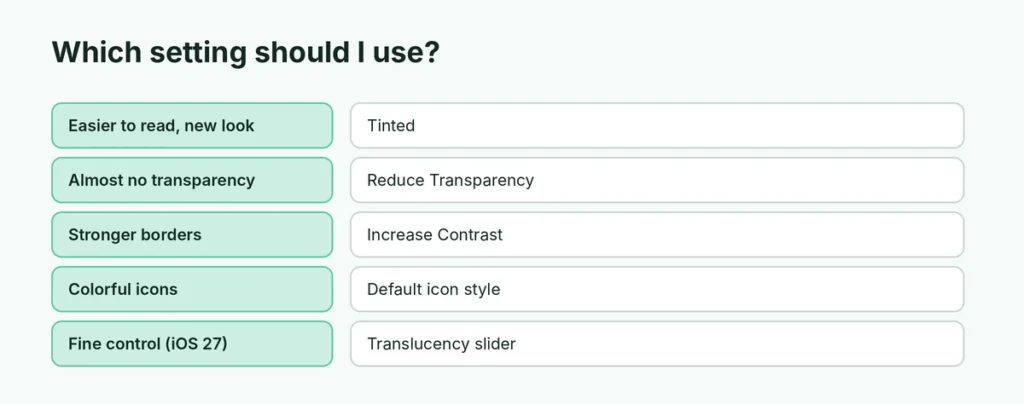
Which setting should I use?
| If you want | Use |
|---|---|
| Keep the new look, just easier to read | Tinted |
| Almost no transparency at all | Reduce Transparency |
| Stronger borders and text | Increase Contrast |
| Normal colorful icons | Default icon style |
| Fine control (iOS 27) | Liquid Glass slider |
Does Reduce Transparency save battery?
It may save a tiny amount because there’s less blur to draw, but the difference is small. The main benefit is readability, especially for people with low vision or in bright sunlight.
Can I go back to iOS 18?
No. Apple stops allowing downgrades soon after a new version launches. Use the settings above instead.
Liquid Glass on iPad and Mac
- iPad (iPadOS 26.1+): the same Liquid Glass and Reduce Transparency settings exist in Settings.
- Mac (macOS 26 and later): System Settings → Accessibility → Display → Reduce transparency, and System Settings → Appearance for icon styles.
Related guides
- How to make iPhone Home Screen themes
- How to update your iPhone
The short version
You can’t remove Liquid Glass entirely, but you can tame it: choose Tinted in Settings → Display & Brightness → Liquid Glass (iOS 26.1+), or turn on Reduce Transparency in Accessibility → Display & Text Size for the most solid look. Set icons back to Default in Home Screen Customize, and use the translucency slider in iOS 27.
Sources
- Tom’s Guide: iOS 26.1 lets you adjust Liquid Glass transparency