By
By 
eSIM lets you use a phone plan without a physical SIM card, which makes switching carriers, adding a travel plan, or using two numbers much easier. But not every iPhone handles eSIM the same way: some have eSIM plus a SIM tray, some support two eSIMs at once, and newer US models have no SIM tray at all.
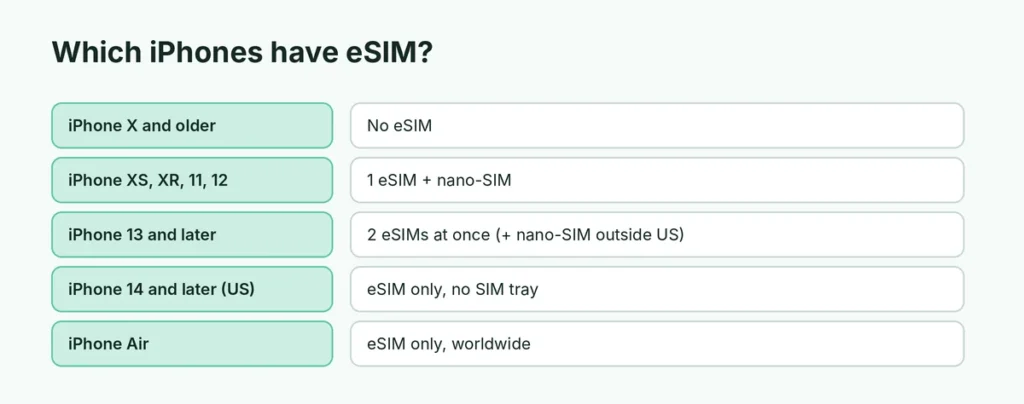
Short answer: yes, the iPhone 12 and iPhone 13 both have eSIM. Every iPhone from the iPhone XS, XS Max and XR (2018) onward supports eSIM. The iPhone 12 has one eSIM plus a nano-SIM slot; the iPhone 13 and later can use two eSIMs at the same time. iPhone 14 and later models sold in the US are eSIM-only (no SIM tray).
Last updated: October 2026.
Which iPhones have eSIM?
| iPhone models | eSIM? | Physical SIM? | Two numbers at once? |
|---|---|---|---|
| iPhone X and older | ❌ No | ✅ Yes | ❌ No |
| iPhone XS, XS Max, XR | ✅ 1 eSIM | ✅ Yes | ✅ SIM + eSIM |
| iPhone 11 family, SE (2nd gen) | ✅ 1 eSIM | ✅ Yes | ✅ SIM + eSIM |
| iPhone 12 family | ✅ 1 eSIM | ✅ Yes | ✅ SIM + eSIM |
| iPhone 13 family, SE (3rd gen) | ✅ Up to 8 stored, 2 active | ✅ Yes | ✅ SIM + eSIM or two eSIMs |
| iPhone 14 and later, US models | ✅ eSIM only | ❌ No SIM tray | ✅ Two eSIMs |
| iPhone 14 and later, most other countries | ✅ Yes | ✅ Yes (some newer models are eSIM-only in more countries) | ✅ SIM + eSIM or two eSIMs |
| iPhone Air | ✅ eSIM only (worldwide) | ❌ No | ✅ Two eSIMs |
Models sold in mainland China, Hong Kong and Macao usually have two physical SIM slots instead of eSIM. If you’re buying a used iPhone, check where it was sold.
Does the iPhone 12 have eSIM?
Yes. The iPhone 12, 12 mini, 12 Pro and 12 Pro Max all have one eSIM and one nano-SIM slot. You can use two numbers at once by combining the physical SIM with an eSIM (Dual SIM), but you can’t use two eSIMs at the same time on an iPhone 12.
Does the iPhone 13 have eSIM?
Yes, and it was a big step up. The iPhone 13, 13 mini, 13 Pro and 13 Pro Max can store multiple eSIMs and use two eSIMs at the same time, and they still have a nano-SIM tray in every country. That means you can, for example, keep your home number on one eSIM and add a travel data eSIM without removing anything.
Does the iPhone 11 have eSIM?
Yes. The iPhone 11, 11 Pro and 11 Pro Max have one eSIM plus a nano-SIM slot, the same as the iPhone 12. You can use two numbers at once with Dual SIM, but only one of them can be an eSIM.
How to check if your iPhone has eSIM

- Open Settings → General → About.
- Scroll down. If you see a Digital SIM or eSIM section with an EID number, your iPhone supports eSIM.
You can also check Settings → Cellular (or Mobile Data): if you see Add eSIM or Add Cellular Plan, eSIM is supported.
How to add an eSIM to your iPhone
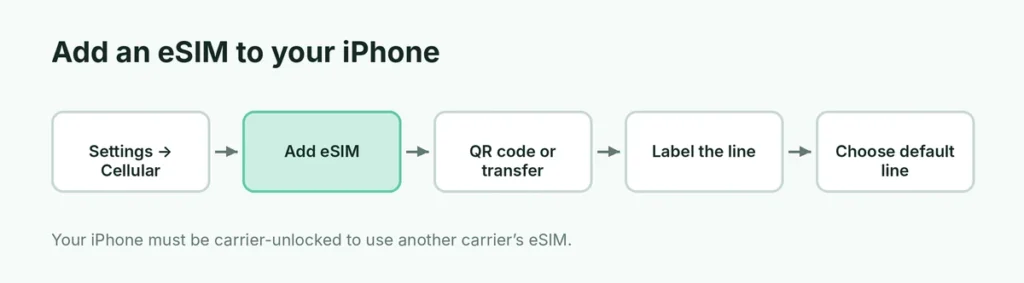
There are a few ways, depending on your carrier:
- Carrier activation: when you buy a plan, many carriers (Verizon, AT&T, T-Mobile and others) push the eSIM to your phone. Go to Settings → Cellular → Add eSIM and follow the prompts.
- QR code: go to Settings → Cellular → Add eSIM → Use QR Code, and scan the code your carrier gave you.
- Carrier app: some carriers let you set up eSIM inside their app.
- Convert a physical SIM: on supported carriers, Settings → Cellular → tap your line → Convert to eSIM.
Move an eSIM to a new iPhone
When you set up a new iPhone, Quick Start offers to transfer your eSIM from the old iPhone. You can also do it later: Settings → Cellular → Add eSIM → Transfer From Nearby iPhone. Both phones need to be nearby and unlocked, and your carrier must support eSIM transfer.
Important: before you factory reset an iPhone you’re selling, make sure your eSIM has been moved to the new phone, or ask your carrier for a new one. When erasing, iOS asks whether to keep or delete the eSIM.
Using eSIM when you travel
eSIM is perfect for travel. Buy a local or travel data eSIM before your trip (from a local carrier or a travel eSIM provider), install it with a QR code, and switch Cellular Data to the travel eSIM when you land, while keeping your home number on for calls and texts. Your iPhone must be carrier-unlocked to use another carrier’s eSIM.
Common eSIM problems
- “No SIM” or “SOS” only: restart the iPhone, then check Settings → Cellular that the line is turned on.
- Can’t scan the QR code: each eSIM QR code usually works only once. Ask the carrier for a new one.
- eSIM not transferring: update both iPhones (here’s how to update your iPhone), keep them close, and make sure Wi-Fi and Bluetooth are on.
- Deleted eSIM by mistake: contact your carrier; they can issue a new eSIM to the same number.
Should I worry about losing my eSIM if my iPhone is lost?
No. Your number stays with your carrier. If your iPhone is lost or stolen, call your carrier to suspend the line and get a new eSIM on your next phone. Here’s what to do if you lose your iPhone.
Using two lines: choose which number does what
With two lines (a physical SIM and an eSIM, or two eSIMs), go to Settings → Cellular to set:
- Default Voice Line: the number your iPhone uses for calls and texts to new contacts.
- Cellular Data: which line uses mobile data. Turn on Allow Cellular Data Switching only if you want the iPhone to switch automatically when one line has a weak signal.
- Line labels: rename lines to “Personal”, “Work” or “Travel” so it’s clear which is which.
In Contacts, you can also set which line to use for each person: open the contact and tap the line label under their name.
Is eSIM safer than a physical SIM?
In some ways, yes. A thief can’t pull an eSIM out of your phone to use your number elsewhere, and your iPhone can still be located with Find My while the eSIM stays active. You should still set a SIM PIN (Settings → Cellular → your line → SIM PIN) and ask your carrier about a port-out PIN to protect against SIM-swap scams.
eSIM vs. physical SIM: pros and cons
| eSIM | Physical SIM | |
|---|---|---|
| Switching carriers | Instant, online | Need a new card |
| Two numbers | Yes, on supported models | Needs a second slot |
| Travel plans | Buy and install before you fly | Buy a card on arrival |
| Theft | Can’t be pulled out of the phone | Thief can remove it |
| Moving to an Android phone | Carrier must re-issue it | Just move the card |
The short version
Every iPhone from the XS and XR onward has eSIM, including the iPhone 12 (one eSIM plus a nano-SIM) and the iPhone 13 (two eSIMs at once, plus a nano-SIM). iPhone 14 and later US models, and the iPhone Air everywhere, are eSIM-only. Check yours under Settings → General → About (look for an EID), and add an eSIM in Settings → Cellular → Add eSIM.