By
Google Authenticator gives you a new 6-digit code every 30 seconds for signing in to websites with 2-Step Verification. It’s free, works offline, and is much safer than codes by text message. Here’s how to set it up on iPhone or Android, add accounts, back up your codes, and move them to a new phone so you’re never locked out.
Short answer: install Google Authenticator from the App Store or Play Store and sign in with your Google account (this backs up your codes to your account). On the website you want to protect, turn on two-factor authentication and choose Authenticator app. In the app, tap + → Scan a QR code and point the camera at the QR code. Type the 6-digit code into the website to finish. On a new phone, install the app and sign in with the same Google account to get your codes back.
Last updated: November 2026.
What is Google Authenticator?
It’s an authenticator app: it creates one-time codes that prove it’s really you signing in. After you enter your password, the website asks for the current code from the app. Even if someone steals your password, they can’t sign in without your phone.
Why it’s safer than SMS codes: text messages can be intercepted or stolen with a SIM swap scam. Authenticator codes are created on your phone and never sent over the phone network.
How to set up Google Authenticator
- Install Google Authenticator from the App Store (iPhone) or Play Store (Android).
- Open it and tap Get started.
- Sign in with your Google account when asked. This turns on cloud backup of your codes. (You can choose Use without an account, but then your codes exist only on that phone.)
How to add an account to Google Authenticator
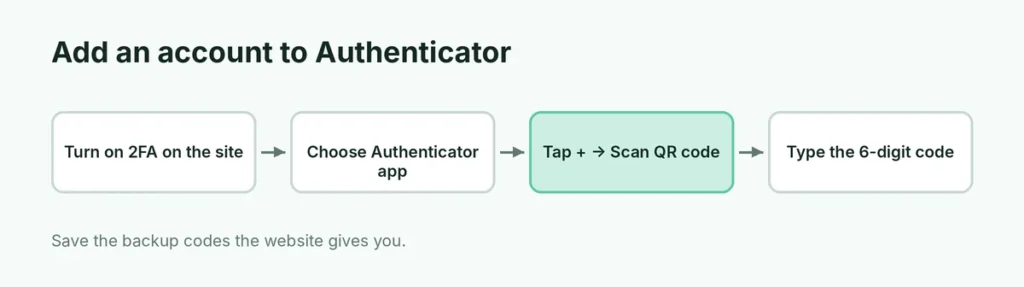
Use the same steps for Facebook, Instagram, Amazon, Microsoft, Binance, banks and most other services:
- On the website or app, go to Security settings and turn on two-factor authentication (2FA) or 2-Step Verification.
- Choose Authenticator app as the method. A QR code appears.
- In Google Authenticator, tap + → Scan a QR code.
- Point your phone camera at the QR code.
- The account appears in the app with a 6-digit code.
- Type that code into the website and click Verify.
Can’t scan? Tap Enter a setup key instead and type the key shown under the QR code (often behind a “Can’t scan?” link).
Save the backup codes: most websites show backup codes when you turn on 2FA. Write them down or save them somewhere safe. They’re your way back in if you lose your phone.
How to use Google Authenticator for your Google account
- Go to myaccount.google.com → Security → 2-Step Verification and turn it on.
- Under Authenticator, click Set up authenticator.
- Scan the QR code with the app and enter the code.
Your Google account can also use Google prompts on your phone (tap “Yes, it’s me”) and passkeys. Having more than one method means you’re less likely to get locked out.
How to back up Google Authenticator codes
Cloud sync (easiest): if you’re signed in to the app with your Google account, a cloud icon at the top shows your codes are saved. Tap your profile picture in the app to check which account they’re backed up to.
Export to another phone (no account):
- In Google Authenticator, tap the menu → Transfer accounts → Export accounts.
- Select the accounts and tap Next. A QR code appears.
- On the other phone, open Google Authenticator → + → Scan a QR code (or Import existing accounts).
How to move Google Authenticator to a new phone
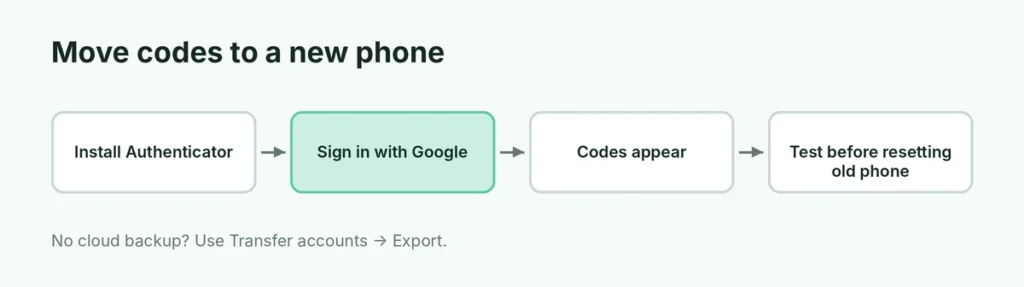
- Install Google Authenticator on the new phone.
- Sign in with the same Google account you used for backup. Your codes appear automatically.
- If you didn’t use cloud backup, use Transfer accounts → Export accounts on the old phone and scan the QR code on the new phone.
- Test a few codes before you reset or give away the old phone.
Lost your phone? How to get back in
- Cloud backup on: install the app on any phone and sign in with your Google account.
- No backup: use the backup codes you saved for each website, or the website’s account recovery process. Some services ask for ID or take several days.
- Your Google account: sign in with a backup code, a security key, or another phone with Google prompts. If you’re stuck, here’s how to recover a Google account without your phone or email.
Google Authenticator codes not working?
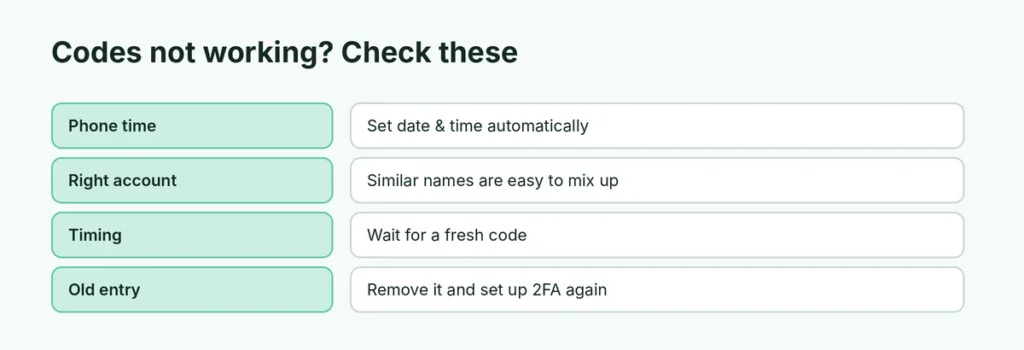
The most common reason is the wrong time on your phone. Codes depend on the clock.
- Android: go to Settings → System → Date & time and turn on Set time automatically. You can also open Google Authenticator → Settings → Time correction for codes → Sync now (on versions that offer it).
- iPhone: Settings → General → Date & Time → turn on Set Automatically.
Other fixes:
- Make sure you’re using the code for the right account (names can look similar).
- Type the code before it changes; wait for a new one if only a few seconds are left.
- If you removed and re-added an account, the old entry may be outdated. Delete it and set up 2FA again on the website.
Google Authenticator vs. other authenticator apps
| App | Cloud backup | Works offline | Notes |
|---|---|---|---|
| Google Authenticator | Yes, with Google account | Yes | Simple and free |
| Microsoft Authenticator | Yes, with Microsoft account | Yes | Push approvals for Microsoft accounts |
| Authy | Yes | Yes | Phone-number based backup |
| Apple Passwords (iPhone) | Yes, with iCloud | Yes | Built into iOS |
All of them use the same standard, so any website that says “authenticator app” works with any of them.
Is Google Authenticator safe?
Yes, it’s one of the safest common ways to protect accounts. Keep it safe by:
- protecting your Google account with a strong password and passkey (here’s how to change your Gmail password),
- setting a screen lock on your phone,
- turning on Privacy screen in the app (Settings) on supported versions to require Face ID or fingerprint,
- never sharing codes with anyone. Google, banks and support agents will never ask for your authenticator code.
The short version
Install Google Authenticator, sign in with your Google account for backup, and on each website turn on 2FA → Authenticator app → scan the QR code with + → Scan a QR code. Save each website’s backup codes. On a new phone, sign in with the same Google account to restore your codes, and if codes don’t work, set your phone’s time to automatic.