By
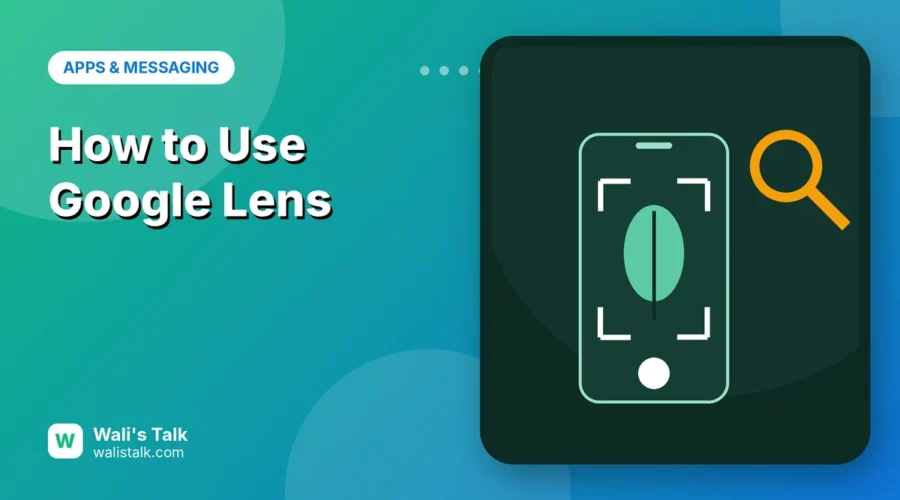
Google Lens lets you search with your camera instead of words. Point it at a plant, a product, a sign in another language or a math problem, and it tells you what it is, translates it or shows similar items. Here’s how to use Google Lens on Android, iPhone and a computer, plus the most useful things you can do with it.
Short answer: on Android, open the Google app and tap the Lens icon (camera) in the search bar, or use Circle to Search (hold the navigation bar or home button, then circle anything on screen). On iPhone, open the Google app or Chrome and tap the Lens icon. On a computer, in Chrome right-click an image → Search with Google Lens, or click the camera icon on google.com. Point, tap the shutter, and choose Search, Translate or Text.
Last updated: November 2026.
What can Google Lens do?
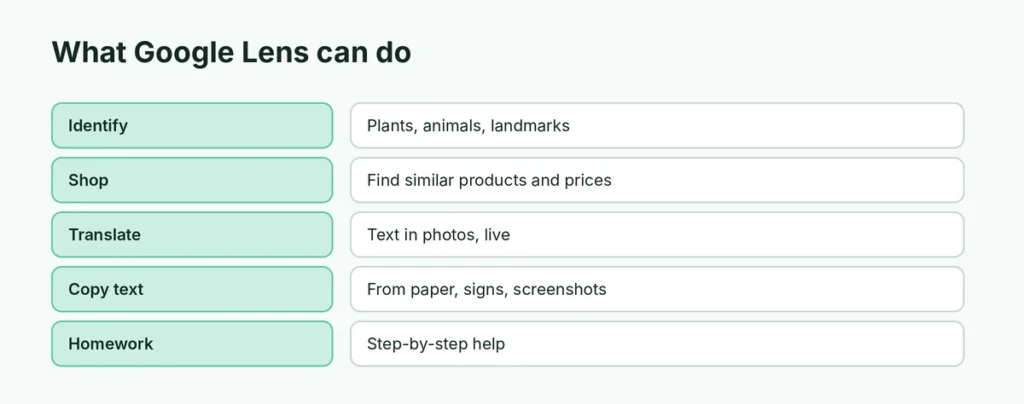
- Identify things: plants, animals, landmarks, buildings, artworks.
- Shop: find a product, outfit or piece of furniture and see where to buy it.
- Translate: point at text in another language and see it translated over the image.
- Copy text: copy words from paper, signs or screenshots to your phone or computer.
- Homework help: get step-by-step help for math and science problems.
- Ask questions: add a question to your photo, like “how do I care for this plant?”
- Scan codes: read QR codes and barcodes. Here’s more on how to scan a QR code on Android.
How to use Google Lens on Android
From the Google app:
- Open the Google app (or tap the Google search bar on your home screen).
- Tap the Lens icon (colorful camera) on the right of the search bar.
- Point the camera at the object and tap the shutter (search button).
- Choose Search, Translate or Text at the bottom.
From your camera: on Pixel and many other phones, open the Camera app and tap the Lens icon, or point at something and tap the Lens suggestion that appears.
From your photos: open Google Photos, open a picture and tap Lens at the bottom.
Use Circle to Search (Android)
On supported Android phones (Pixel, Samsung Galaxy S, A and Z series and many others), you can search anything on your screen without leaving the app:
- Press and hold the home button or the navigation bar at the bottom of the screen.
- Circle, highlight or tap the thing you want to search.
- Results appear at the bottom. Swipe up to see more.
It works on videos, social media posts, chats and websites.
How to use Google Lens on iPhone
- Install the Google app or Chrome from the App Store.
- In the Google app, tap the Lens icon in the search bar.
- Allow camera access the first time.
- Point at something and tap the shutter, or tap the photo icon to choose a picture from your library.
In Chrome on iPhone, tap the Lens icon in the address bar, or long-press an image on a website → Search Image with Google Lens.
iPhone alternative: Apple’s Visual Look Up and Visual Intelligence do similar things. Swipe up on a photo in the Photos app and tap the info (i) button with a star to identify plants, pets and landmarks.
How to use Google Lens on a computer
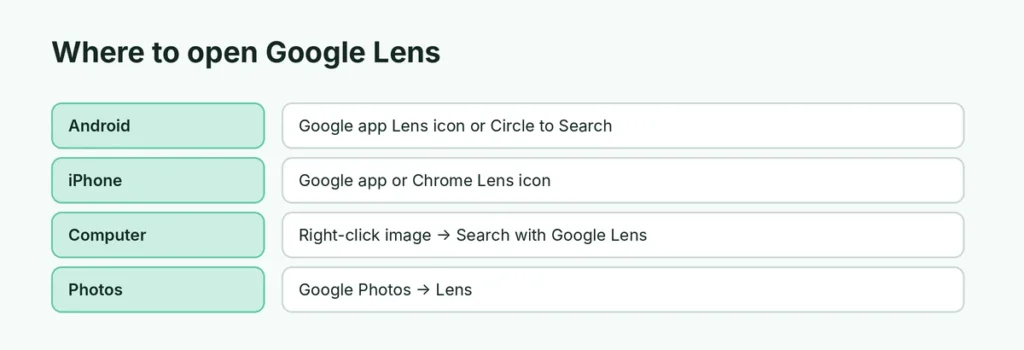
- On any image in Chrome: right-click the image → Search with Google Lens. Results open in a side panel.
- On the whole page: click the three-dot menu → Search with Google Lens, then drag to select any part of the page, even text or video.
- Upload a photo: go to google.com, click the camera icon in the search box, and drag in an image or paste an image link.
Translate text with Google Lens
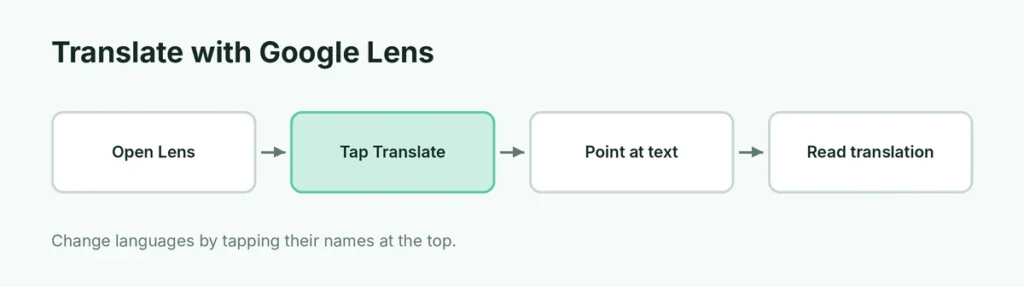
- Open Lens and tap Translate.
- Point at the text. The translation appears on top of the original text in real time.
- Tap the language names at the top to change them.
This is great for menus, signs and product labels when traveling. For offline use, download the language in the Google Translate app.
Copy text from a photo or paper
- Open Lens and tap Text.
- Point at the text and tap the shutter.
- Select the words you want and tap Copy, Listen or Copy to computer (if you’re signed in to Chrome with the same Google account).
Shop with Google Lens
Take a photo of a product, a pair of shoes or a piece of furniture, and Lens shows visually similar items with prices and shops. Tap Shopping if it doesn’t appear automatically. Compare prices before buying, and buy only from shops you trust.
Is Google Lens free and safe?
Google Lens is free. A few privacy points:
- Lens searches can be saved in your Google activity. Delete them at myactivity.google.com or turn on auto-delete.
- Don’t point Lens at ID cards, bank cards or passwords.
- Lens identifies objects, not private people. It may show similar images, but it won’t tell you who a stranger is.
Google Lens not working? Try these fixes
- Update the Google app and Chrome from the App Store or Play Store.
- Allow camera permission: Settings → Apps → Google → Permissions → Camera (Android), or Settings → Apps → Google → Camera (iPhone).
- Clean the camera lens and use better lighting.
- Check your internet connection. Most Lens features need data.
- Lens icon missing: make sure you’re using the Google app, not a third-party search bar. On Android, enable Circle to Search in Settings → Display → Navigation bar (Samsung) or Settings → System → Navigation mode (Pixel).
Related guides
The short version
Open the Google app (Android or iPhone) and tap the Lens camera icon, point at something and tap the shutter, then choose Search, Translate or Text. On Android, Circle to Search works on anything on your screen; on a computer, right-click an image in Chrome → Search with Google Lens. It’s free; just keep sensitive documents out of the camera.