By
By 
QR codes are everywhere: restaurant menus, Wi-Fi passwords, parking meters, tickets and payment screens. Every modern Android phone can scan them without downloading an extra app. Here are the fastest ways, plus how to scan a QR code from a screenshot and stay safe from QR scams.
Short answer: open the Camera app and point it at the QR code for a second or two, then tap the link or pop-up that appears. If nothing happens, swipe down twice from the top of the screen and tap the Scan QR code tile, or open Google Lens (in the Google app or the camera). To scan a QR code in a photo or screenshot, open it in Google Photos and tap Lens.
Last updated: October 2026. Works on Android 13, 14, 15 and 16, on Samsung, Pixel, Motorola, OnePlus, Xiaomi, Realme and Oppo phones.
Method 1: Use the Camera app (fastest)
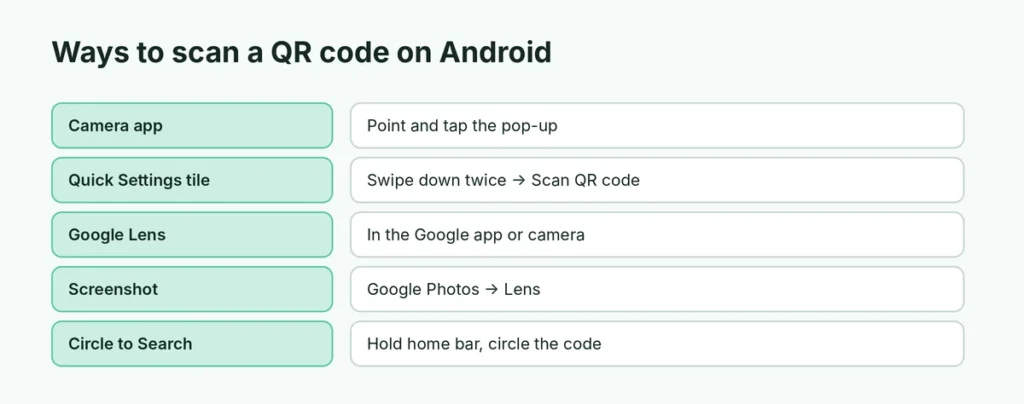
- Open your phone’s Camera app in normal photo mode.
- Point it at the QR code so the whole code is on screen.
- Hold still for a second. A link, button or pop-up appears.
- Tap it to open the website, join the Wi-Fi network or see the details.
Nothing happens? QR scanning may be turned off in the camera settings:
- Samsung: Camera → Settings (gear) → turn on Scan QR codes.
- Xiaomi, Redmi, Poco: Camera → Settings → Scan QR codes (or use the Scanner app).
- Other brands: look for Google Lens or QR code in the camera’s settings or modes.
Method 2: The Quick Settings “Scan QR code” tile
Android 13 and later include a built-in QR scanner in Quick Settings:
- Swipe down twice from the top of the screen.
- Tap Scan QR code.
- Point the phone at the code.
If you don’t see the tile, tap the pencil (edit) icon and drag Scan QR code into your tiles. This works even from the lock screen on many phones.
Method 3: Google Lens
Google Lens reads QR codes reliably, even small or damaged ones:
- Open the Google app and tap the Lens (camera) icon in the search bar, or
- open Google Lens from the camera app on Pixel and many other phones.
Point it at the QR code and tap the result.
How to scan a QR code from a screenshot or photo
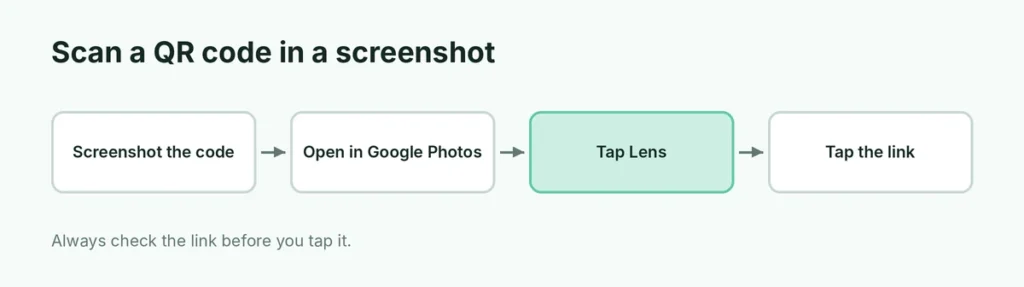
Someone sent you a QR code image, or it’s on a website on your own phone? You can’t point your camera at your own screen, so:
- Take a screenshot of the QR code (or save the image).
- Open it in Google Photos.
- Tap Lens at the bottom.
- Tap the link that appears.
On Pixel and Samsung phones, you can also use Circle to Search: press and hold the home button or navigation bar, then circle the QR code on screen.
Scan a Wi-Fi QR code
Wi-Fi QR codes connect you to a network without typing the password:
- Scan the code with the camera or the Quick Settings tile.
- Tap Connect (or Join network).
To share your own Wi-Fi: Settings → Network & internet (or Connections) → Wi-Fi → tap the gear next to your network → Share (or QR code). Another phone can then scan it.
QR code not scanning? Try these fixes
- Clean the camera lens. Smudges are the most common cause.
- Move closer or farther so the code fills about half the screen.
- Improve the light and avoid glare on glossy menus or screens.
- Hold steady for two seconds.
- Use Google Lens instead of the camera.
- Update the Camera and Google apps from the Play Store.
- Damaged or very small code? Try zooming in a little.
Stay safe: watch out for QR code scams
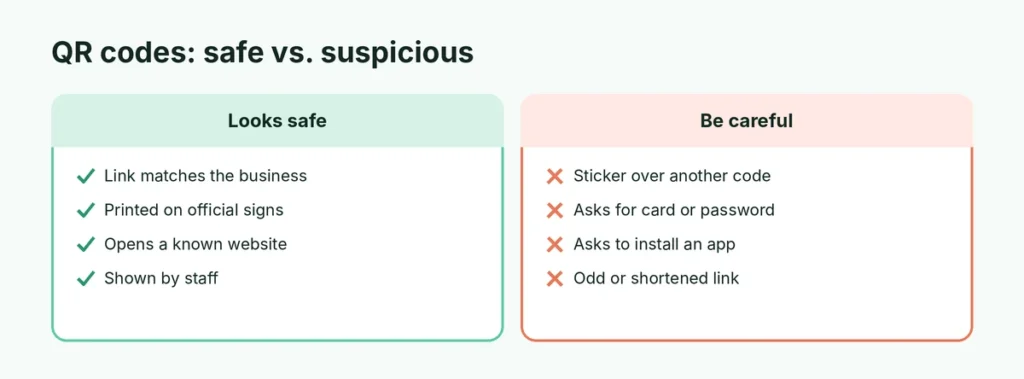
Scammers sometimes stick fake QR codes over real ones on parking meters, posters and restaurant tables to send you to fake payment pages. This is called “quishing”. Before you tap:
- Read the link preview. Make sure the website name is what you expect (for example, the real parking company).
- Don’t enter passwords or card details on a page you reached from a public QR code unless you’re sure it’s real.
- Check for stickers placed over the original code.
- Never install apps from a QR code; get them from Google Play.
Scan a QR code on Samsung Galaxy phones
Samsung includes several scanning options:
- Camera app: point the camera at the code (make sure Scan QR codes is on in Camera settings).
- Quick panel: swipe down twice → tap Scan QR code (add it via the pencil or + button if missing).
- Samsung Internet browser: tap ≡ → QR code scanner (you may need to add it in the menu).
- Bixby Vision on some models.
Scan a QR code on Xiaomi, Realme, Oppo and OnePlus
- Xiaomi, Redmi, Poco: use the Scanner app (in Tools) or the Camera; Quick Settings also has Scan on many models.
- Realme and Oppo: swipe down → Scan tile, or use the Camera’s Scan mode.
- OnePlus: Camera app (Google Lens option) or the Quick Settings tile.
Scan barcodes and documents too
Google Lens also reads barcodes on products (to compare prices or find information) and can copy text from signs, receipts and printed pages. Point Lens at the text and tap Text to select and copy it. To scan paper documents into PDFs, use Google Drive → + → Scan.
QR codes that open apps or payments
Some QR codes open a specific app, such as a restaurant ordering page, a parking app or a payment request. If a code asks to install an app from outside Google Play, or to enter card details on an unfamiliar page, stop and check with the business directly. Legitimate payment QR codes are usually displayed by staff or printed on official signs, not stuck on as stickers.
Can I scan a QR code with WhatsApp or Instagram?
WhatsApp’s camera can scan WhatsApp QR codes (to add a contact): tap the QR icon in Settings next to your name → Scan code. Instagram can scan Instagram QR codes from your profile menu. For general QR codes, the phone camera or Lens is best.
Do I need a QR scanner app?
No. Built-in options cover everything. Many third-party QR apps in the Play Store show heavy ads or ask for unnecessary permissions. If you install one, choose a well-known app and check its permissions.
Create your own QR code
Want to share a link as a QR code? In Chrome, open the page → ⋮ → Share → QR code. You can then download the image and print or send it.
Scanning QR codes for other apps
| What you’re scanning | How |
|---|---|
| WhatsApp Web login | Open WhatsApp → ⋮ → Linked devices → Link a device (the normal camera won’t work). Here’s how to fix the WhatsApp Web QR code not scanning. |
| Payment apps | Use the scanner inside the payment app |
| Event tickets | Show your code; the venue scans it |
| eSIM setup | Settings → Network & internet → SIMs → add eSIM → scan |
The short version
Open the Camera and point it at the QR code, then tap the pop-up. If that doesn’t work, use the Scan QR code tile in Quick Settings or Google Lens. To scan a code in a screenshot, open it in Google Photos and tap Lens, or use Circle to Search. Always check the link before you tap, especially on public QR codes for payments.