By
Sent an email to the wrong person, forgot the attachment, or spotted a typo the second you hit Send? Gmail can take it back, but only for a few seconds. Here’s how Undo Send works, how to give yourself more time, and what to do if it’s too late.
Short answer: right after sending, click Undo in the “Message sent” box at the bottom left (on the phone app, tap Undo at the bottom of the screen). You have 5 seconds by default. To get up to 30 seconds, go to Gmail on a computer → Settings (gear) → See all settings → General → Undo Send → choose 30 seconds → Save Changes. After the time runs out, the email can’t be unsent.
Last updated: November 2026.
How to unsend an email on a computer
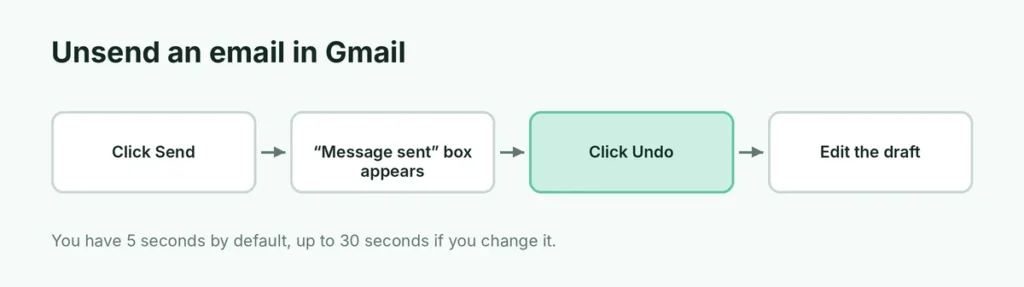
- Click Send as usual.
- A “Message sent” box appears at the bottom left with Undo and View message.
- Click Undo before it disappears.
- The email opens again as a draft. Fix it and send again, or delete the draft.
How to unsend an email on iPhone or Android
- Tap the Send arrow.
- A black bar appears at the bottom saying Sent with an Undo button.
- Tap Undo quickly.
The phone app uses the same time limit you set on the computer.
Give yourself more time: change the Undo Send period
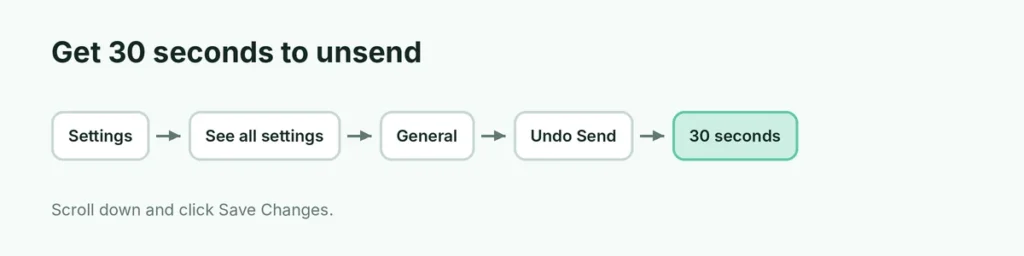
- On a computer, open Gmail → Settings (gear icon) → See all settings.
- On the General tab, find Undo Send.
- Choose a send cancellation period of 5, 10, 20 or 30 seconds.
- Scroll down and click Save Changes.
We recommend 30 seconds. It barely slows anything down, and it catches most mistakes.
How Undo Send actually works
Gmail doesn’t pull an email back from someone else’s inbox. Instead, it waits before really sending it. During those 5 to 30 seconds, the email hasn’t left yet, so clicking Undo simply cancels it. Once the waiting time ends, the email is delivered and can’t be recalled.
Missed the Undo button? What you can do
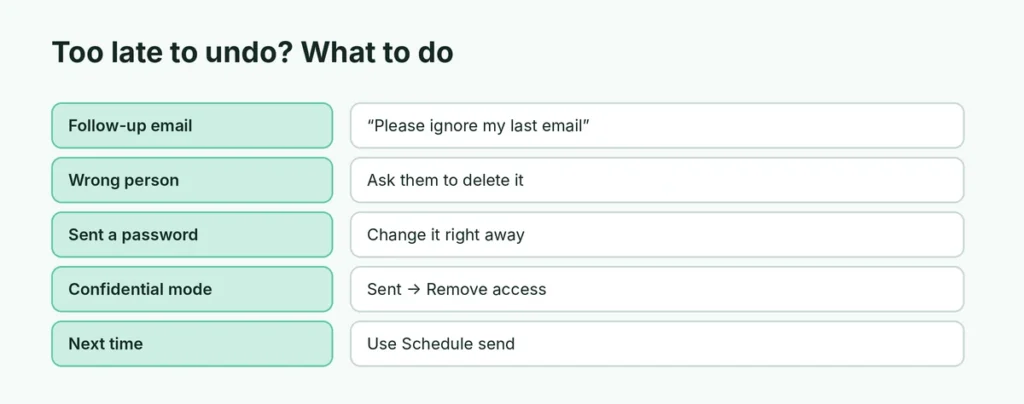
If the time ran out:
- Send a short follow-up: “Sorry, please ignore my previous email” or “Corrected version attached”.
- Ask the recipient to delete it, especially if you sent private information to the wrong person.
- Change passwords if you emailed a password or code by mistake.
- Tell your IT team if you sent confidential work data to the wrong address.
There’s no hidden way to unsend a Gmail email after the time limit. Websites or apps that claim to “recall” Gmail messages can’t do it.
Prevent mistakes before you send
- Schedule send: click the arrow next to Send → Schedule send to deliver it later. Until then, you can open Scheduled in the left menu and edit or cancel it.
- Attachment reminder: Gmail warns you if you mention “attached” but didn’t attach a file.
- Check the “To” field: Gmail autocompletes names; make sure you picked the right person.
- Use Confidential mode for sensitive emails: click the lock icon when writing to set an expiry date and stop forwarding or downloading. You can remove access later from your Sent folder.
Confidential mode: removing access after sending
If you sent an email in Confidential mode, you can still take it away after Undo has expired:
- Open Sent and the confidential email.
- Click Remove access.
The recipient will no longer be able to open it (though they may have taken a screenshot).
Can you unsend an email in Gmail after 1 hour?
No. Gmail’s longest Undo Send window is 30 seconds. After that, the email is delivered to the other person’s inbox, and no button, setting or app can pull it back. Anyone telling you otherwise is selling something that doesn’t work.
What you can do after an hour is limit the damage: send a correction, ask the person to delete it, or, if the email was sent in Confidential mode, click Remove access from your Sent folder.
Does the recipient know if I unsent an email?
No. Because the email never left your account, the recipient gets nothing: no notification, no empty message, no “this message was unsent” note. As far as they can tell, you never sent it.
Why didn’t I see the Undo button?
- You closed the tab or app right after sending. The email still sends after the waiting time, but you lose the Undo option.
- The box disappeared quickly because your Undo Send period is 5 seconds. Change it to 30.
- Your internet dropped while sending. The email may be in Outbox (phone) or still sending. Check Sent and Outbox.
- You used another email app, such as Apple Mail or Outlook, connected to Gmail. Those apps use their own settings.
Can I unsend a scheduled email?
Yes, and you have until the scheduled time to do it:
- Click Scheduled in Gmail’s left menu (on the phone: menu → Scheduled).
- Open the email and click Cancel send.
- The email goes back to Drafts, where you can edit or delete it.
This makes Schedule send a handy safety net for important emails: schedule them 10 minutes ahead, then read them one more time before they go.
Undo Send on a work or school Gmail account
Undo Send works the same way in Google Workspace accounts. Your administrator can’t change the time limit for you, but some companies use extra tools that check outgoing emails, which can add a short delay before delivery.
Undo Send vs. Outlook “Recall”
| Gmail Undo Send | Outlook Recall | |
|---|---|---|
| Time limit | 5–30 seconds | Any time, but often fails |
| Works for everyone | Yes | Mostly within the same organization |
| Reliable | Yes, within the time limit | Not always |
Unsend in other apps
Gmail’s Undo Send only works in Gmail. If you use Apple Mail on iPhone (iOS 16 and later), it has its own Undo Send with up to 30 seconds (Settings → Apps → Mail → Undo Send Delay). WhatsApp lets you delete for everyone within a limited time.
Related Gmail guides
The short version
Click Undo in the “Message sent” box right after sending. You have 5 seconds by default; change it to 30 seconds in Settings → See all settings → General → Undo Send → Save Changes. Once the time is up, the email can’t be recalled, so send a quick follow-up instead, and use Schedule send or Confidential mode to avoid mistakes in the future.