By
A good email signature saves you typing your name, job title and phone number every time, and makes your emails look professional. Gmail lets you create a signature on the computer, and a separate (simpler) one in the phone app. Here’s how to set both up, add a logo, and fix a signature that isn’t showing.
Short answer: on a computer, open Gmail → Settings (gear) → See all settings → General tab → scroll to Signature → Create new, name it, type your signature and format it. Under Signature defaults, choose it for new emails and replies/forwards, then click Save Changes at the bottom. On the phone app, go to Settings → your account → Mobile signature (Android) or Signature settings (iPhone).
Last updated: November 2026.
How to add a signature in Gmail on a computer
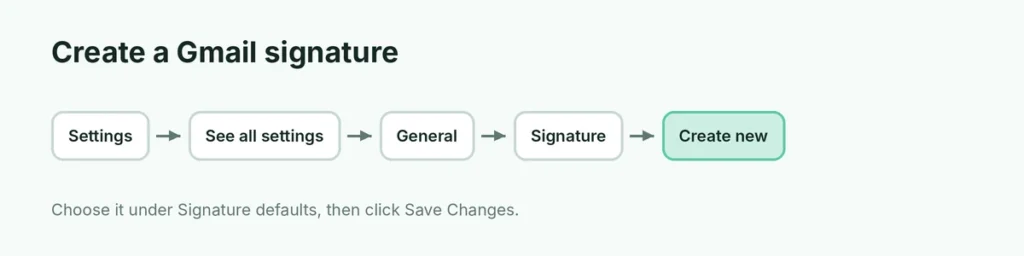
- Open mail.google.com and click the gear icon → See all settings.
- On the General tab, scroll down to Signature.
- Click Create new, give the signature a name (for example “Work”) and click Create.
- Type your signature in the box. Use the toolbar to change the font, size, color, add links or an image.
- Under Signature defaults, choose your signature for For new emails use and On reply/forward use.
- Scroll to the bottom and click Save Changes.
Your signature now appears automatically when you write a new email.
What to put in your signature
A clear, simple signature works best:
- Name
- Job title and company (for work email)
- Phone number
- Website or one social link
- An optional small logo
Keep it to 3 or 4 lines. Long signatures with many images can land in spam folders or look cluttered on phones.
Example:
> Wali Rahman > Digital Marketer · Wali’s Talk > +1 555 123 4567 · walistalk.com
Add a logo or image to your signature
- In the signature editor, click the Insert image icon.
- Upload an image from Google Drive, upload from your computer, or paste a web address (URL) of an image hosted online.
- Choose Small or Medium size so it doesn’t overwhelm the email.
Images uploaded from your computer may show as attachments for some recipients. Using an image link from your website or Google Drive (shared publicly) usually displays more reliably.
How to add a signature in the Gmail app (iPhone)
- Open the Gmail app and tap the menu (three lines) → Settings.
- Tap your email account.
- Tap Signature settings and turn on Mobile Signature.
- Type your signature and tap back to save.
How to add a signature in the Gmail app (Android)
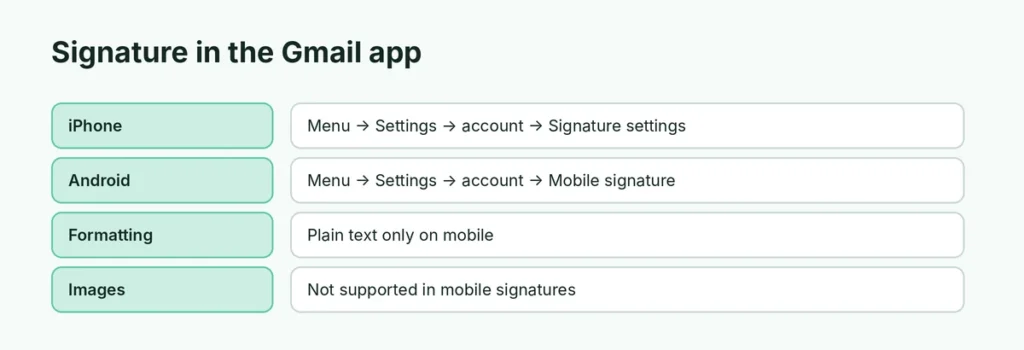
- Open Gmail → menu (three lines) → Settings.
- Tap your account.
- Tap Mobile signature, type your signature and tap OK.
Note: mobile signatures are plain text only (no images or formatting). If you have a fancy signature on the computer, the app uses the mobile one instead when you send from your phone.
Use different signatures for different emails
You can create several signatures, for example a full work one and a short one for replies:
- Create each signature in Settings → Signature → Create new.
- Set defaults for new emails and replies.
- When writing an email, click the pen icon (Insert signature) at the bottom of the compose window to switch to another signature.
If you send from several addresses in one Gmail account (Send mail as), you can set a different default signature for each address.
Gmail signature not showing? Try these fixes
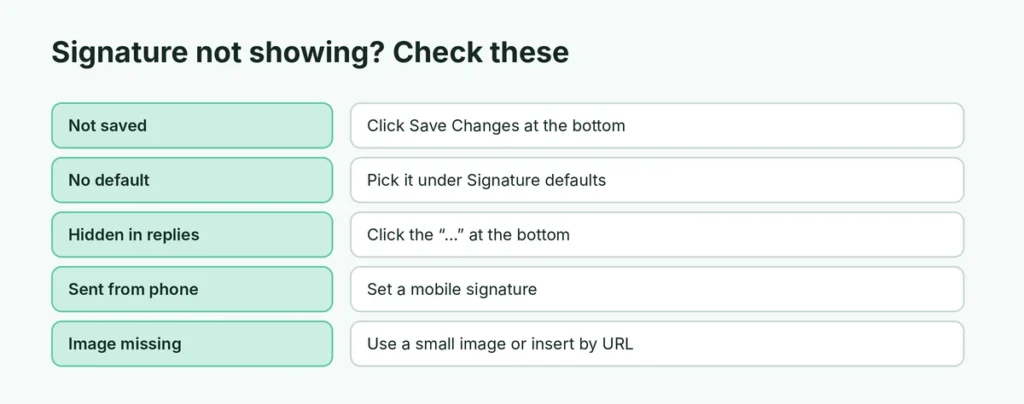
- You forgot to save: scroll to the bottom of Settings and click Save Changes.
- No default selected: under Signature defaults, choose the signature instead of No signature.
- Replies don’t show it: Gmail hides the signature in replies behind “…” (three dots) at the bottom of the message. Click it to see it, or tick Insert signature before quoted text in replies.
- Sending from the phone: set a mobile signature in the app.
- Image doesn’t appear: use a smaller image, or insert it by URL.
- Work account: your company may add a signature automatically or block changes.
Remove or edit a signature
Go to Settings → See all settings → General → Signature. Click the signature name to edit, or the trash icon to delete it, then Save Changes.
How do I add social media icons to my Gmail signature?
Gmail doesn’t have a built-in social icons button, but you can add them:
- Save small icons (about 24×24 pixels) for Facebook, LinkedIn or Instagram to your website or Google Drive.
- In the signature editor, click Insert image → Web address (URL) and paste the image link.
- Select the icon and click the Link button to link it to your profile.
Keep it to two or three icons. Too many images make emails heavier and can trigger spam filters.
How do I make a clickable link or phone number in my signature?
Select the text (for example, your website), click the Link icon (a chain) in the signature toolbar, and paste the web address. For a phone number that people can tap on their phones, most phones detect numbers automatically; just write it in full with the country code, like +1 555 123 4567.
Can I copy a signature from Word or a signature generator?
Yes. Design your signature in Google Docs, Word or a free signature generator, then select it, copy (Ctrl + C) and paste (Ctrl + V) into Gmail’s signature box. Check the result by sending a test email to yourself and opening it on your phone. Pasted signatures sometimes bring odd spacing; delete empty lines if needed.
Why does my signature look different on the recipient’s phone?
Every email app displays signatures a little differently. To keep it looking right everywhere:
- Use standard fonts like Arial or Verdana.
- Avoid putting important text inside images; some apps block images until the reader allows them.
- Keep the total width narrow, so it doesn’t break on small screens.
- Send a test email to a Gmail, Outlook and iPhone Mail address if you can.
Does a Gmail signature work in Google Workspace?
Yes, the steps are the same. In some companies, an administrator sets a company-wide signature that is added automatically to every email. In that case, your own signature may appear above it, or you may not be allowed to change it. Ask your IT team if you see two signatures.
Gmail signature tips for small businesses
- Use the same signature for everyone in your team, with their own name and number.
- Add a short call to action, such as “Book a call” with a link.
- Don’t add long legal disclaimers unless your industry requires them.
- Avoid putting your personal address in a signature you send to strangers.
Related Gmail guides
- How to forward emails in Gmail, including automatic forwarding.
The short version
On a computer, go to Gmail → Settings → See all settings → General → Signature → Create new, write your signature, choose it under Signature defaults and click Save Changes. In the phone app, set a plain-text mobile signature under Settings → your account. If it doesn’t show, check that you saved, selected a default and set a mobile signature for emails sent from your phone.