By
By 
Phones get lost, break or get replaced, and the only thing that really matters is whether your photos, contacts and chats survive. Android has a free, built-in backup that covers most of it, plus a few things you need to back up separately. Here’s how to make sure nothing is left behind.
Short answer: turn on Google backup: open Settings → Google → All services → Backup (on Pixel: Settings → System → Backup), turn on Backup by Google One, and tap Back up now. Then make sure Google Photos backup is on for your photos, and back up WhatsApp inside WhatsApp. Samsung phones can also use Samsung Cloud or Smart Switch. The free Google storage is 15 GB, shared with Gmail and Drive.
Last updated: October 2026. Works on Android 13, 14, 15 and 16 phones from Samsung, Google Pixel, Motorola, OnePlus, Xiaomi, Realme and Oppo.
What Google backup saves (and what it doesn’t)
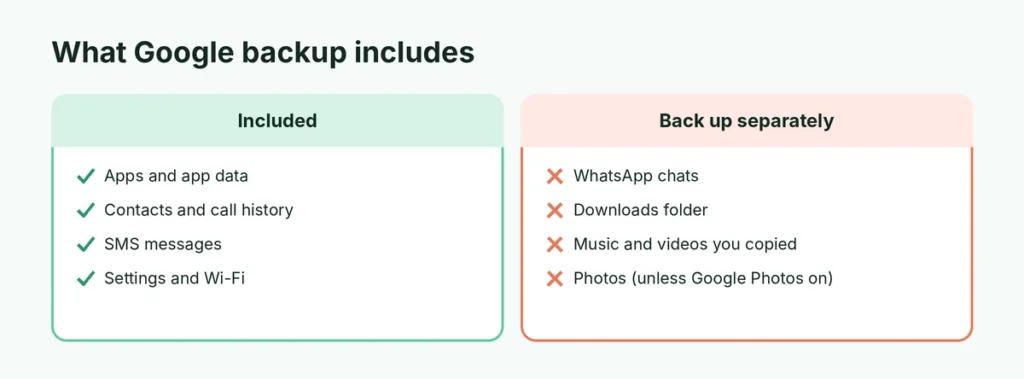
| Backed up automatically | Not included: back up separately |
|---|---|
| Apps (list and most app data) | WhatsApp chats (use WhatsApp’s own backup) |
| Contacts synced to Google | Files in your Downloads folder |
| Call history | Music and videos copied to the phone |
| SMS and MMS messages | Data from some apps that opt out |
| Device settings, Wi-Fi passwords | Photos, unless Google Photos backup is on |
| Calendar (Google Calendar) | Signal and other app-specific backups |
Step 1: Turn on Google backup
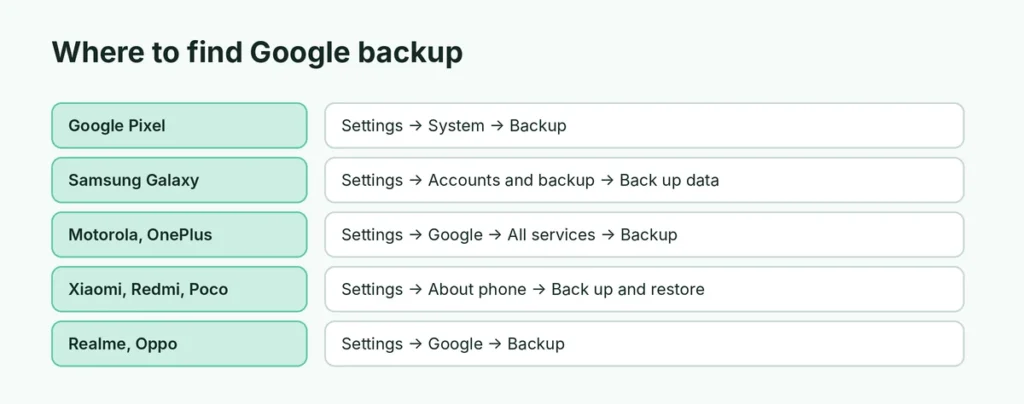
The menu name varies a little by brand:
| Phone | Where to find it |
|---|---|
| Google Pixel | Settings → System → Backup |
| Samsung Galaxy | Settings → Accounts and backup → Back up data (under Google Drive) |
| Motorola, OnePlus, most others | Settings → Google → All services → Backup |
| Xiaomi, Redmi, Poco | Settings → About phone → Back up and restore → Google |
| Realme, Oppo | Settings → Google → Backup |
Then:
- Turn on Backup by Google One (sometimes just Back up to Google Drive).
- Check the right Google account is selected.
- Tap Back up now and wait until it says the backup finished.
Backups then run automatically about once a day when the phone is charging, idle and on Wi-Fi.
Step 2: Back up your photos and videos
Google backup only includes photos if Google Photos is on:
- Open Google Photos → tap your profile picture.
- Tap Turn on backup (or Photos settings → Backup).
- Choose the backup quality: Storage saver saves space; Original quality keeps full resolution but uses more storage.
Wait until the profile icon shows Backup complete. Photos that haven’t uploaded aren’t safe yet.
If you’d rather keep photos on a computer, connect the phone with a USB cable, choose File transfer on the phone, and copy the DCIM folder to your PC.
Step 3: Back up WhatsApp
WhatsApp chats are not in the Google backup. Open WhatsApp → Settings → Chats → Chat backup → Back up, and set Back up to Google Account to Daily. Here’s the full guide on how to back up WhatsApp chats, and how to fix it if the WhatsApp backup to Google Drive isn’t working.
Step 4: Back up files and downloads
Documents, PDFs and other files in Downloads aren’t included. Either:
- upload important ones to Google Drive (open Drive → + → Upload), or
- copy them to a computer with a USB cable, or
- move them to a microSD card if your phone has a slot.
Samsung phones: Samsung Cloud and Smart Switch
Samsung users have two extra options:
- Samsung Cloud: Settings → Accounts and backup → Back up data (under Samsung Cloud). It backs up Samsung apps, home screen layout, settings and messages. Free storage is limited, and some items are kept only temporarily.
- Smart Switch: install Smart Switch on a Windows PC or Mac and back up the entire phone to the computer with a cable. This is the most complete Samsung backup and needs no cloud storage.
Check that your backup worked
Go back to the backup screen and look for:
- Last backup: a recent date and time,
- a list of what was backed up (Apps, Contacts, Call history, SMS, Device settings),
- Google Photos: “Backup complete” under your profile icon.
You can also see your backups at drive.google.com → Storage → Backups (on the web, under the storage details).
Running out of Google storage?
Google gives 15 GB free, shared between Gmail, Drive and Photos. If it’s full, backups stop. Options:
- delete large emails and old Drive files,
- switch Google Photos to Storage saver,
- buy more storage with Google One (plans start small),
- or back up photos to a computer instead.
Here’s a comparison of free cloud storage services, and what to do if your Android phone storage is almost full.
Restore your backup on a new or reset phone
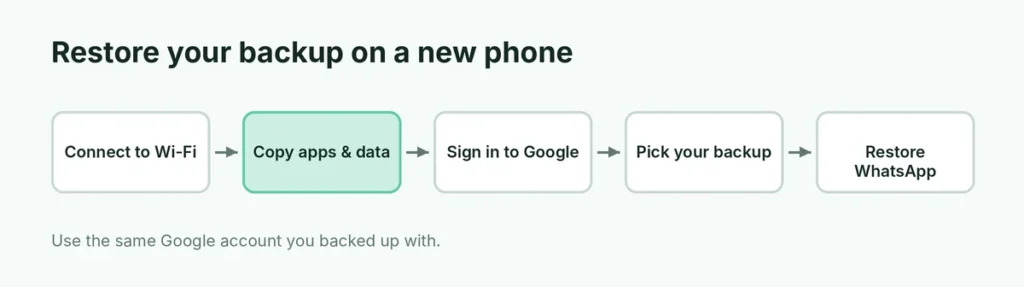
- Turn on the new phone and connect to Wi-Fi.
- When asked, choose Copy apps & data (or Restore from backup).
- Sign in with the same Google account.
- Pick the backup from your old phone and choose what to restore.
Apps download in the background. Open Google Photos to see your photos, and install WhatsApp and tap Restore for your chats. Going from an iPhone to Android, or the other way? The phone’s setup assistant offers to transfer data from the old device with a cable.
Before a factory reset
A reset erases everything on the phone, so make a fresh backup first, then follow how to factory reset an Android phone. Also make sure you know your Google password, because the phone will ask for it afterward.
Back up contacts specifically
Contacts are only included if they’re saved to your Google account (not just “Phone” or “SIM”). To check:
- Open the Contacts app (Google Contacts or Samsung Contacts).
- Tap your profile icon or menu → look for Contacts on this device or Phone storage.
- If some contacts are stored only on the phone, choose Move to another account (or Import/Export → Export to Google).
You can see all your Google contacts at contacts.google.com. Anything listed there is safe.
Back up text messages (SMS)
Google backup includes SMS and MMS messages for phones using Google Messages. Samsung Messages users can back up texts with Samsung Cloud or Smart Switch. RCS chats in Google Messages are included in the backup too on most phones.
Back up to a computer (no cloud needed)
If you don’t want to use cloud storage:
- Connect the phone to your PC with a USB cable.
- On the phone, tap the USB notification → choose File transfer.
- On the PC, open the phone in File Explorer.
- Copy the folders you care about: DCIM (camera photos), Pictures, Download, Documents, WhatsApp media and Music.
This doesn’t save app data, SMS or settings, so combine it with Google backup for a complete copy.
How often does Android back up?
Automatic Google backups run roughly every 24 hours when the phone is charging, idle and connected to Wi-Fi. If your backup is old, plug the phone in overnight on Wi-Fi, or tap Back up now. Backups from phones that haven’t been used for a long time can be deleted by Google after an extended period, so don’t rely on a backup from a phone you stopped using months ago.
Back up regularly without thinking about it
- Leave Backup by Google One on: it runs daily on Wi-Fi while charging.
- Keep Google Photos backup on.
- Set WhatsApp backup to Daily.
- Once a month, copy important files to a computer or an external drive for a second copy.
The short version
Turn on Backup by Google One in Settings (Google → Backup, or System → Backup on Pixel) and tap Back up now. Turn on Google Photos backup for photos and videos, back up WhatsApp inside WhatsApp, and copy files from Downloads to Google Drive or a computer. Samsung users can also use Samsung Cloud or Smart Switch. Restore everything by signing in with the same Google account on your new phone.