By
WhatsApp Business is a free app from Meta made for small businesses. It looks like regular WhatsApp, but adds a business profile, a product catalog, quick replies, automatic greeting and away messages, and labels to organize customers. Here’s what WhatsApp Business is, how it differs from normal WhatsApp and the paid API, and how to set it up step by step.
Short answer: download WhatsApp Business (free) from the Play Store or App Store, verify your business phone number, and set up your business profile (name, category, hours, address, website). Then use Business tools to add a catalog, greeting message, away message and quick replies. You can move your existing WhatsApp number and chats to it. Larger businesses that need many agents or automated messages use the paid WhatsApp Business Platform (API) instead.
Last updated: November 2026.
What is WhatsApp Business?
WhatsApp Business is a separate app for people who sell or provide services: shops, salons, restaurants, tutors, freelancers and online sellers. Customers message you with normal WhatsApp; they don’t need a special app. They see a business profile with your details instead of a personal profile.
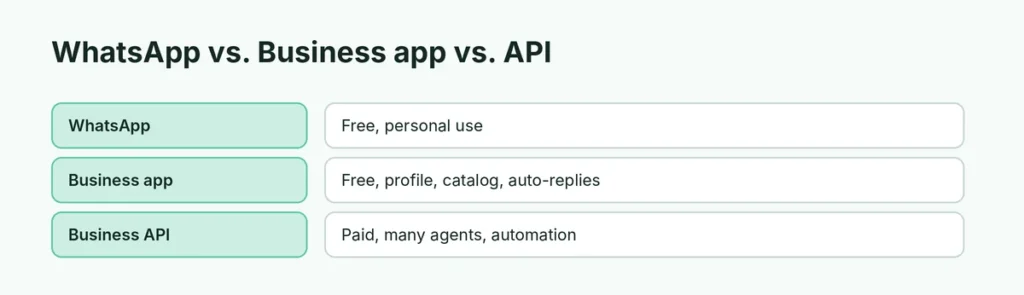
WhatsApp vs. WhatsApp Business vs. WhatsApp Business API
| WhatsApp Business app | WhatsApp Business Platform (API) | ||
|---|---|---|---|
| Cost | Free | Free | Paid (per conversation + provider fees) |
| Best for | Personal use | Small businesses | Medium and large businesses |
| Business profile | No | Yes | Yes |
| Catalog | No | Yes (up to 500 items) | Yes |
| Auto-replies | No | Greeting and away messages | Chatbots and advanced automation |
| Team members | One phone + linked devices | Up to 4 linked devices | Many agents with a shared inbox |
| Bulk messages | Broadcast lists | Broadcast lists (up to 256) | Approved template messages at scale |
How to set up WhatsApp Business (step by step)
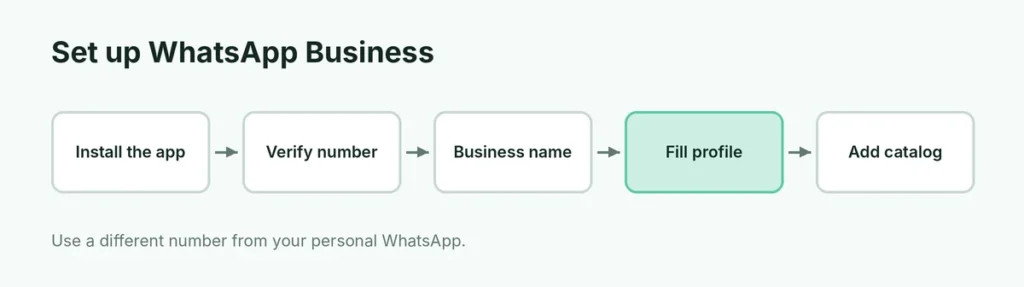
- Install WhatsApp Business from the Play Store or App Store.
- Open it, agree to the terms and enter your business phone number. It can be a mobile or landline number (landlines verify with a voice call).
- If the number is already on regular WhatsApp, the app offers to move your account, including chats.
- Enter the 6-digit verification code.
- Type your business name and choose a category (for example, Clothing Store or Beauty Salon).
- Add a profile photo, such as your logo.
Choose your business name carefully. You can change it later, but changes may need review and can confuse customers.
Complete your business profile
Go to Settings → Business tools → Business profile and add:
- Description (what you sell or do),
- Address and map location,
- Business hours,
- Email and website,
- Social links like Instagram or Facebook.
A complete profile builds trust: customers can see you’re a real business before they buy.
Add a product catalog
- Go to Settings → Business tools → Catalog.
- Tap Add new item.
- Add photos, a name, price, description, link and item code.
- Tap Save.
Customers can browse your catalog from your profile, and you can send an item in a chat with the attach (paperclip) → Catalog button. You can also group items into collections (like “New arrivals”).
Set up automatic messages
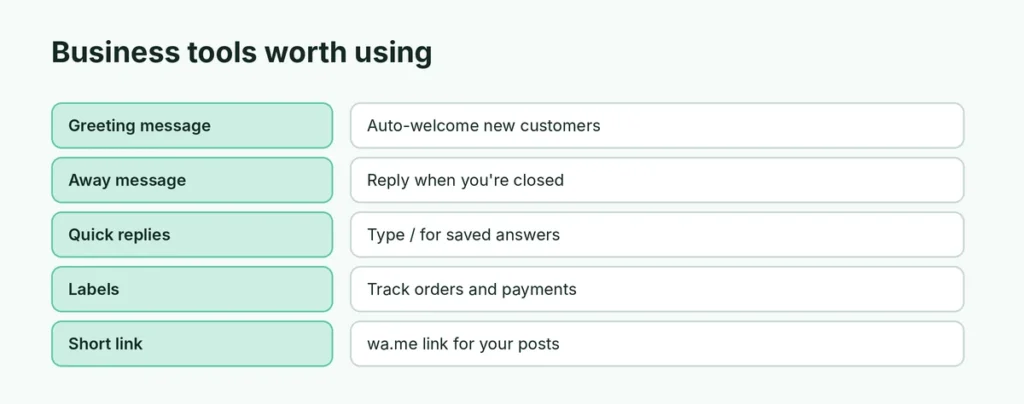
Greeting message: sent automatically when a new customer messages you, or when someone writes after 14 days of no messages.
- Business tools → Greeting message → turn on Send greeting message.
- Write your message, for example: “Hi! Thanks for contacting Rosa’s Bakery. How can we help you today?”
- Choose recipients and save.
Away message: sent when you’re closed or busy.
- Business tools → Away message → turn it on.
- Write the message and choose a schedule: always, a custom time, or outside business hours.
Save time with quick replies
Quick replies are saved answers to common questions (prices, delivery times, payment methods):
- Business tools → Quick replies → +.
- Type the message and a shortcut, like /delivery.
- In any chat, type / and pick the reply.
Organize customers with labels
Labels help you track orders and leads:
- Long-press a chat → tap the label icon → choose New customer, Pending payment, Order complete or create your own.
- Filter your chats by label to see all pending orders at once.
Customers can’t see your labels.
Can I use WhatsApp and WhatsApp Business on the same phone?
Yes, with two different phone numbers. Many phones support dual SIM or eSIM, so you can keep a personal WhatsApp number and a business number. Some Android phones also allow Dual Messenger (Samsung) or App Twin (Xiaomi, Realme) for a second account.
One number can only be used in one WhatsApp app at a time.
Move from WhatsApp to WhatsApp Business
- Back up your chats in WhatsApp: Settings → Chats → Chat backup → Back up.
- Install WhatsApp Business and enter the same number.
- Follow the prompts to transfer your account and chats.
Your personal WhatsApp will then stop working with that number. If you go back to regular WhatsApp later, you can move your chats back, but catalog and business data won’t transfer.
Is WhatsApp Business free?
The app is free to download and use. Paid options are:
- Meta Verified for business (where available): an optional monthly subscription with a verified badge, extra account protection and support.
- WhatsApp Business Platform (API): businesses pay per conversation for messages they start, such as marketing and notifications, plus fees to the provider they use.
Tips for using WhatsApp Business well
- Reply quickly. Use quick replies and set realistic business hours.
- Get permission before adding customers to broadcast lists; don’t spam. Customers can block or report you, which can get your number banned.
- Use a QR code or short link: Business tools → Short link creates a wa.me link you can put on Instagram, posters and your website.
- Don’t buy contact lists or use unofficial “bulk sender” tools. They break WhatsApp’s rules.
- Keep it secure: turn on Two-step verification in Settings → Account.
Related guides
The short version
WhatsApp Business is a free app for small businesses. Install it, verify your business number, and fill in your profile. Then use Business tools for a catalog, greeting and away messages, quick replies and labels. Use a separate number from your personal WhatsApp, and move to the paid WhatsApp Business Platform only when you need many agents or large-scale automated messages.