By
Disappearing messages make a WhatsApp chat delete itself after 24 hours, 7 days or 90 days. That’s great for privacy, but frustrating when you need to keep an address or a conversation, especially if someone else switched it on. Here’s how to turn off disappearing messages in a chat, in a group, and as your default, on Android, iPhone and WhatsApp Web.
Short answer: open the chat, tap the contact’s or group’s name at the top, tap Disappearing messages and choose Off. New messages will then stay. To stop new chats starting with a timer, go to Settings → Privacy → Default message timer → Off. Either person in a one-on-one chat can turn it off; in groups, admins may have limited it to admins only. Messages that already disappeared can’t be brought back.
Applies to: WhatsApp on Android, iPhone, WhatsApp Web and desktop, November 2026.
Where to turn it off

| What | Path |
|---|---|
| One chat | Chat → contact name → Disappearing messages → Off |
| One group | Group → group name → Disappearing messages → Off |
| All new chats | Settings → Privacy → Default message timer → Off |
Turn off disappearing messages in a chat
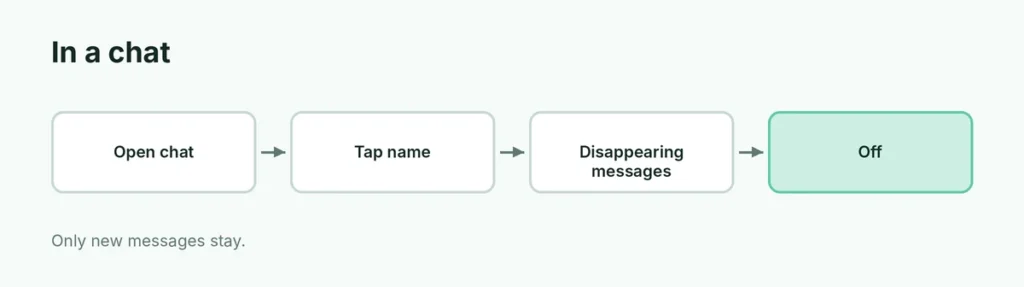
- Open the chat on your phone.
- Tap the contact’s name at the top.
- Tap Disappearing messages (it shows the current timer, like 24 hours).
- Choose Off.
WhatsApp adds a note in the chat saying who turned it off. Only messages sent after this stay; anything already scheduled to vanish still follows the old timer.
Turn it off in a group
- Open the group and tap the group name.
- Tap Disappearing messages → Off.
Can’t change it? The group’s admins have restricted Edit group settings to admins. Ask an admin to turn it off, or to change Group permissions.
Turn off the default timer

If every new chat you start has disappearing messages, your default timer is on:
- Go to Settings → Privacy.
- Tap Default message timer.
- Choose Off.
This doesn’t change existing chats; switch those off one by one as above.
On WhatsApp Web or desktop
Click the chat’s name at the top → Disappearing messages → Off. For the default timer, go to Settings → Privacy → Default message timer.
Keep one message from disappearing
In a disappearing chat, you can keep a single message: press and hold it and tap Keep (the bookmark icon). Kept messages stay in the chat even after the rest disappear. The sender can choose to stop others keeping their messages.
Can you recover disappeared messages?
Usually not. Disappeared messages are deleted from the chat. If a message was in a backup made before it disappeared, restoring that backup may bring it back, but it’ll vanish again when you open the chat. See how to recover deleted WhatsApp messages for what’s possible.
Related guides
- How to back up WhatsApp chats
- How to unarchive a WhatsApp chat
- How to turn off read receipts on WhatsApp
The short version
Tap the chat or group name → Disappearing messages → Off to keep new messages. Turn off Settings → Privacy → Default message timer so new chats don’t start with a timer. In groups, admins may need to do it. Press and hold a message and tap Keep to save just one. Messages that already disappeared generally can’t be recovered.