By
A line through your text in Google Docs usually comes from one of two things: someone (maybe you) applied strikethrough formatting, or the document is in Suggesting mode and the crossed-out words are suggested deletions. The fix is different for each, so here’s how to tell them apart and remove the line on a computer, iPhone or Android.
Short answer: select the crossed-out text and press Alt + Shift + 5 (Windows, Chromebook) or ⌘ + Shift + X (Mac), or click Format → Text → Strikethrough to switch it off. To clear all formatting at once, press Ctrl + Backslash (⌘ + Backslash on Mac). If the crossed-out text is red or colored with a comment bubble, it’s a suggestion: click ✓ Accept or ✕ Reject in the margin instead.
Applies to: Google Docs on the web (Windows, Mac, Chromebook) and the Google Docs app on iPhone, iPad and Android, October 2026.
Strikethrough or suggestion? How to tell
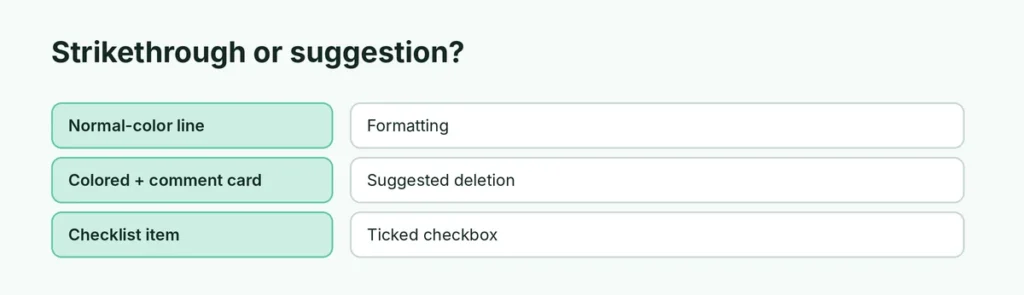
| What you see | What it is | How to remove it |
|---|---|---|
| Black (or normal-colored) text with a line through it | Strikethrough formatting | Shortcut, or Format → Text → Strikethrough |
| Colored text with a line through it, plus a comment card in the margin | A suggested deletion (Suggesting mode) | Accept or Reject the suggestion |
| Line through text in a checklist | A checked-off checklist item | Untick the checkbox |
Remove strikethrough on a computer
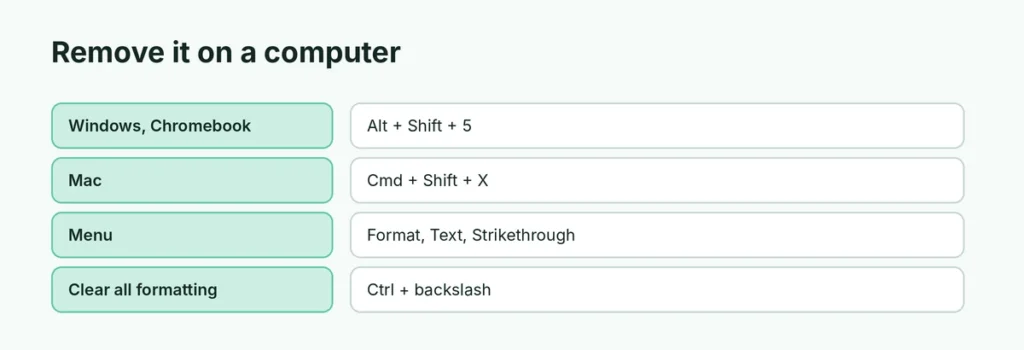
- Select the crossed-out text. To fix the whole document, press Ctrl + A (⌘ + A on Mac).
- Do one of these:
- Press Alt + Shift + 5 on Windows or Chromebook, or ⌘ + Shift + X on Mac.
- Or click Format → Text → Strikethrough.
The same shortcut turns strikethrough on and off, so if a line appears on text that didn’t have one, you selected text that was only partly crossed out. Press it once more.
Remove all formatting at once
If the text also has odd colors, highlighting or bold, wipe it all in one go:
- Select the text.
- Press Ctrl + Backslash (⌘ + Backslash on Mac), or click Format → Clear formatting.
This removes strikethrough, bold, italics, colors and highlighting, but keeps the words, links and headings.
Remove strikethrough on iPhone, iPad or Android
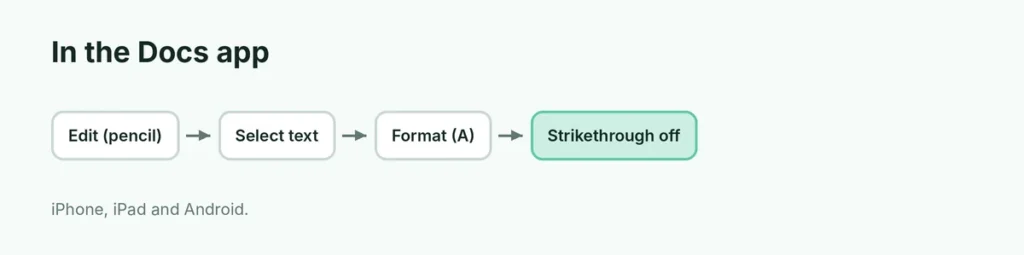
- Open the document in the Google Docs app and tap the pencil icon to edit.
- Double-tap a word and drag the handles to select the crossed-out text.
- Tap the Format icon (the A with lines) at the top.
- On the Text tab, tap the strikethrough icon (S with a line) so it’s no longer highlighted.
When it’s a suggestion, not formatting
In Suggesting mode, Google Docs shows deleted words as colored, crossed-out text until someone accepts or rejects the change.
- Accept: the crossed-out words are deleted for real.
- Reject: the words come back without the line.
To deal with them all at once, click Tools → Review suggested edits, then Accept all or Reject all. To stop creating new suggestions, click the pencil menu at the top right and switch from Suggesting to Editing. You need edit access to accept or reject suggestions.
How to add strikethrough on purpose
Use the same shortcut or menu to cross something out, for example in a to-do list. For lists, a checklist is often better: click Format → Bullets & numbering → Checklist, and ticking an item crosses it out automatically.
Related guides
- How to make columns in Google Slides
- How to print speaker notes in Google Slides
- How to wrap text in Google Slides
The short version
Select the text and press Alt + Shift + 5 (Windows) or ⌘ + Shift + X (Mac), or use Format → Text → Strikethrough. Ctrl + Backslash clears all formatting. On the app, use Format → Text → strikethrough icon. If the crossed-out text is colored with a comment card, it’s a suggestion: Accept or Reject it, or use Tools → Review suggested edits.
Sources
- Guiding Tech: How to add or remove strikethrough text in Google Docs
- Spreadsheet Point: How to strikethrough on Google Docs
- Beebom: How to strikethrough in Google Docs