By
By 
Speaker notes are the private reminders you write under each slide in Google Slides, and printing them is the easiest way to rehearse or keep a backup in case the projector fails. Google Slides doesn’t put them on the page by default, but one setting in the print preview changes that. Here’s how to print slides with speaker notes, save them as a PDF, and what to do if the notes don’t show up.
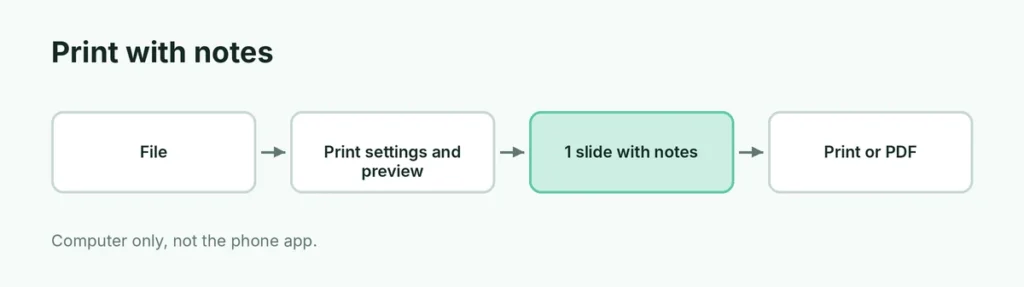
Short answer: in Google Slides on a computer, click File → Print settings and preview. In the toolbar at the top, change 1 slide without notes to 1 slide with notes, then click Print (or Download as PDF). Each page then shows one slide with its speaker notes underneath. Printing isn’t available in the Google Slides phone app, so use a computer.
Applies to: Google Slides in Chrome, Edge, Safari and Firefox on Windows, Mac and Chromebook, October 2026.
How to print Google Slides with speaker notes
- Open your presentation in Google Slides on a computer.
- Click File → Print settings and preview.
- In the gray toolbar at the top, click 1 slide without notes and choose 1 slide with notes.
- Optional: choose whether to Include skipped slides and whether to print backgrounds.
- Click Print, pick your printer, and print as normal.
Each sheet shows one slide at the top and its speaker notes below it.
Save slides with notes as a PDF
To email the notes or print them later:
- Follow steps 1 to 3 above.
- Click Download as PDF in the same toolbar.
You can also choose Save as PDF as the “printer” in the print window. Either way you get a PDF with one slide and its notes per page.
Print options compared
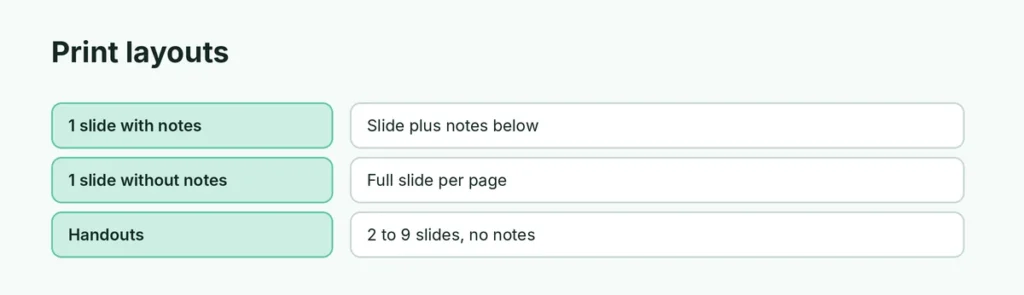
| Option in the toolbar | What you get | Best for |
|---|---|---|
| 1 slide with notes | One slide per page with notes below | Rehearsing, presenter copy |
| 1 slide without notes | One full slide per page | Clean copy of the deck |
| Handout (2, 3, 4, 6 or 9 slides) | Several slides per page | Audience handouts, saving paper |
The handout layouts don’t include speaker notes, so use 1 slide with notes whenever you need them.
How to print only the speaker notes
Google Slides doesn’t have a “notes only” print option. Two workarounds:
- Use the notes layout and print smaller. In the print window, choose a smaller scale or two pages per sheet to save paper.
- Copy the notes into Google Docs. Open each slide’s notes, copy the text into a Google Doc and print the Doc. This takes longer, but gives you a clean script with no slides.
Speaker notes not printing? Fixes
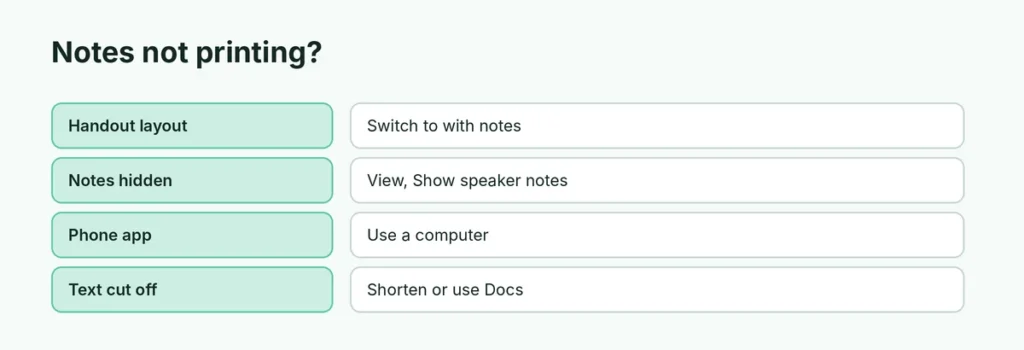
- You chose a handout layout. Switch to 1 slide with notes.
- The notes box is empty. Check the notes area under each slide in the editor. If you don’t see it, click View → Show speaker notes.
- You’re on a phone or tablet. The Slides app can’t print with notes. Open the file on a computer at slides.google.com.
- The text is cut off. Very long notes can overflow a page. Shorten them, or copy them into a Google Doc and print that instead.
How to add speaker notes first
- In the editor, click under the slide where it says Click to add speaker notes.
- Type your notes. They’re private; your audience only sees them if you share the file.
- When presenting, click the arrow next to Slideshow and choose Presenter view to see your notes on your own screen.
Related guides
- How to wrap text in Google Slides
- How to make columns in Google Slides
- How to undo strikethrough in Google Docs
The short version
On a computer, open File → Print settings and preview, switch 1 slide without notes to 1 slide with notes, then Print or Download as PDF. Each page shows a slide with its notes. Handout layouts skip notes, phones can’t print notes, and there’s no notes-only option, so copy notes into a Google Doc if you want just the script.
Sources
- Technipages: Google Slides: how to print slides with notes
- SlashGear: How to add (and print) speaker notes in Google Slides
- Alice Keeler: Print Google Slides speaker notes