By
Archiving a WhatsApp chat hides it from your main chat list without deleting it, which is handy until you can’t find an important conversation. The good news: archived chats are never lost, and getting one back takes a few seconds. Here’s how to find archived chats and unarchive them on Android, iPhone and WhatsApp Web, plus the setting that keeps sending chats back to the archive.
Short answer: open WhatsApp → Chats, scroll to the very top and tap Archived. On Android, press and hold the chat and tap the Unarchive icon at the top. On iPhone, swipe left on the chat and tap Unarchive. On WhatsApp Web or desktop, click Archived, hover over the chat, click the down arrow and choose Unarchive chat. Archiving never deletes messages.
Applies to: WhatsApp on Android, iPhone, WhatsApp Web and the Windows and Mac apps, November 2026.
Where are archived chats?
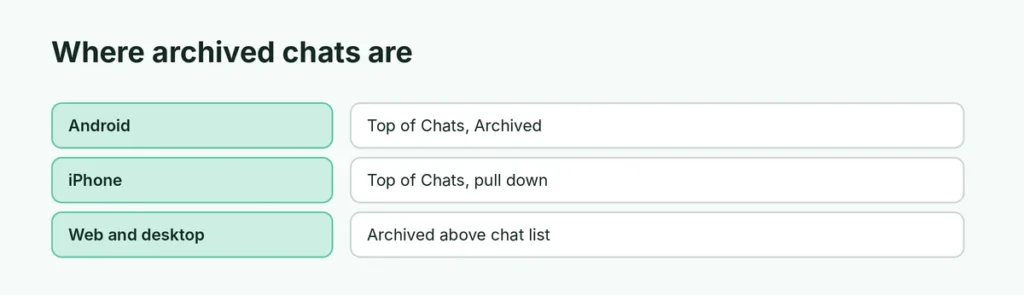
| Device | Where to find them |
|---|---|
| Android | Top of the Chats list → Archived |
| iPhone | Top of the Chats list → Archived (pull down if hidden) |
| WhatsApp Web, Windows, Mac | Archived, at the top of the chat list |
A number next to Archived shows how many archived chats have unread messages. An @ means someone mentioned or replied to you in an archived group.
Unarchive a chat on Android
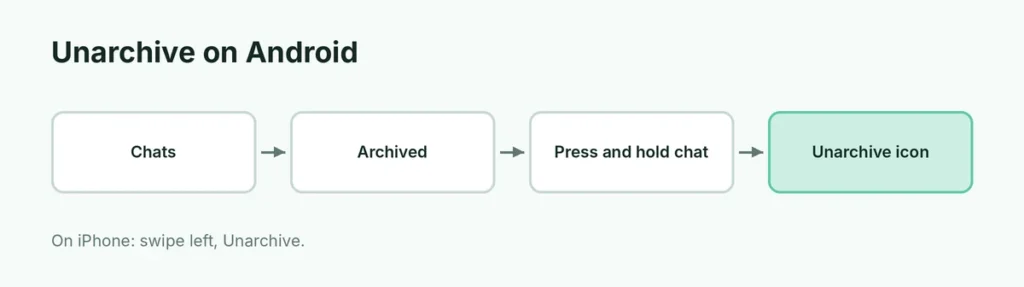
- Open WhatsApp and tap Chats.
- Scroll to the top and tap Archived.
- Press and hold the chat you want back.
- Tap the Unarchive icon (a box with an up arrow) at the top of the screen.
The chat returns to your main list, sorted by its latest message.
Unarchive a chat on iPhone
- Open WhatsApp → Chats.
- Tap Archived at the top of the list. If you don’t see it, pull the list down.
- Swipe left on the chat.
- Tap Unarchive.
Unarchive on WhatsApp Web or desktop
- Click Archived at the top of your chat list.
- Hover over the chat and click the down arrow (or menu icon).
- Click Unarchive chat.
Quick way on any device: search for the contact or group name in the search bar. Archived chats show up in the results, and you can unarchive from there.
Why do archived chats stay archived?
WhatsApp has a setting called Keep chats archived. When it’s on (the default), an archived chat stays archived even when a new message arrives, and you won’t get notifications for it unless you’re mentioned or replied to.
To change it:
- Android: ⋮ → Settings → Chats → turn off Keep chats archived.
- iPhone: Settings → Chats → turn off Keep Chats Archived.
With it off, an archived chat pops back into your main list as soon as someone messages you.
Archive vs delete vs hide
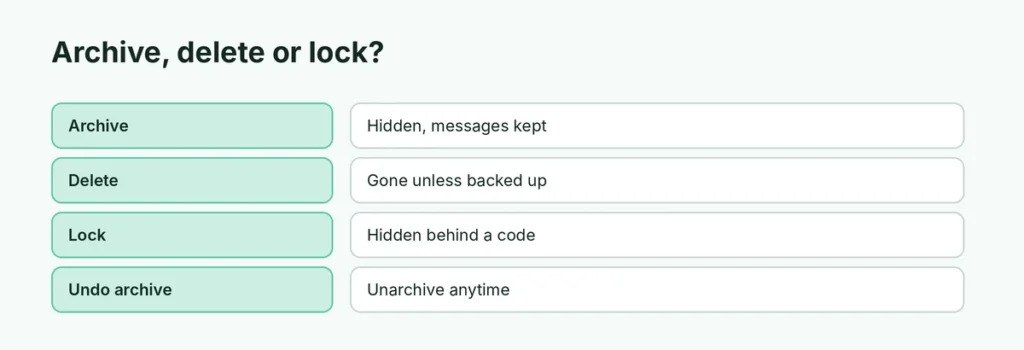
| Archive | Delete | Lock (hide) | |
|---|---|---|---|
| Messages kept? | Yes | No | Yes |
| Visible in chat list? | Only in Archived | No | Only in Locked chats |
| Needs a code? | No | No | Yes, Face ID, fingerprint or secret code |
| Undo? | Unarchive anytime | Only from a backup | Unlock anytime |
If you deleted a chat instead of archiving it, see how to recover deleted WhatsApp messages.
Related guides
The short version
Tap Archived at the top of your Chats list. On Android, press and hold the chat and tap Unarchive; on iPhone, swipe left and tap Unarchive; on WhatsApp Web, use the chat’s down arrow → Unarchive chat. Turn off Keep chats archived in Settings → Chats if you want archived chats to come back when a new message arrives.
Sources
- WhatsApp Help Center: How to archive or unarchive a chat or group
- Tech Advisor: How to archive and unarchive WhatsApp chats