By
TikTok has a profile view history feature that shows who visited your profile, and lets others see when you visited theirs. If you want to browse quietly, you can turn it off in a few taps. Here’s how to turn off profile views on TikTok, how the feature works, and why the option might be missing.
Short answer: tap Profile → menu (three lines) → Settings and privacy → Privacy → Profile views, and turn off Profile view history. You can also open a profile-view notification in your Inbox, tap the settings icon, and switch it off there. The feature is only available if you’re 16 or older and have fewer than 5,000 followers, and only people who also have it turned on show up in each other’s lists.
Applies to: TikTok app for iPhone and Android, October 2026.
How TikTok profile views work
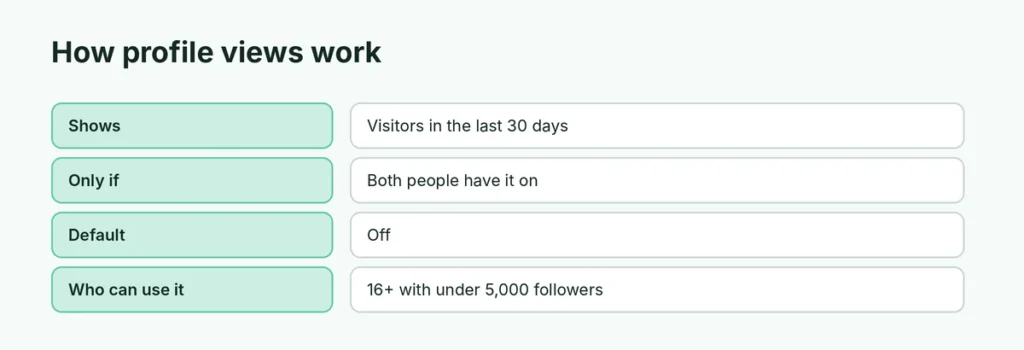
- When profile view history is on, you can see accounts that viewed your profile in the last 30 days.
- Only accounts that also have the feature turned on appear in the list.
- If you have it on and visit someone who also has it on, they can see your visit.
- It’s off by default for most accounts; you may have turned it on from a pop-up.
How to turn off profile views on TikTok
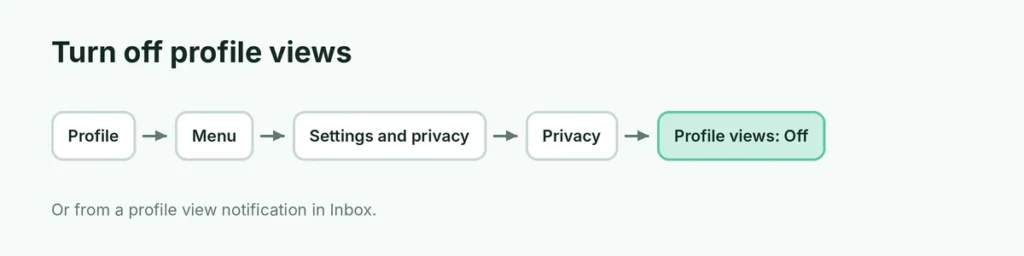
- Open TikTok and tap Profile (bottom right).
- Tap the menu (three lines) at the top right.
- Tap Settings and privacy.
- Tap Privacy.
- Tap Profile views.
- Turn off Profile view history.
Quick way from your Inbox
- Tap Inbox.
- Open a profile view notification.
- Tap the settings icon in the top right.
- Turn off Profile view history.
Profile views option missing?
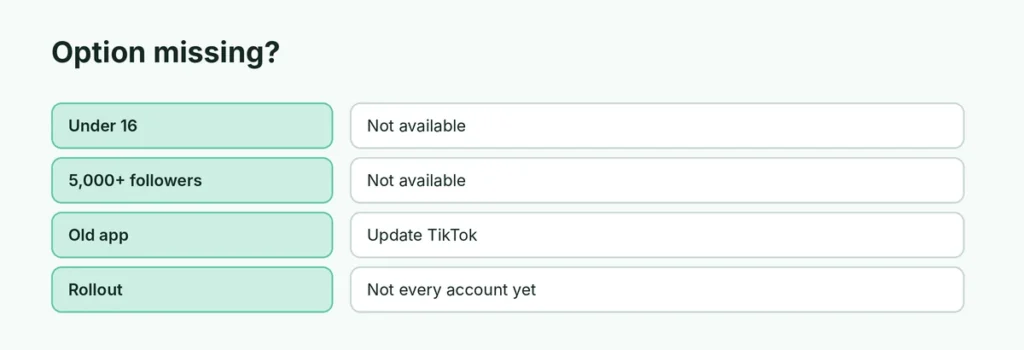
| Reason | Explanation |
|---|---|
| Under 16 | The feature isn’t available for younger users |
| 5,000+ followers | Larger accounts can’t use profile view history |
| Old app version | Update TikTok |
| Region or rollout | Not every account gets every feature at once |
Does turning it off hide all my activity?
No. Turning off profile view history only hides profile visits. Other things can still be visible:
- Likes may show on your liked-videos tab unless you make it private (Privacy → Liked videos).
- Comments and reposts are visible to others.
- Story views show your name to the creator.
- Video views don’t reveal your name, except in some cases on stories.
Other TikTok privacy settings worth checking
| Setting | Where |
|---|---|
| Private account | Privacy → Private account |
| Activity status | Privacy → Activity status |
| Suggest your account to others | Privacy → Suggest your account |
| Who can message you | Privacy → Direct messages |
Can someone see that I viewed their TikTok video?
Normal video views are anonymous. Profile visits are only shown if both of you have profile view history on. Story views are shown to the creator.
Related guides
- How to block someone on TikTok
- TikTok shadow ban: check and fix
The short version
Go to Profile → Settings and privacy → Privacy → Profile views and turn off Profile view history. It only works for users 16+ with under 5,000 followers, shows the last 30 days, and only between people who both have it on.
Sources
- WePC: How to turn profile view history on and off on TikTok
- TechCrunch: TikTok profile views