By
Live Photos record a second or so of movement and sound before and after you take a picture. They’re fun, but they take up more storage, and sometimes you just want a normal still photo. Here’s how to turn off Live Photos on iPhone, make the setting stick, and turn an existing Live Photo into a still image.
Short answer: open the Camera app and tap the Live Photos button (circles icon) at the top so it has a line through it. To stop iPhone turning it back on, go to Settings → Camera → Preserve Settings and turn on Live Photo. To make an existing photo still, open it in Photos → Edit → tap the Live button so it turns off → Done.
Applies to: iPhone on iOS 26 and iOS 27. Last checked in October 2026.
How to turn off Live Photos in the Camera
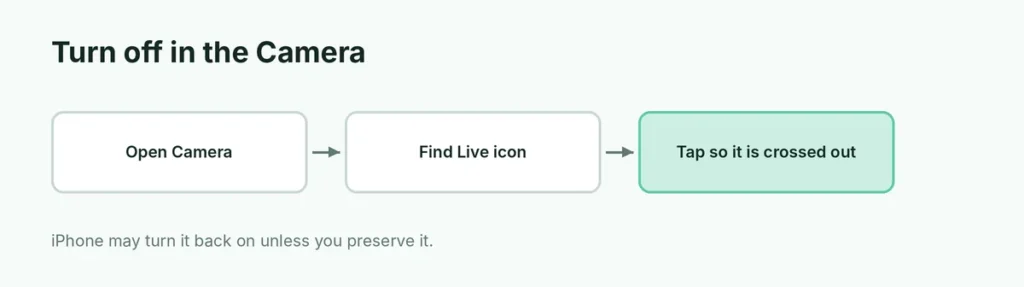
- Open Camera in Photo mode.
- Tap the Live Photos button (three circles) at the top of the screen. On some iPhones it’s in the camera controls row; tap the arrow or swipe up to see it.
- When there’s a line through the icon, Live Photos is off.
Keep Live Photos off (Preserve Settings)

By default, iPhone may turn Live Photos back on next time you open Camera.
- Open Settings → Camera.
- Tap Preserve Settings.
- Turn on Live Photo.
Now the Camera remembers your choice.
Turn an existing Live Photo into a still photo
- Open the photo in Photos.
- Tap Edit.
- Tap the Live button (circles icon) so it turns off.
- Tap Done.
The photo becomes a still image. You can turn it back on later from Edit if you change your mind.
Change the key photo: in Edit, use the slider under the photo to pick a different frame, then tap Make Key Photo.
Send a Live Photo as a still
When sharing, tap Options at the top of the share sheet (or the Live label on the preview) and turn off Live so the other person gets a normal photo.
Live Photo effects
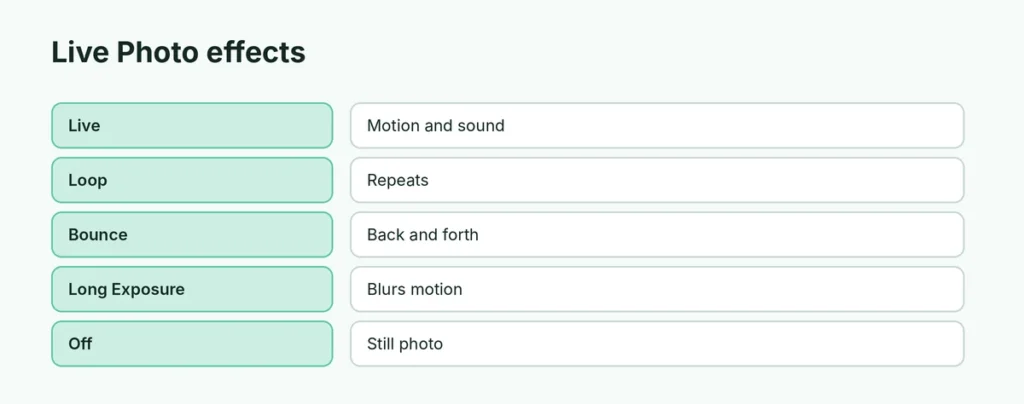
Instead of turning Live Photos off, you can use effects. In Photos, open the Live Photo and tap the Live menu (top left):
| Effect | What it does |
|---|---|
| Live | Plays with motion and sound |
| Loop | Repeats the motion |
| Bounce | Plays forward and backward |
| Long Exposure | Blurs motion, like waterfalls |
| Off | Still photo |
Here’s how to get the long exposure effect on iPhone.
Does turning off Live Photos save storage?
Yes. A Live Photo stores a short video along with the image, so it usually takes more space than a still photo. If your iPhone is full, turning Live Photos off helps. Here’s how to get more storage on iPhone.
Live Photos as a wallpaper
Live wallpapers on the Lock Screen depend on your iPhone model and iOS version. If a Live Photo wallpaper doesn’t move, choose a different photo or wallpaper style in Settings → Wallpaper.
Related guides
The short version
Tap the Live Photos button in Camera so it has a line through it, then turn on Settings → Camera → Preserve Settings → Live Photo to keep it off. Turn existing Live Photos into stills with Edit → Live → Done.
Sources
- Apple Support: Take and edit Live Photos