By
Android doesn’t have a “Clipboard” app you can open from the home screen, so it’s easy to think your copied text has vanished. It’s actually kept by your keyboard, and on newer phones it also pops up for a moment right after you copy. Here’s how to see your clipboard on Android with Gboard and Samsung Keyboard, how to pin and delete items, and how long copied text is kept.
Short answer: tap any text box so the keyboard opens, then tap the Clipboard icon in the keyboard’s top toolbar. On Gboard (Pixel and most Android phones) it’s a clipboard icon; on Samsung Keyboard tap ⋯ or the toolbar arrow, then Clipboard. Tap an item to paste it. On Gboard, items you don’t pin are deleted after one hour. On Android 13 and later, a small preview also appears in the bottom-left corner right after you copy.
Applies to: Android phones with Gboard (Google Pixel, Motorola, OnePlus and others) and Samsung Galaxy phones with Samsung Keyboard, November 2026.
Where Android keeps your clipboard
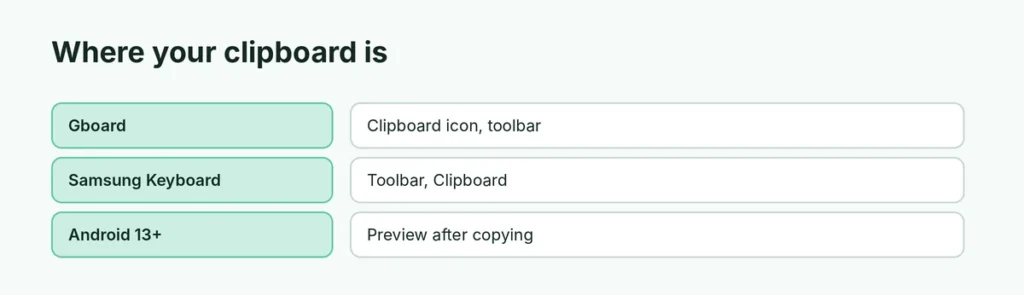
| Keyboard | How to open the clipboard | How long items stay |
|---|---|---|
| Gboard | Clipboard icon in the top toolbar | 1 hour, unless pinned |
| Samsung Keyboard | Toolbar → Clipboard | Saved until you delete them (limited number) |
| Any phone, Android 13+ | Preview in the bottom-left corner after copying | A few seconds on screen |
View the clipboard in Gboard
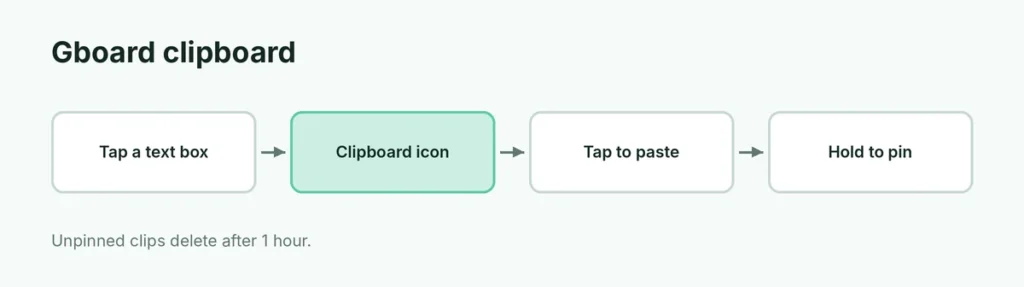
- Open any app with a text box, like Messages or Google Keep, and tap the box.
- Tap the Clipboard icon in the row above the keys. If you don’t see it, tap the four squares (or >) to show more tools.
- If asked, tap Turn on Clipboard.
- Tap any item to paste it.
Pin or delete: press and hold an item, then tap Pin or Delete. You can also tap the pencil icon to select several items.
View the clipboard on Samsung Keyboard
- Tap a text box to open Samsung Keyboard.
- Tap the ⋯ or the arrow on the keyboard toolbar.
- Tap Clipboard.
- Tap an item to paste it, or press and hold to pin or delete it.
Samsung’s clipboard can also store screenshots and images you’ve copied, not just text.
The Android 13+ clipboard preview
When you copy text, a small preview appears in the bottom-left corner for a few seconds. Tap it to edit the text before pasting, or tap the share button to send it to another app. Not every phone shows it, depending on the brand.
Clear the clipboard for privacy
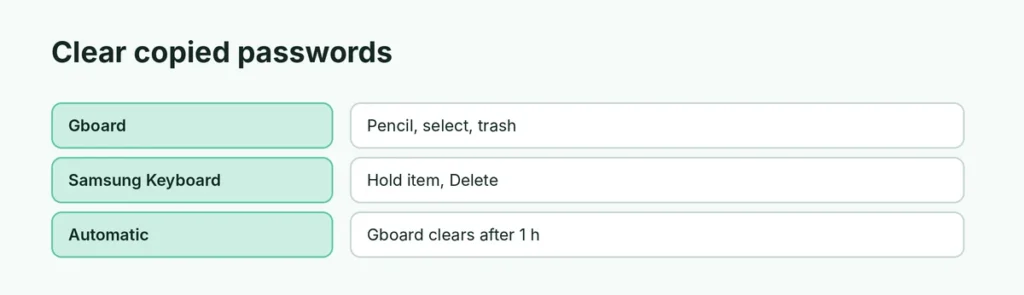
Copied passwords, codes and addresses can sit in your clipboard. To remove them:
- Gboard: open the clipboard → pencil icon → select items → trash icon. Unpinned items also disappear on their own after an hour.
- Samsung Keyboard: open the clipboard → press and hold an item → Delete, or use Delete all if offered.
To switch keyboards, see how to change the keyboard on Android.
Related guides
- How to change the keyboard on Android
- How to download images on Android
- How to scan a QR code on Android
The short version
Open the keyboard in any text box and tap its Clipboard icon: in Gboard it’s on the top toolbar, on Samsung Keyboard it’s under ⋯ → Clipboard. Tap an item to paste it, or press and hold to pin or delete it. Gboard deletes unpinned items after an hour, and Android 13+ shows a quick preview when you copy.
Sources
- Android Authority: How to manage the clipboard on Android
- How-To Geek: How to access your clipboard on Android