By
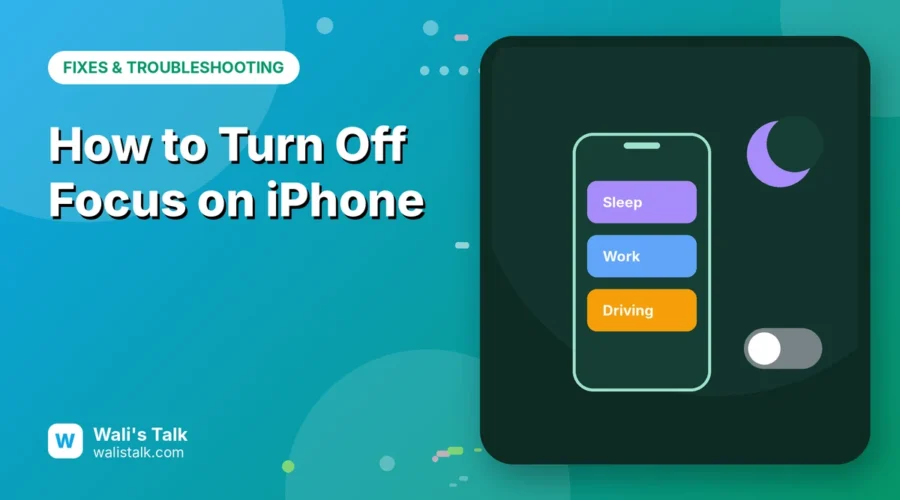
Focus on iPhone silences notifications so you can sleep, work or drive without distractions. But Focus modes can turn on by themselves, hide important messages, and show “has notifications silenced” to your friends. Here’s how to turn off Focus on iPhone, stop each Focus from turning on automatically, and delete the ones you don’t use.
Short answer: open Control Center and tap the Focus button (it shows the active Focus name, like Sleep or Work) to turn it off. To stop a Focus turning on by itself, go to Settings → Focus → tap the Focus → remove its schedules and turn off Smart Activation. Turn off Share Across Devices so your iPad or Mac doesn’t switch it on, and turn off Focus Status if you don’t want people to see you’ve silenced notifications.
Applies to: iPhone on iOS 26 and iOS 27. Last checked in October 2026.
How to turn off Focus right now
Control Center:
- Swipe down from the top-right corner.
- Tap the Focus button (highlighted with the Focus name and icon).
Lock Screen: touch and hold the Focus icon on the Lock Screen, then tap the active Focus to turn it off.
The different Focus modes
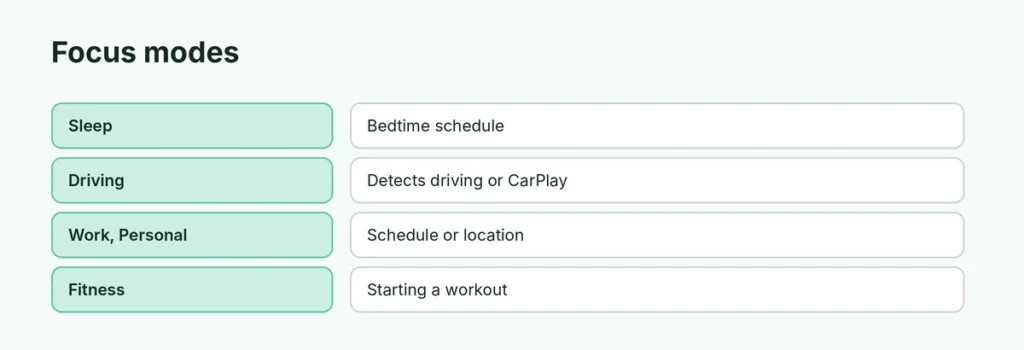
| Focus | Usually turns on |
|---|---|
| Do Not Disturb | Manually or on a schedule |
| Sleep | At bedtime from the Health app schedule |
| Driving | When iPhone detects driving or connects to CarPlay |
| Work / Personal | On a schedule or at a location |
| Fitness | When you start a workout |
| Reduce Interruptions | Only lets important notifications through |
For Do Not Disturb specifically, here’s how to turn off Do Not Disturb.
Stop a Focus turning on automatically
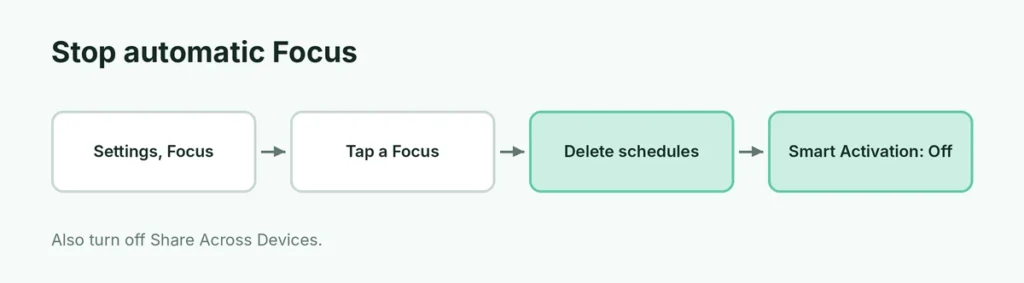
- Open Settings → Focus.
- Tap the Focus (for example, Work).
- Under Set a Schedule, tap each schedule and turn it off or Delete Schedule.
- Tap Smart Activation and turn it off.
Sleep Focus: open the Health app → Browse → Sleep → Full Schedule & Options, and change or turn off the schedule.
Driving Focus: Settings → Focus → Driving → While Driving → choose Manually.
Fitness Focus: Settings → Focus → Fitness → remove the workout trigger.
Stop other devices turning on Focus
- Settings → Focus.
- Turn off Share Across Devices.
Now your Mac, iPad or Apple Watch won’t turn Focus on for your iPhone.
Turn off “has notifications silenced”
When you use Focus, friends may see “has notifications silenced” in Messages:
- Settings → Focus → Focus Status.
- Turn off Share Focus Status, or turn it off for specific Focus modes.
Delete a Focus you don’t use

- Settings → Focus.
- Tap the Focus.
- Scroll down and tap Delete Focus.
Built-in Do Not Disturb can’t be deleted, but you can leave it off.
Focus linked to a Lock Screen
If a Focus turns on when you switch Lock Screens, it’s linked. Touch and hold the Lock Screen → Customize or tap Focus at the bottom of a wallpaper and unlink it.
Related guides
The short version
Tap the Focus button in Control Center to turn the active Focus off. In Settings → Focus, remove schedules and Smart Activation from each Focus, turn off Share Across Devices and Focus Status, and delete Focus modes you never use.
Sources
- Apple: iPhone User Guide