By
OneDrive comes built into Windows 11 and often starts backing up your Desktop, Documents and Pictures folders without you noticing. If you’d rather keep files only on your PC, or your free 5 GB is full, you can pause it, stop folder backup, unlink it or uninstall it. Here’s how to turn off OneDrive on Windows 11 safely, without losing files.
Short answer: click the OneDrive cloud icon in the taskbar → gear (Help & Settings) → Settings. To stop folders syncing, open Sync and backup → Manage backup and turn off Desktop, Documents and Pictures. To stop OneDrive completely on this PC, go to Account → Unlink this PC. To remove it, open Settings → Apps → Installed apps → Microsoft OneDrive → Uninstall. Microsoft says you won’t lose files by unlinking or uninstalling; they stay on OneDrive.com.
Applies to: Windows 11 and Windows 10, October 2026. Menu names can vary slightly with OneDrive updates.
Before you start: where are your files?
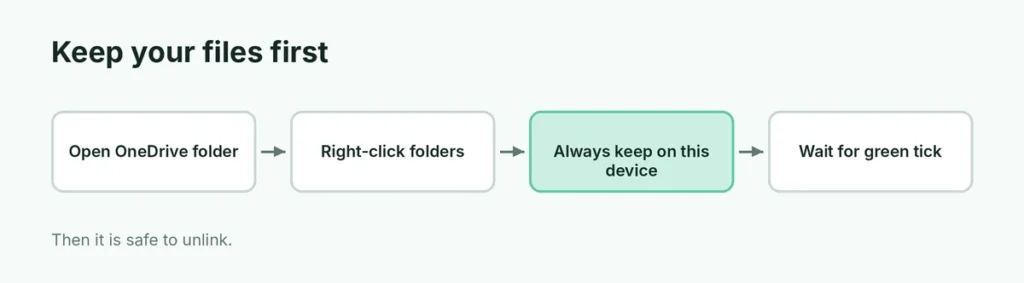
If OneDrive has been backing up your folders, some files may be online-only (cloud icon in File Explorer). Before you unlink:
- Open File Explorer → OneDrive.
- Right-click the folders you want and choose Always keep on this device.
- Wait until files show a green tick.
Or download them from onedrive.live.com.
Option 1: Pause syncing (temporary)
- Click the OneDrive icon (cloud) in the taskbar.
- Click the gear → Pause syncing.
- Choose 2 hours, 8 hours or 24 hours.
Option 2: Stop backing up Desktop, Documents and Pictures
- Click the OneDrive icon → gear → Settings.
- Open Sync and backup → Manage backup.
- Turn off the folders you don’t want backed up.
- Choose whether to keep copies only on this PC or only in OneDrive when asked.
Files stop going to the cloud, but OneDrive still works for other things.
Option 3: Unlink this PC (stop OneDrive)

- Click the OneDrive icon → gear → Settings.
- Open the Account tab.
- Click Unlink this PC → Unlink account.
This PC stops syncing. Files already on your PC stay; files that were online-only stay in OneDrive online.
Option 4: Stop OneDrive starting with Windows
- In OneDrive Settings, open Sync and backup (or Settings tab).
- Turn off Start OneDrive automatically when I sign in to Windows.
Or: Windows Settings → Apps → Startup → turn off Microsoft OneDrive.
Option 5: Uninstall OneDrive
- Open Settings → Apps → Installed apps.
- Find Microsoft OneDrive.
- Click the three dots → Uninstall.
Can’t uninstall? You can hide it: in File Explorer, right-click OneDrive → Properties → check Hidden, then Quit OneDrive from its menu.
Which option should I choose?
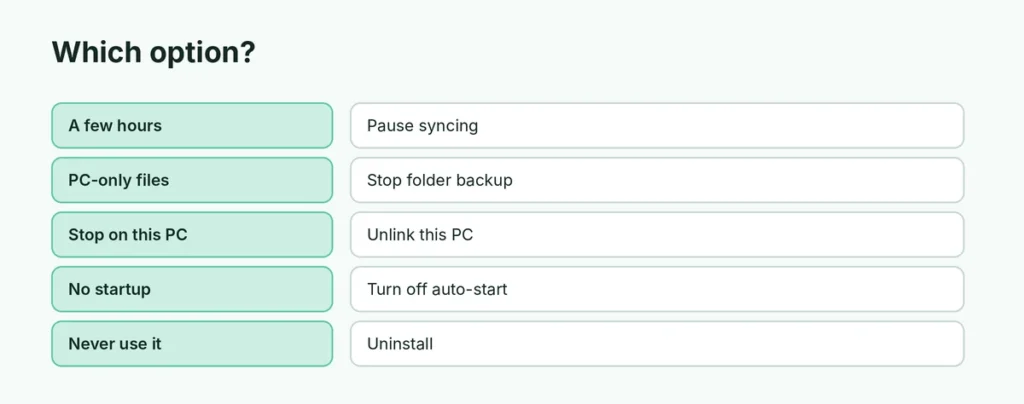
| Goal | Best option |
|---|---|
| Stop for a few hours | Pause syncing |
| Keep files on PC only | Stop folder backup |
| Stop OneDrive on this PC | Unlink this PC |
| No pop-ups at startup | Turn off auto-start |
| Never use OneDrive | Uninstall |
OneDrive storage full?
The free plan has 5 GB. If it’s full, emails in Outlook.com can also be affected. Delete large files in OneDrive online, empty the Recycle bin there, or stop backing up big folders like Pictures.
Related guides
- How to start Windows 11 in Safe Mode
- How to turn off Narrator in Windows
The short version
Use the OneDrive icon → Settings to stop folder backup (Sync and backup → Manage backup), Unlink this PC to stop OneDrive, or uninstall it from Settings → Apps. Make sure important files are kept on your device first; nothing is deleted from OneDrive online.
Sources
- Microsoft Support: Turn off, disable, or uninstall OneDrive