By
AirPlay sends video, music or your whole screen from an iPhone, iPad or Mac to an Apple TV or AirPlay-compatible smart TV. Sometimes it connects on its own, or you can’t find how to stop mirroring. Here’s how to turn off AirPlay on iPhone and Mac, stop it connecting automatically, and stop other people casting to your TV.
Short answer: to stop screen mirroring, open Control Center → tap Screen Mirroring → Stop Mirroring. To stop video or music, tap the AirPlay button in the app and choose your iPhone. To stop AirPlay connecting by itself, go to Settings → General → AirPlay & Continuity → Automatically AirPlay → Never. On a Mac, use Control Center → Screen Mirroring to stop, and turn off AirPlay Receiver in System Settings → General → AirDrop & Handoff.
Applies to: iPhone and iPad on iOS 26 / iPadOS 26, Mac on macOS 26, Apple TV and AirPlay TVs. Last checked in October 2026.
How to stop screen mirroring on iPhone

- Swipe down from the top-right corner to open Control Center.
- Tap Screen Mirroring (two overlapping rectangles).
- Tap Stop Mirroring.
You can also press the Back or Menu button on the Apple TV remote.
How to stop AirPlay for video or music
- In the app you’re watching or listening in, tap the AirPlay icon (a screen or speaker with a triangle).
- Choose iPhone (or iPad) from the list.
Playback moves back to your device.
Stop AirPlay connecting automatically
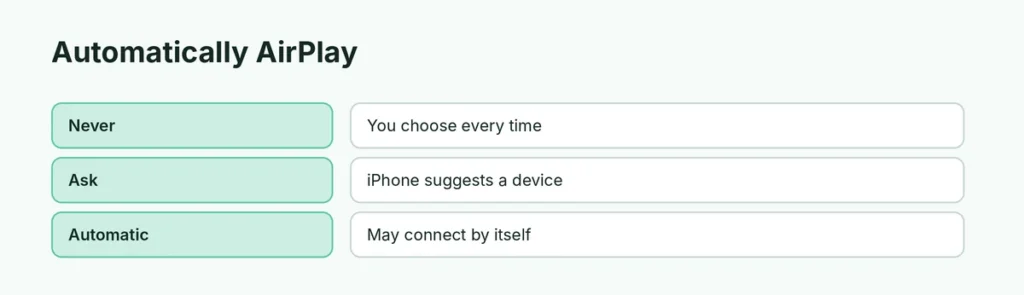
iPhone can suggest or even start AirPlay to devices you use often.
- Open Settings → General.
- Tap AirPlay & Continuity (on older iOS: AirPlay & Handoff).
- Tap Automatically AirPlay.
- Choose an option:
| Option | What happens |
|---|---|
| Never | You pick the AirPlay device yourself every time |
| Ask | iPhone suggests a device; you tap to connect |
| Automatic | iPhone may connect on its own; you can undo it |
How to turn off AirPlay on Mac
Stop mirroring: click Control Center in the menu bar → Screen Mirroring → click the device to disconnect.
Stop your Mac receiving AirPlay:
- Open System Settings → General.
- Click AirDrop & Handoff.
- Turn off AirPlay Receiver.
Stop others casting to your Apple TV
On Apple TV, go to Settings → AirPlay and HomeKit → Allow Access and choose:
- Anyone on the Same Network, Only People Sharing This Home, or Everyone.
- Turn on Require Password or use an onscreen code for extra safety.
On smart TVs (Samsung, LG, Sony, Vizio), look for Apple AirPlay Settings in the TV’s menu and turn AirPlay off or require a code.
AirPlay keeps turning on by itself?
- Set Automatically AirPlay to Never.
- In the Home app, remove old speakers or TVs you no longer use.
- Restart your iPhone and the TV.
- Check that Handoff isn’t moving audio from another device, especially with HomePod.
AirPlay vs. Screen Mirroring
| AirPlay (streaming) | Screen Mirroring | |
|---|---|---|
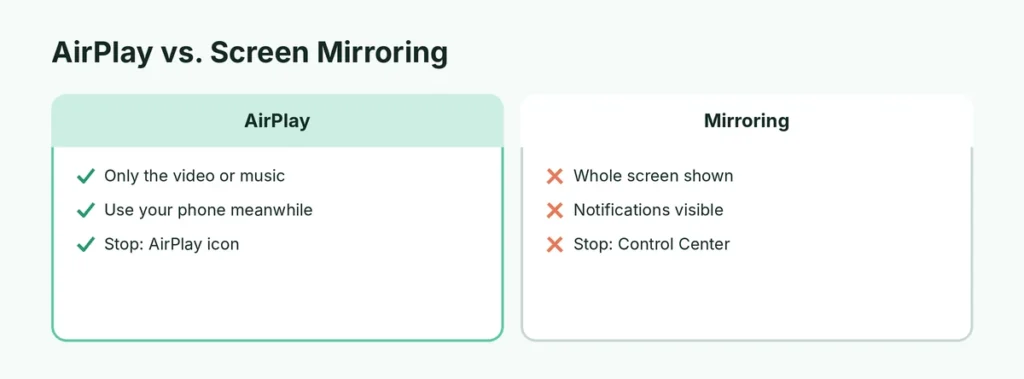
| What’s shown | Only the video or music | Your whole screen |
| Use phone while playing | Yes | No, everything shows |
| Stop it | AirPlay icon → iPhone | Control Center → Stop Mirroring |
Related guides
The short version
Stop mirroring from Control Center → Screen Mirroring → Stop Mirroring, or tap the AirPlay icon and choose your iPhone. Set Settings → General → AirPlay & Continuity → Automatically AirPlay to Never to stop automatic connections, and turn off AirPlay Receiver on a Mac if you don’t use it.