By
Secure Folder is a private, locked space on Samsung Galaxy phones where you can keep photos, files and even a second copy of apps away from anyone who borrows your phone. It’s built in and free, but its icon is easy to hide, so many people can’t find it again. Here’s how to set up and open Secure Folder, add photos and apps, hide it, and reset a forgotten PIN.
Short answer: open Secure Folder from its icon on the Apps screen or the Secure Folder tile in Quick Settings (swipe down twice), then enter your PIN, pattern, password or fingerprint. To set it up the first time, go to Settings → Security and privacy → More security settings → Secure Folder (on older phones Settings → Biometrics and security → Secure Folder), sign in to your Samsung account and choose a lock.
Applies to: Samsung Galaxy phones and tablets with One UI 6, 7 and 8, November 2026. Menu names vary slightly by model.
Ways to open Secure Folder
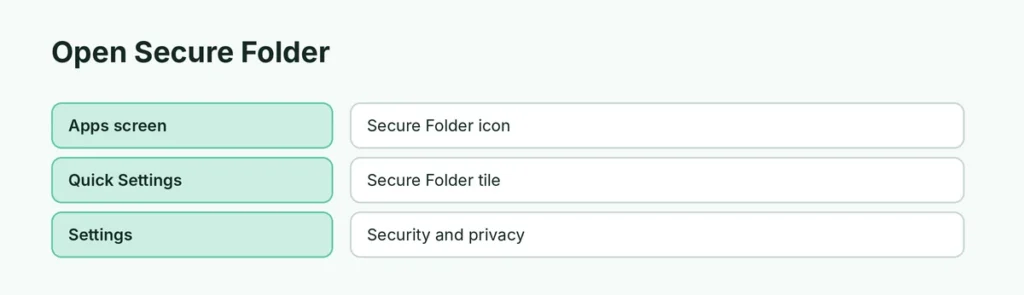
| Where | How |
|---|---|
| Apps screen | Tap the Secure Folder icon |
| Quick Settings | Swipe down twice → Secure Folder tile |
| Settings | Security and privacy → More security settings → Secure Folder |
If the icon is gone, it’s probably hidden; see “Hide or show the icon” below.
Set up Secure Folder
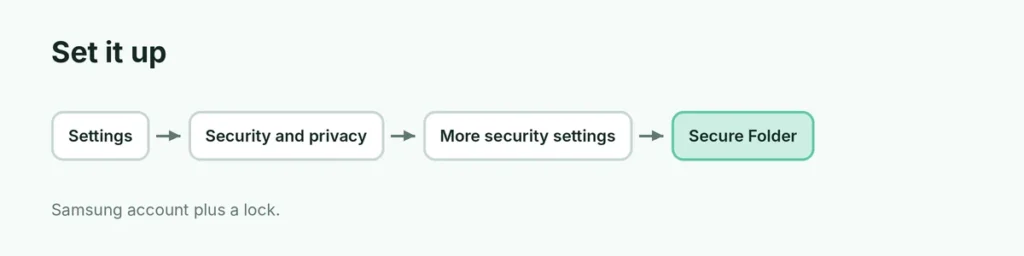
- Open Settings → Security and privacy → More security settings → Secure Folder. (Older phones: Biometrics and security → Secure Folder.)
- Sign in to your Samsung account or create one, and accept the permissions.
- Choose a lock: Pattern, PIN or Password, and optionally your fingerprint.
- A Secure Folder icon appears on your Apps screen.
Add photos, files and apps
- Files and photos: open Secure Folder → ⋮ → Add files → pick Images, Videos or other files → Done → choose Copy or Move. Move keeps them only inside the folder.
- From Gallery: select photos → ⋮ → Move to Secure Folder.
- Apps: open Secure Folder → tap + → choose an app → Add. You get a separate copy, so you can be signed in to a second account.
Hide or show the icon
- Go to Settings → Security and privacy → More security settings → Secure Folder and enter your lock.
- Turn Add Secure Folder to Apps screen off to hide it, or on to show it again.
While hidden, you can still open it from the Quick Settings tile.
Forgot your Secure Folder PIN?
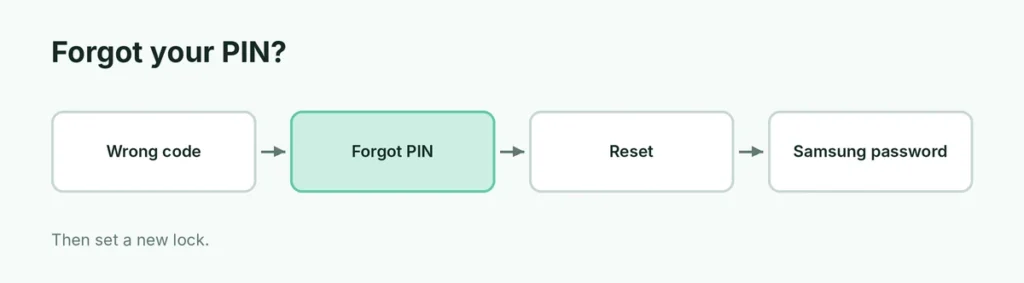
- Enter a wrong code until Forgot PIN (or Forgot pattern/password) appears, and tap it.
- Tap Reset and enter your Samsung account password.
- Set a new lock.
If you’ve forgotten both the Secure Folder code and your Samsung account password, recover the account first at Samsung’s sign-in page, or contact Samsung Support.
Before you change phones or reset
Secure Folder is not included in a normal factory reset backup. Before resetting, open Secure Folder → ⋮ → Settings → Backup and restore, or move files out to your main gallery. See how to back up an Android phone.
Related guides
- Samsung Pass: what it is and how to use it
- How to check battery health on Samsung
- How to restart a Samsung phone
The short version
Open Secure Folder from the Apps screen or the Quick Settings tile. Set it up in Settings → Security and privacy → More security settings → Secure Folder with your Samsung account and a PIN, pattern or password. Add files with ⋮ → Add files, apps with +, hide the icon with Add Secure Folder to Apps screen, and reset a forgotten code with your Samsung account.
Sources
- Samsung UK Support: What is the Secure Folder and how can I use it?
- Guiding Tech: How to access Secure Folder on Samsung Galaxy phones