By
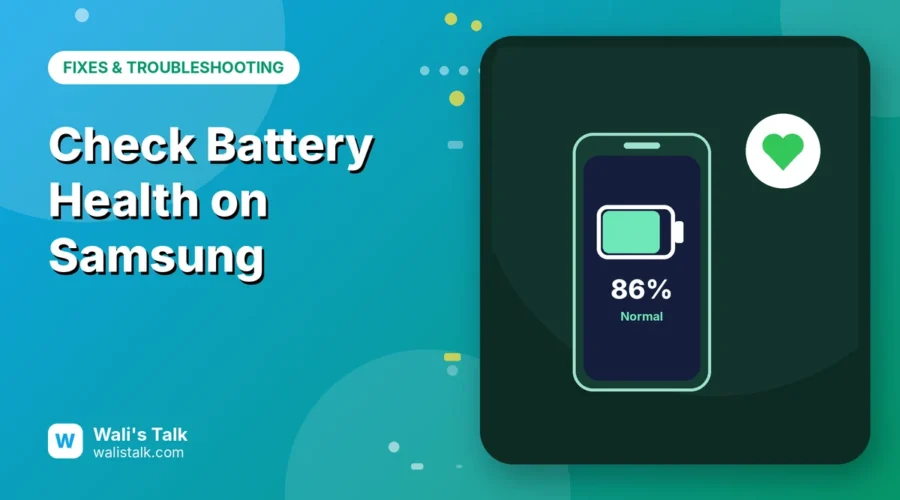
If your Samsung Galaxy dies before dinner or gets warm while charging, the battery may be wearing out. Unlike iPhones, most Galaxy phones don’t show a health percentage in Settings, but Samsung’s own Members app can test the battery in under a minute, and newer models show full details. Here’s how to check battery health on a Samsung phone and what the results mean.
Short answer: open the Samsung Members app → Support (or Get help) → Phone diagnostics → Battery status. You’ll see Normal, Weak or Bad. On the Galaxy S25 series and newer with One UI 7 or later, you may also find Settings → Battery → Battery information, which shows battery health as a percentage and the charge cycle count. If the result is Weak or Bad, a battery replacement is usually worth it.
Applies to: Samsung Galaxy phones and tablets with the Samsung Members app, November 2026. The Battery information page with a health percentage depends on model and region.
Two ways to check
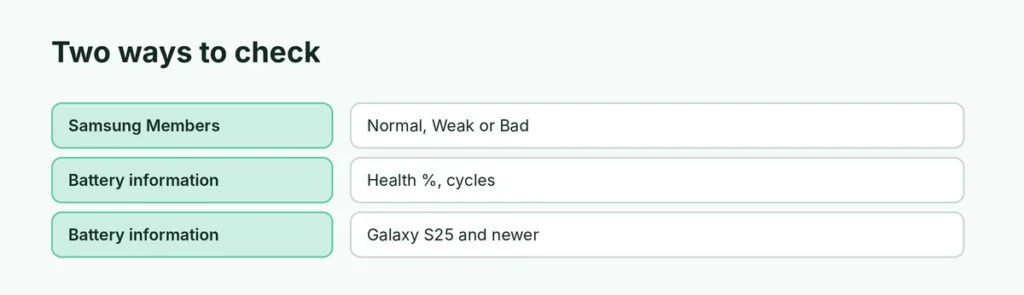
| Method | Works on | Shows |
|---|---|---|
| Samsung Members → Phone diagnostics | Most Galaxy phones | Normal, Weak or Bad, plus capacity |
| Settings → Battery → Battery information | Galaxy S25 series and newer (varies by region) | Health %, cycle count, manufacture date |
Check with Samsung Members (any Galaxy)
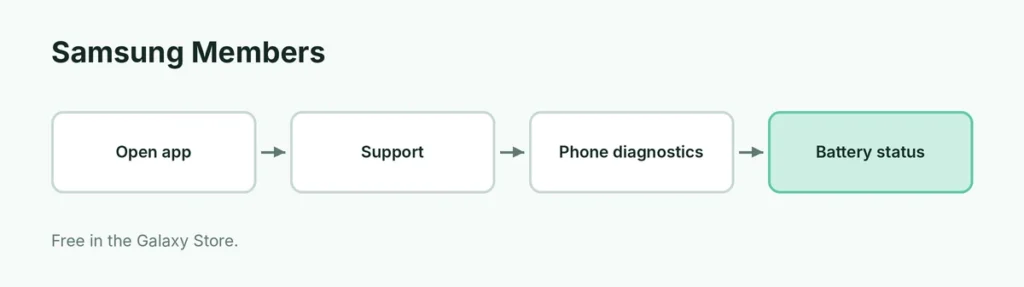
- Open Samsung Members. If it’s not installed, get it free from the Galaxy Store or Play Store.
- Tap Support (on some versions Get help).
- Under Phone diagnostics, tap Get started or Phone diagnostics.
- Tap Battery status.
- Read the result.
What the result means
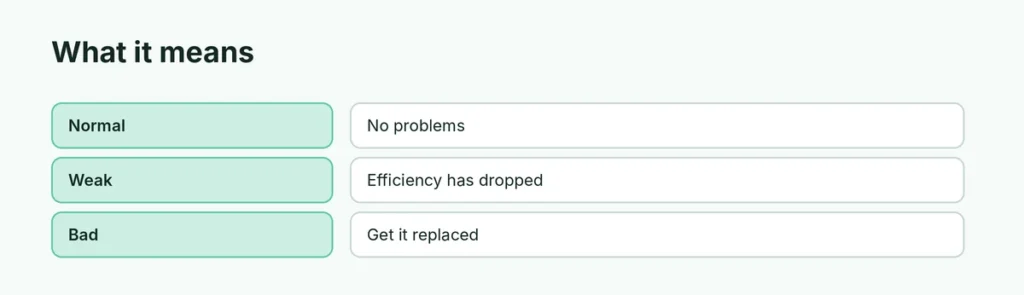
| Result | Meaning | What to do |
|---|---|---|
| Normal | No battery problems found | Nothing; keep good charging habits |
| Weak | Battery efficiency has dropped from age and use | Expect shorter battery life; plan a replacement |
| Bad | Battery has degraded significantly | Get it checked or replaced at a Samsung service center |
Check Battery information (Galaxy S25 and newer)
- Open Settings → Battery.
- Scroll down and tap Battery information.
- You’ll see Battery health (%), Cycle count, the manufacture date and first used date.
If you don’t see it, your phone or region doesn’t have it yet; use Samsung Members instead.
Make your battery last longer
- Turn on Protect battery: Settings → Battery → Battery protection (or More battery settings → Protect battery) to stop charging at around 80%.
- Avoid heat: don’t charge under a pillow or leave the phone in a hot car.
- Use Power saving when you need the charge to stretch.
- Keep software updated, since updates often fix battery drain.
Related guides
- How to restart a Samsung phone
- Android storage almost full? How to fix it
- Laptop battery health: how to check it
The short version
Open Samsung Members → Support → Phone diagnostics → Battery status for a Normal, Weak or Bad result. On Galaxy S25 and newer, Settings → Battery → Battery information shows health as a percentage and the cycle count. Weak or Bad means it’s time to consider a new battery.
Sources
- Samsung UK Support: How to check the battery status on your Samsung Galaxy phone
- Android Authority: Galaxy S25 battery health data
- SamMobile: Galaxy S25 shows battery health and charge cycle count