By
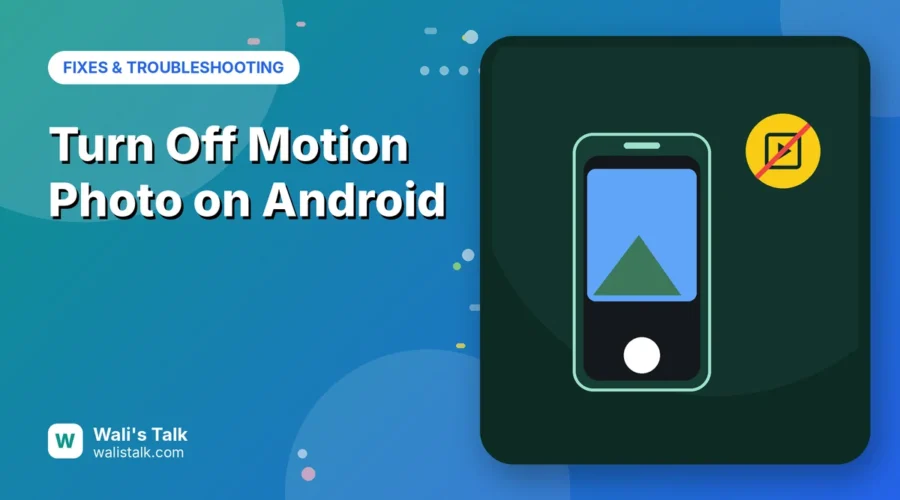
Motion Photos record a second or two of video around every picture you take. They’re fun for kids and pets, but they make each photo file bigger, and some apps only show a blurry frame. Here’s how to turn off Motion Photo on Samsung Galaxy and Google Pixel cameras, stop motion photos auto-playing in Google Photos, and handle the ones you’ve already taken.
Short answer: on a Samsung Galaxy, open the Camera app in Photo mode and tap the Motion photo icon at the top (a square with a play symbol) so it’s no longer highlighted. On a Google Pixel, open the Pixel Camera, tap the settings icon in the viewfinder and set Motion (called Top Shot on some versions) to Off. To stop motion photos playing in Google Photos, go to your profile picture → Photos settings → Preferences → Photo grid playback and turn off Motion photos.
Applies to: Samsung Galaxy phones (One UI 6, 7 and 8) and Google Pixel phones with the Pixel Camera app, plus Google Photos on Android, November 2026.
Where the setting is
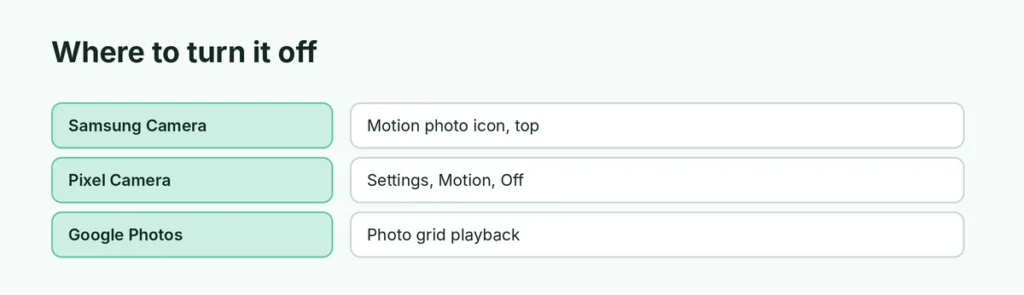
| Phone or app | Where to turn it off |
|---|---|
| Samsung Galaxy Camera | Motion photo icon at the top, in Photo mode |
| Google Pixel Camera | Viewfinder settings → Motion (or Top Shot) → Off |
| Google Photos (playback only) | Photos settings → Preferences → Photo grid playback |
Turn off Motion Photo on Samsung Galaxy
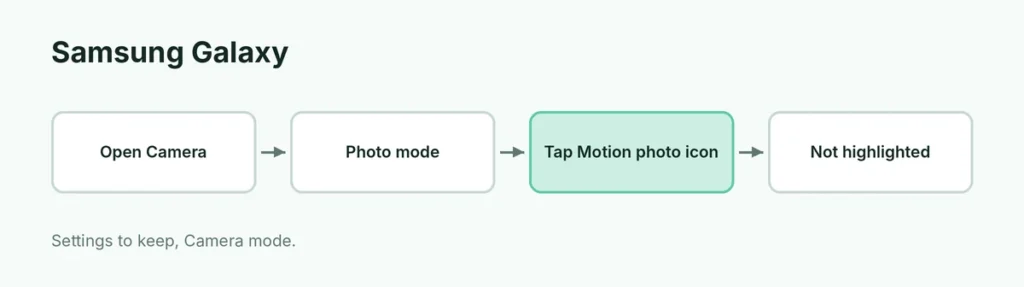
- Open the Camera app and make sure you’re in Photo mode.
- Look at the icons along the top (or the side in landscape).
- Tap the Motion photo icon. When it’s off, it’s no longer highlighted in yellow.
Keeps turning back on? Open Camera → Settings (gear) → Settings to keep, and turn on Camera mode so the camera remembers your choice. If that doesn’t help, use Reset settings at the bottom of Camera settings and turn Motion photo off again.
Turn off Motion on Google Pixel
- Open the Pixel Camera app.
- Tap the settings icon in the viewfinder (lower left or top, depending on your Pixel).
- Find Motion or Top Shot and set it to Off.
Stop motion photos playing in Google Photos
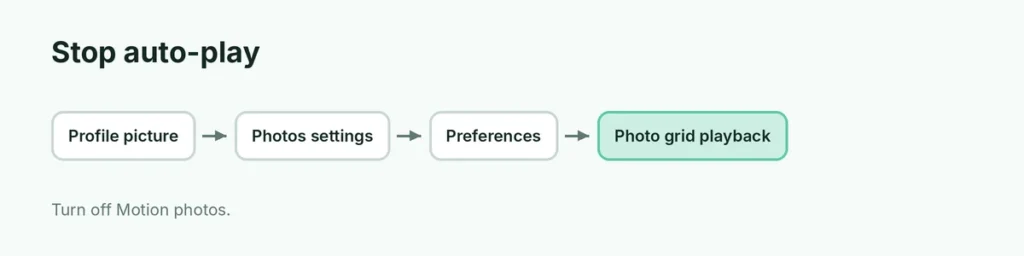
- Open Google Photos and tap your profile picture.
- Tap Photos settings → Preferences.
- Tap Photo grid playback and turn off Motion photos.
This only stops them auto-playing. The photos keep their motion data.
What about motion photos you’ve already taken?
- They stay as motion photos; turning the setting off only affects new pictures.
- When you share one, many apps send just the still picture.
- To find them, search Motion photos in Google Photos and delete or keep them as you like. That can free up storage; see Android storage almost full?.
Related guides
- How to take a screenshot on Samsung
- How to download images on Android
- How to back up an Android phone
The short version
On Samsung, tap the Motion photo icon at the top of the Camera in Photo mode so it isn’t highlighted; turn on Settings to keep → Camera mode if it switches back on. On Pixel, set Motion (or Top Shot) to Off in the camera settings. In Google Photos, turn off Photo grid playback → Motion photos to stop auto-play.
Sources
- Make Tech Easier: How to turn off Motion Photos on Android
- Samsung Community: Motion Photo keeps turning on