By
By 
AirPods are made by Apple, but they’re regular Bluetooth earbuds underneath, so they work with Android phones too. Pairing takes under a minute. You’ll lose a few iPhone-only extras, but music, calls and noise cancellation all work.
Short answer: put both AirPods in the case and open the lid. Press and hold the setup button on the back of the case until the light flashes white (on AirPods 4, double-tap the front of the case instead). On your Android phone, open Settings → Connected devices → Pair new device (Samsung: Connections → Bluetooth), and tap your AirPods.
Last updated: October 2026. Works with AirPods 2, 3, 4, AirPods Pro and AirPods Max on Android 13 and later.
Step 1: Put the AirPods in pairing mode
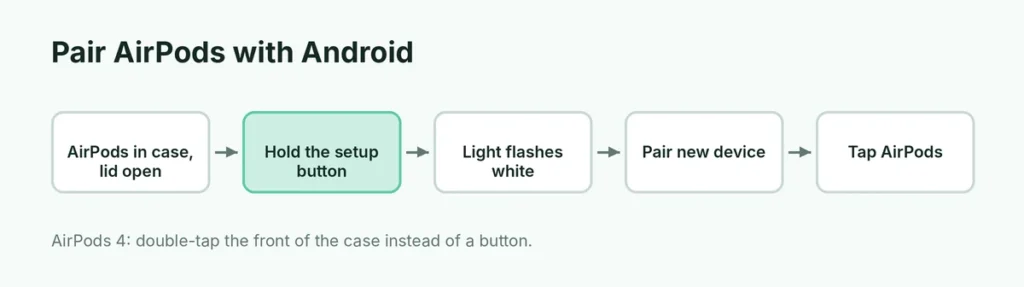
- Put both AirPods in the charging case.
- Open the lid.
- Enter pairing mode:
- AirPods with a button on the case (AirPods 2, 3, AirPods Pro): press and hold the small button on the back until the status light flashes white.
- AirPods 4: double-tap the front of the case (near the light) until it flashes white.
- AirPods Max: press and hold the noise control button until the light flashes white.
Step 2: Pair with your Android phone
| Phone | Where to pair |
|---|---|
| Google Pixel and most phones | Settings → Connected devices → Pair new device |
| Samsung Galaxy | Settings → Connections → Bluetooth → Scan |
| Xiaomi, Redmi, Poco | Settings → Bluetooth → Pair new device |
| Realme, Oppo, OnePlus | Settings → Bluetooth → Pair new device |
Tap your AirPods in the list and confirm Pair. The light on the case turns green when connected. From then on, opening the case near your phone reconnects them automatically.
What works on Android (and what doesn’t)
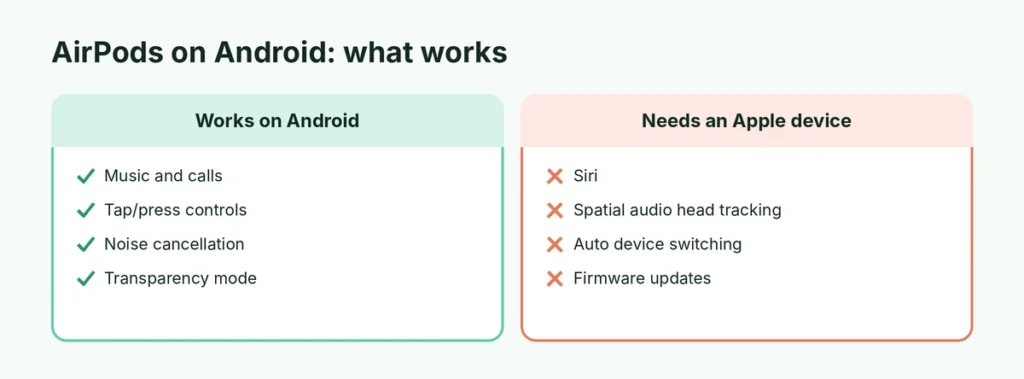
| Feature | On Android |
|---|---|
| Music, videos, podcasts | ✅ Works |
| Phone and video calls | ✅ Works |
| Play/pause and skip with taps or stem presses | ✅ Works |
| Noise cancellation / Transparency (Pro, 4 ANC, Max) | ✅ Switch by pressing and holding the stem |
| Automatic ear detection (pause when removed) | ⚠️ Not built in; some third-party apps add it |
| Battery level of each AirPod | ⚠️ Only overall level, or via third-party apps |
| Siri | ❌ No (pressing for Siri may open Google Assistant on some setups) |
| Spatial audio with head tracking | ❌ No |
| Automatic switching between Apple devices | ❌ No |
| Firmware updates | ❌ Need an iPhone, iPad or Mac |
| Hearing health features | ❌ Need an iPhone |
Change tap and press controls
On Android you can’t change the AirPods settings directly. If you have access to an iPhone or iPad, you can change what a double-tap or long-press does there; the settings are saved on the AirPods and keep working on Android.
See AirPods battery on Android
Android shows an overall battery level in Settings → Connected devices on many phones. For per-earbud and case levels, popular third-party apps such as MaterialPods or CAPod show an iPhone-style popup when you open the case. Download only from Google Play and check reviews and permissions.
AirPods won’t connect to Android? Try these fixes
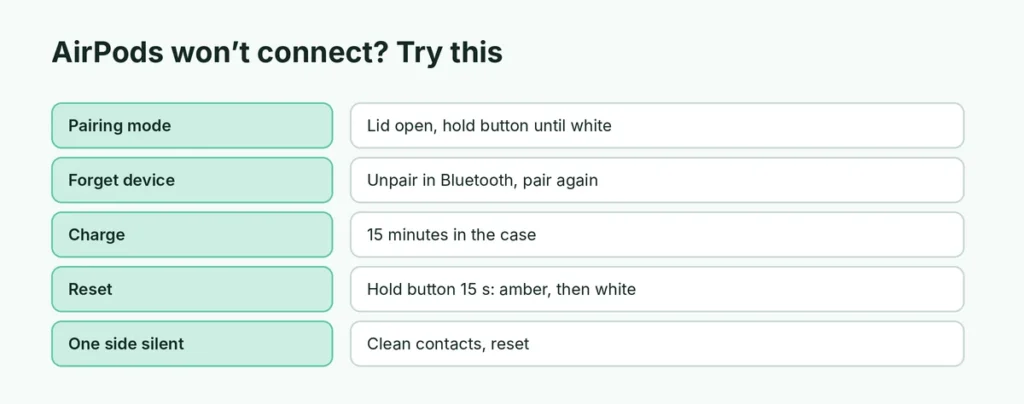
- Put them back in pairing mode: both AirPods in the case, lid open, hold the setup button until the light flashes white.
- Forget and re-pair: in Bluetooth settings, tap the gear next to your AirPods → Forget or Unpair, then pair again.
- Charge the case and earbuds for 15 minutes.
- Reset the AirPods: with the lid open, hold the setup button for about 15 seconds until the light flashes amber, then white. Here’s the full guide to how to reset AirPods.
- Turn Bluetooth off and on on the phone, or restart it.
- Only one AirPod plays: clean the case contacts and the AirPod tips gently with a dry cotton swab, then reset.
Sound quality on Android
AirPods use Apple’s AAC Bluetooth codec. Android supports AAC, but quality and latency can vary by phone. If audio sounds worse than expected:
- turn on Developer options → Bluetooth audio codec and check it’s AAC (advanced users),
- keep the phone close and avoid crowded 2.4 GHz Wi-Fi areas,
- update your phone’s software.
For gaming, some delay (lag) between picture and sound is normal with AirPods on Android.
Use AirPods with both an iPhone and an Android phone
You can pair AirPods with both. They connect to whichever device you choose in Bluetooth settings. Automatic switching only works between Apple devices signed in to the same Apple Account, so on Android you’ll connect manually.
Lost an AirPod while using Android?
Find My for AirPods only works through an Apple device or icloud.com/find, and only if the AirPods were set up with an Apple Account first. If you’ve only ever used them with Android, you won’t be able to track them. Here’s what to do if you lose an iPhone or Apple device.
Use AirPods for calls on Android
Calls work normally: the AirPods’ microphones pick up your voice and noise reduction still helps. If people say you sound quiet:
- keep at least one AirPod in, with the stem pointing toward your mouth,
- check the call audio is going to the AirPods (tap the audio or Bluetooth icon during the call),
- clean the microphone grilles gently with a dry soft brush.
Use AirPods with a Windows PC or Chromebook too
The same pairing steps work on laptops: put the AirPods in pairing mode, then Settings → Bluetooth & devices → Add device on Windows, or Quick Settings → Bluetooth on a Chromebook. They’ll switch between your phone and laptop when you select them in each device’s Bluetooth menu.
Turn on noise cancellation on Android
On AirPods Pro, AirPods 4 with Active Noise Cancellation and AirPods Max, you can switch between Noise Cancellation and Transparency without an iPhone:
- AirPods Pro and AirPods 4 ANC: press and hold the stem until you hear a chime.
- AirPods Max: press the noise control button.
Adaptive Audio and Conversation Awareness need an Apple device to set up.
Keep your AirPods updated
Firmware updates only install when AirPods are connected to an iPhone, iPad or Mac. If you only use Android, they’ll stay on their current firmware. They’ll keep working, but you’ll miss fixes and new features. Apple stores can also update them if you ask.
AirPods battery draining fast on Android
- Put them back in the case when not in use; they keep a connection otherwise.
- If one earbud drains much faster, reset the AirPods.
- Older AirPods naturally lose battery capacity after 2 to 3 years.
Should Android users buy AirPods?
AirPods work fine on Android, but you pay for iPhone features you won’t use. Earbuds designed for Android (from Google, Samsung, Sony and others) offer a companion app, per-earbud battery, EQ settings, firmware updates and Android-specific features at a similar or lower price. If you already own AirPods or switch between iPhone and Android, they’re a perfectly good choice.
The short version
Open the AirPods case, hold the setup button until the light flashes white (double-tap the front on AirPods 4), then go to Settings → Connected devices → Pair new device on your Android phone and tap the AirPods. Music, calls and noise control work; Siri, spatial audio head tracking, auto-switching and firmware updates need an Apple device. If they won’t connect, forget them in Bluetooth settings, reset them, and pair again.