By
Need a Windows 11 ISO file to make a USB installer, set up a virtual machine, or reinstall your PC? You can download it free, directly from Microsoft, without any third-party tools or shady download sites. Microsoft also offers the Media Creation Tool, which builds a bootable USB drive for you.
Short answer: go to microsoft.com/software-download/windows11. Under Download Windows 11 Disk Image (ISO) for x64 devices, choose Windows 11 (multi-edition ISO) → Download Now → pick your language → Confirm → 64-bit Download. To make a bootable USB instead, download the Media Creation Tool from the same page, run it, and choose USB flash drive (8 GB or larger). Both are free and official.
Last updated: October 2026. Microsoft always provides the latest Windows 11 version on this page.
ISO, Media Creation Tool or Installation Assistant?
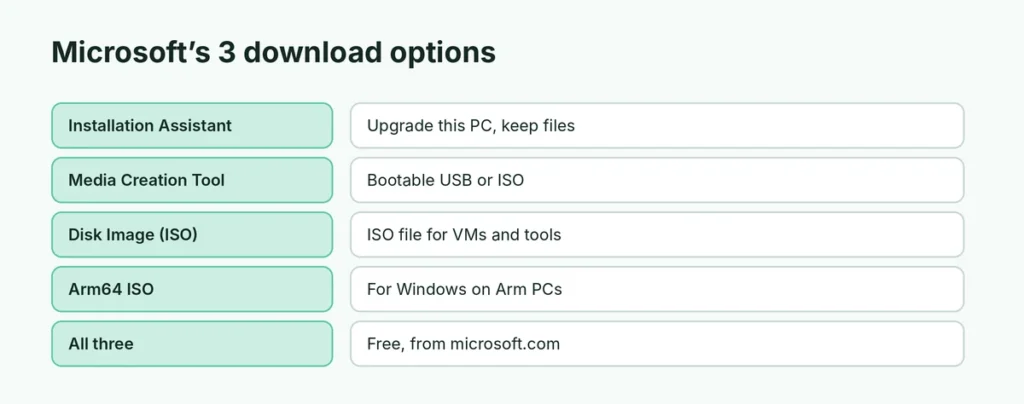
Microsoft’s download page offers three options. Pick the one that fits:
| Option | Use it to | Result |
|---|---|---|
| Installation Assistant | Upgrade this PC from Windows 10 or an older Windows 11, keeping files and apps | In-place upgrade |
| Media Creation Tool | Make a bootable USB stick or download an ISO | USB installer or ISO |
| Disk Image (ISO) | Get the ISO file directly, for VMs, other tools or mounting | ISO file |
If you just want to upgrade the PC you’re using, the Installation Assistant is easiest. Here’s the full guide to the Windows 11 Installation Assistant.
How to download the Windows 11 ISO
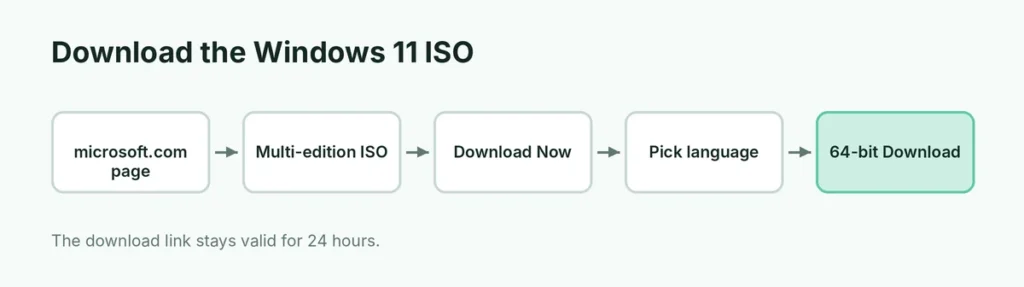
- Open microsoft.com/software-download/windows11 in your browser.
- Scroll to Download Windows 11 Disk Image (ISO) for x64 devices.
- In the drop-down, select Windows 11 (multi-edition ISO for x64 devices) → Download Now.
- Choose your product language (it must match the language of your Windows if you’re upgrading) → Confirm.
- Click 64-bit Download. The file is about 6 to 7 GB.
The download link works for 24 hours. If it expires, start again from step 1.
One ISO, several editions: the “multi-edition” ISO includes Home and Pro (and some others). During setup, Windows installs the edition that matches your product key or your PC’s digital license. Not sure which one you need? Here’s Windows 11 Home vs Pro explained.
How to use the Media Creation Tool
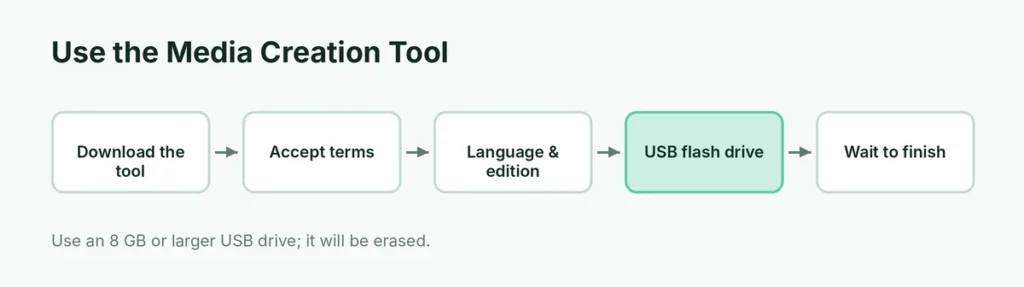
- On the same Microsoft page, under Create Windows 11 Installation Media, click Download Now.
- Run MediaCreationTool.exe and accept the license terms.
- Choose the language and edition (or keep Use the recommended options for this PC).
- Choose:
- USB flash drive to make a bootable installer (needs a USB drive of at least 8 GB; everything on it will be erased), or
- ISO file to save an ISO for later.
- Wait for the download and creation to finish.
Want step-by-step help with the USB, including using Rufus? Here’s how to make a Windows 11 bootable USB.
Arm-based PCs
Most PCs use x64 (Intel or AMD) processors. If you have a Windows on Arm PC (for example, with a Snapdragon X chip), Microsoft offers a separate Arm64 ISO on the same page. Check your PC type in Settings → System → About → System type.
Is the Windows 11 ISO free?
Downloading the ISO is free and legal. Using Windows 11 needs a valid license:
- If your PC already had Windows 10 or 11 activated, it will usually activate automatically after reinstalling (digital license linked to the hardware or your Microsoft account).
- New PCs you build yourself need a product key.
- You can install without a key and activate later; unactivated Windows shows a watermark and limits personalization.
Avoid “free keys” and modified ISOs from unofficial sites: they often contain malware.
What can you do with the ISO?
- Create a bootable USB with Rufus or another tool.
- Mount it in Windows (double-click the ISO) and run setup.exe to upgrade in place.
- Install Windows 11 in a virtual machine (Hyper-V, VirtualBox, VMware).
- Repair a PC with Startup Repair from the installer.
To do a full clean install from the USB, follow how to install Windows 11.
Check the ISO isn’t corrupted
Microsoft lists SHA256 hashes on the download page for each language. To verify:
- Open PowerShell in the folder with the ISO.
- Run:
Get-FileHash .\Win11_English_x64.iso(use your file name). - Compare the result with the hash on Microsoft’s page.
If they match, the file downloaded correctly.
Download problems and fixes
- “We are unable to complete your request”: often triggered by a VPN or ad blocker. Turn them off and try again, or try another browser.
- Link expired: links last 24 hours; generate a new one.
- Download stops: use a stable connection and make sure you have at least 8 GB of free disk space.
- Media Creation Tool error (codes like 0x80042405): run it from your PC’s main drive (not the USB), and try another USB drive or port.
Which language and edition should you pick?
- Language: choose the language you want Windows to use. If you’re upgrading by mounting the ISO, it must match your current Windows language (for example, English (United States) vs English International), or you won’t be able to keep your files and apps.
- Edition: the multi-edition ISO picks Home or Pro based on your license. If you need to choose manually during setup, pick the edition your product key or PC came with.
Download the ISO on a Mac or Linux computer
If you open Microsoft’s download page on a Mac, Linux PC or phone, it often shows the ISO download options directly. On a Mac, creating a bootable Windows USB needs extra tools, so it’s easier to use a Windows PC with the Media Creation Tool or Rufus.
Older Windows 11 versions
Microsoft’s page offers only the current Windows 11 version. You generally don’t need an older one: the latest version includes all security fixes. If a specific app requires an older version, check the app maker’s support page; avoid downloading old ISOs from unofficial websites.
Keep the ISO for later
Store the ISO on an external drive so you can make a new USB or repair a PC later. Remember that Microsoft updates Windows 11 every year, so download a fresh ISO before a new installation to avoid installing lots of updates afterward.
Can my PC run Windows 11?
Windows 11 needs a 64-bit processor from the supported list, 4 GB RAM, 64 GB storage, UEFI with Secure Boot capability and TPM 2.0. Check with the PC Health Check app from Microsoft. Windows 10 support ended in October 2025, so moving to Windows 11 is recommended where your PC supports it.
The short version
Download the official Windows 11 ISO from microsoft.com/software-download/windows11 → Download Windows 11 Disk Image (ISO) → choose the multi-edition ISO, language and 64-bit Download. Use the Media Creation Tool from the same page to make a bootable USB (8 GB+), or the Installation Assistant to upgrade the current PC. Downloading is free; you need a valid license to activate.