By
Windows 11 comes in two main editions for people and small businesses: Home and Pro. Pro costs more, but most home users never need its extra features. Here’s exactly what’s different, who should pay for Pro, and how to upgrade if you need to.
Short answer: Windows 11 Home has everything most people need: the same look, apps, games, security updates and performance. Windows 11 Pro adds business and power-user features such as BitLocker full-disk encryption management, Remote Desktop hosting, Hyper-V virtual machines, Group Policy, Windows Sandbox and tools for managing PCs in a company. Choose Pro if you need any of those; otherwise Home is enough. Home typically costs about $139 and Pro about $199 in the US, and you can upgrade Home to Pro later for about $99.
Last updated: October 2026. Prices are Microsoft’s US list prices and may vary.
Windows 11 Home vs Pro: feature comparison
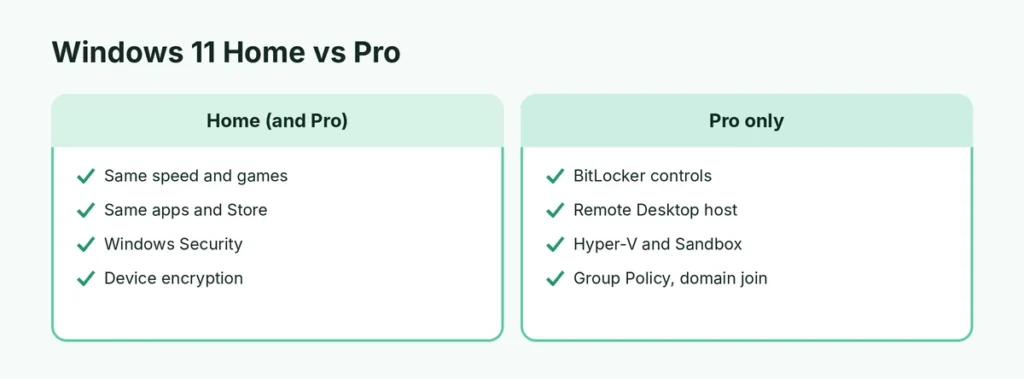
| Feature | Home | Pro |
|---|---|---|
| Same design, Start menu, apps, Microsoft Store | ✅ | ✅ |
| Gaming (DirectX 12, Xbox app, Auto HDR) | ✅ | ✅ |
| Windows Security (antivirus, firewall) | ✅ | ✅ |
| Device encryption (on supported PCs) | ✅ | ✅ |
| BitLocker encryption with full controls | ❌ | ✅ |
| Remote Desktop (connect to this PC) | ❌ (client only) | ✅ |
| Hyper-V virtual machines | ❌ | ✅ |
| Windows Sandbox | ❌ | ✅ |
| Group Policy Editor | ❌ | ✅ |
| Join a company domain / Microsoft Entra ID | ❌ | ✅ |
| Windows Update for Business (delay updates) | ❌ | ✅ |
| Assigned Access (kiosk mode) | ❌ | ✅ |
| Maximum RAM | 128 GB | 2 TB |
| Set up with a local account | Harder (Microsoft account expected) | Easier with work/school options |
What Pro’s extra features actually do
BitLocker
BitLocker encrypts your whole drive so nobody can read your files if your laptop is stolen. Home has simpler Device encryption on most modern PCs, which protects you in a similar way but with fewer options. Pro adds full BitLocker controls, including encrypting USB drives (BitLocker To Go) and choosing exactly how drives unlock.
Remote Desktop
Both editions can connect to other PCs. Only Pro can be controlled remotely with Microsoft’s built-in Remote Desktop. Home users can use free alternatives such as Chrome Remote Desktop or Quick Assist for helping family.
Hyper-V and Windows Sandbox
Hyper-V lets you run other operating systems (another Windows, Linux) in virtual machines. Windows Sandbox opens a disposable, safe Windows window for testing suspicious files or apps; everything is deleted when you close it. Home users can use free tools like VirtualBox instead of Hyper-V.
Group Policy and business management
Group Policy Editor lets you fine-tune hundreds of Windows settings. Pro also supports joining a company domain or Microsoft Entra ID, and IT tools that manage many PCs. These matter for offices, not for most homes.
Performance and gaming: no difference
Windows 11 Home and Pro run at the same speed. Games, apps and battery life are identical. Pro doesn’t make your PC faster. Gamers don’t need Pro.
Price: Home vs Pro
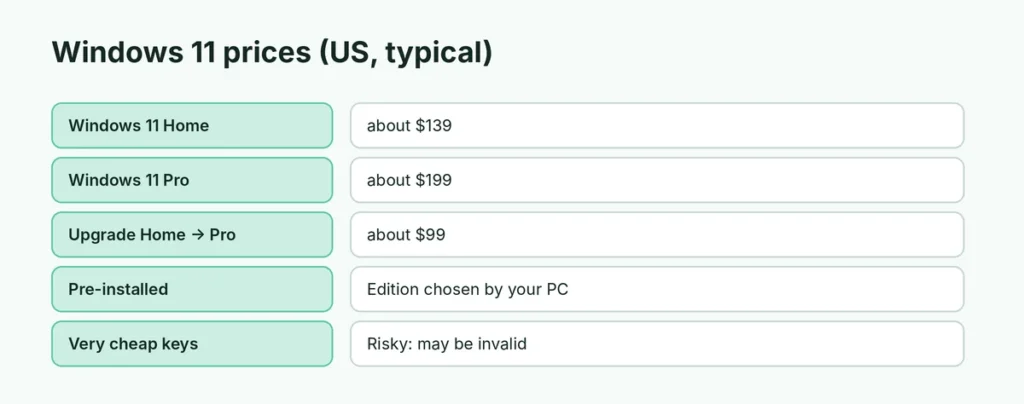
| Edition | Typical US price | Notes |
|---|---|---|
| Windows 11 Home | about $139 | Usually pre-installed on new PCs |
| Windows 11 Pro | about $199 | Often on business laptops |
| Upgrade Home → Pro | about $99 | From the Microsoft Store in Settings |
Most people get Windows pre-installed with their PC, so the edition is already chosen. Be wary of extremely cheap Pro keys from unknown sellers; they may be invalid or get deactivated.
Who should choose Windows 11 Pro?
Choose Pro if you:
- run a small business or freelance and need BitLocker and remote access,
- need to remote into your PC from elsewhere with Remote Desktop,
- use virtual machines with Hyper-V, or want Windows Sandbox,
- connect to a company network that requires domain or Entra ID join,
- like to control updates and settings with Group Policy.
Choose Home if you mainly browse, stream, game, study, use Office and email. That’s most people.
Security: is Pro safer than Home?
For everyday safety, both editions are equally protected: Windows Security antivirus, SmartScreen, firewall, Windows Hello sign-in and monthly security updates are the same. Pro’s extra security features (full BitLocker controls, Group Policy security rules) mostly matter for businesses managing many PCs or people handling sensitive client data.
Home vs Pro for small businesses
If you run a small business with a few PCs, Pro is usually worth it:
- BitLocker protects client data if a laptop is lost.
- Remote Desktop lets you access your office PC from home.
- Microsoft Entra ID / domain join works with business tools.
- Windows Update for Business lets you delay updates to avoid surprises.
For a single freelancer, Home plus device encryption and good backups may be enough.
What about Windows 11 Education and Enterprise?
Education (for schools and students) and Enterprise (for large companies) include everything in Pro plus extra management and security features. They’re licensed through schools or employers, not sold to individuals in stores.
How to check which edition you have
Settings → System → About → under Windows specifications, look at Edition.
How to upgrade from Home to Pro
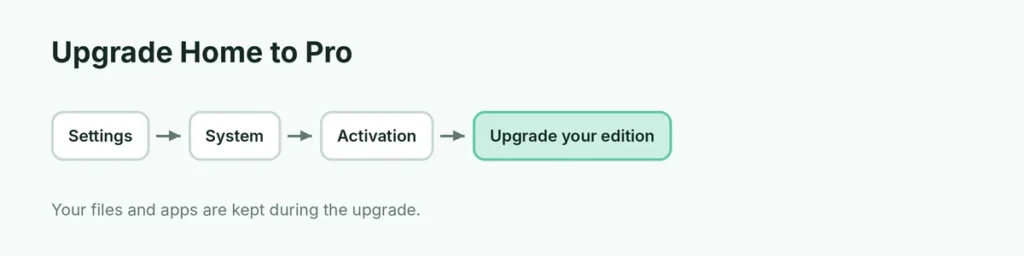
- Open Settings → System → Activation.
- Under Upgrade your edition of Windows, choose:
- Open Store to buy the upgrade from the Microsoft Store, or
- Change product key if you already have a Pro key.
- Follow the prompts. Your PC restarts, and your files and apps are kept.
Can you downgrade from Pro to Home?
Not directly. Going from Pro to Home requires a clean install of Windows 11 Home with a Home key. Back up your files first. Here’s how to install Windows 11 and where to get the official Windows 11 ISO.
Home vs Pro for students and families
For school and family use, Home is enough. Parental controls (Microsoft Family Safety), Microsoft 365 apps, Teams and Zoom all work the same. If a school or employer provides Windows Education or Enterprise, use what they give you.
Is it worth upgrading an old PC to Windows 11?
If your PC meets the requirements, yes: Windows 10 stopped getting free security updates in October 2025. Use the free Windows 11 Installation Assistant to upgrade; you’ll stay on the same edition (Home to Home, Pro to Pro).
The short version
Windows 11 Home is the right choice for most people: same speed, apps, games and security. Windows 11 Pro adds BitLocker controls, Remote Desktop hosting, Hyper-V, Windows Sandbox, Group Policy and business management, for about $60 more (or $99 to upgrade later). Check your edition in Settings → System → About, and upgrade in Settings → System → Activation if you need Pro.