By
The Windows 11 Installation Assistant is Microsoft’s free tool for upgrading a PC to Windows 11, or to the latest Windows 11 version, without losing your files or apps. It’s the easiest upgrade method if Windows Update hasn’t offered the upgrade yet. (People often call it the “Windows 11 Update Assistant”, after the old Windows 10 tool.)
Short answer: go to microsoft.com/software-download/windows11, click Download Now under Windows 11 Installation Assistant, run Windows11InstallationAssistant.exe, click Accept and install, and wait. Your PC restarts several times. Your files, apps and settings are kept. Your PC must meet the Windows 11 requirements; check first with the PC Health Check app.
Last updated: October 2026.
Who should use the Installation Assistant?
Use it if:
- you’re on Windows 10 and want to upgrade to Windows 11,
- you’re on an older Windows 11 version and want the latest one now,
- Windows Update says your PC is compatible but hasn’t offered the upgrade yet.
Don’t use it if you want a clean install (erase everything and start fresh) or need to install on a different PC. For those, use a bootable USB: here’s how to make a Windows 11 bootable USB and the official Windows 11 ISO download.
Before you start
- Check compatibility: install and run PC Health Check from Microsoft. It tells you if your PC meets the requirements.
- Back up important files to OneDrive, an external drive or another cloud. Upgrades rarely lose data, but a backup is cheap insurance.
- Free up space: you need about 20 to 25 GB free on your C: drive (more is better).
- Plug in your laptop charger.
- Install pending Windows updates first (Settings → Windows Update → Check for updates).
- Know your Microsoft account or local account password.
Windows 11 minimum requirements
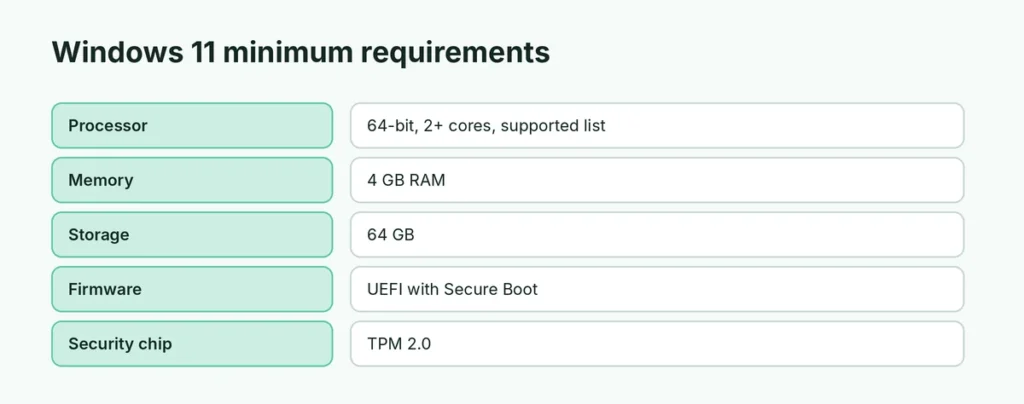
| Component | Requirement |
|---|---|
| Processor | 1 GHz or faster, 2+ cores, 64-bit, on Microsoft’s supported list |
| RAM | 4 GB |
| Storage | 64 GB |
| Firmware | UEFI, Secure Boot capable |
| TPM | Version 2.0 |
| Graphics | DirectX 12 compatible, WDDM 2.0 driver |
| Display | 720p, larger than 9 inches |
How to upgrade with the Installation Assistant
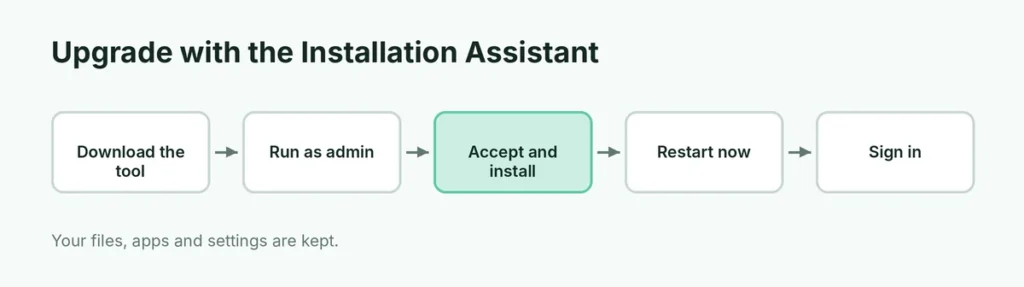
- Go to microsoft.com/software-download/windows11.
- Under Windows 11 Installation Assistant, click Download Now.
- Open Windows11InstallationAssistant.exe and click Yes if asked.
- If PC Health Check is required, it asks you to run it first.
- Click Accept and install on the license terms.
- The tool downloads Windows 11, verifies it and starts installing. You can keep using your PC during this part.
- When prompted, click Restart now (or it restarts automatically after 30 minutes).
- Your PC restarts several times. Don’t turn it off.
- Sign in. Windows 11 is ready, with your files and apps.
The whole process usually takes 1 to 2 hours, depending on your internet speed and PC.
After the upgrade
- Open Settings → Windows Update and install any remaining updates.
- Check that your apps and printers work; update drivers from your PC maker if needed.
- Make your PC feel like home: move the Start button to the left in Settings → Personalization → Taskbar → Taskbar behaviors → Taskbar alignment → Left.
Going back to Windows 10
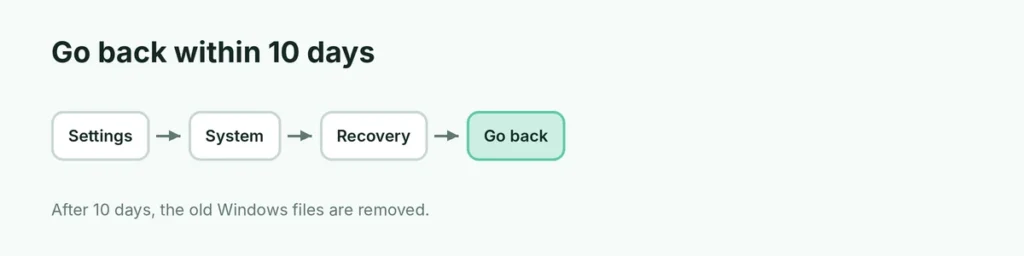
For 10 days after upgrading, you can return to your previous Windows: Settings → System → Recovery → Go back. After that, the old files are deleted to free space, and you’d need a clean install to go back. Keep in mind that Windows 10 no longer receives free security updates since October 2025 (except for those enrolled in Extended Security Updates), so staying on Windows 11 is safer.
Installation Assistant errors and fixes
| Problem | What to try |
|---|---|
| “This PC doesn’t currently meet Windows 11 system requirements” | Run PC Health Check; turn on TPM and Secure Boot in your BIOS/UEFI settings if they’re off |
| Stuck at a percentage | Wait at least an hour; slow internet or disk activity can make it look frozen |
| Error 0x8007007f | Run the Installation Assistant as administrator (right-click → Run as administrator) |
| Not enough space | Free up space with Settings → System → Storage → Cleanup recommendations |
| Upgrade fails and rolls back | Uninstall third-party antivirus temporarily, disconnect extra USB devices, and try again |
Enable TPM 2.0 and Secure Boot
Many PCs that fail the check simply have these turned off in firmware:
- Restart and enter the BIOS/UEFI setup (often F2, F10, Del or Esc at startup; check your PC maker’s support page).
- Look for TPM, fTPM (AMD), PTT (Intel) or Security Device, and enable it.
- Find Secure Boot (usually under Boot or Security) and enable it. Your disk must use GPT and UEFI mode.
- Save and restart, then run PC Health Check again.
Change only these settings, and if you’re unsure, ask someone experienced for help.
How long will my PC keep getting Windows 11 updates?
Each Windows 11 version gets security updates for about two years (Home and Pro). Installing the latest version with the Installation Assistant resets that clock. Windows Update will also offer new versions automatically once your PC is eligible.
Will my apps and games still work?
Almost all Windows 10 apps work on Windows 11. A few old utilities, VPN clients, antivirus programs or printer drivers may need updates. Before upgrading, check that important apps (especially work software) list Windows 11 support. Games from Steam, Xbox and Epic work normally.
Should I upgrade an unsupported PC?
Microsoft doesn’t support installing Windows 11 on PCs that don’t meet the requirements. Workarounds exist, but such PCs may not receive updates, can be less stable, and aren’t covered by Microsoft support. If your PC is unsupported, consider staying on a supported setup or replacing the PC when practical.
Installation Assistant vs. Windows Update vs. ISO
| Method | Keeps files and apps | Best for |
|---|---|---|
| Windows Update | Yes | Waiting for Microsoft to offer it automatically |
| Installation Assistant | Yes | Upgrading now, on this PC |
| ISO / Media Creation Tool (USB) | Optional (clean install erases) | Clean installs, other PCs, repairs |
Which Windows 11 edition will I get?
The Installation Assistant keeps your current edition: Windows 10 Home becomes Windows 11 Home, and Pro becomes Pro. If you’re wondering whether to upgrade editions, here’s Windows 11 Home vs Pro.
The short version
Download the Windows 11 Installation Assistant from microsoft.com/software-download/windows11, run it, click Accept and install, and let your PC restart several times. Your files and apps stay. Check compatibility with PC Health Check first, back up your files, free 20 GB or more, and turn on TPM 2.0 and Secure Boot if the check fails. You have 10 days to go back if needed.