By
By 
Too many apps slow your phone down, eat storage and fill your screen with notifications. Uninstalling them on Android takes a few seconds, and there are several ways to do it, including removing many apps at once. Some pre-installed apps can’t be removed, but you can usually disable them.
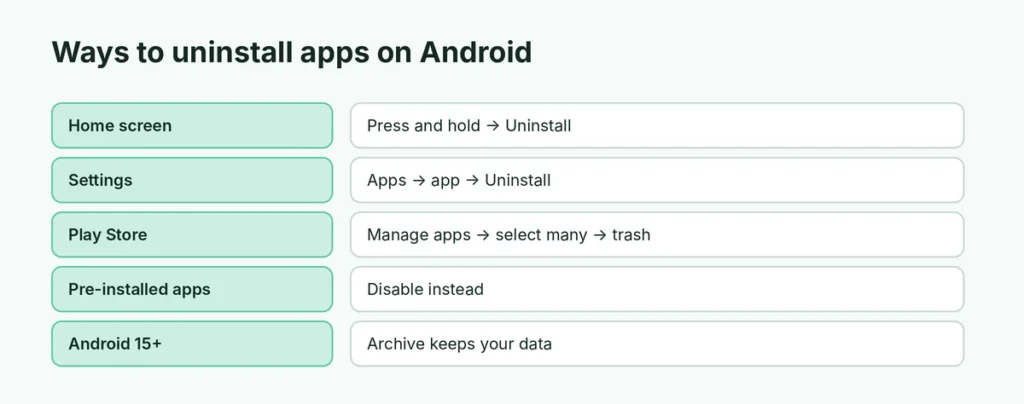
Short answer: press and hold the app icon, then tap Uninstall (or drag it to Uninstall at the top of the screen) and confirm. You can also go to Settings → Apps → choose the app → Uninstall, or remove several at once in the Play Store: profile picture → Manage apps & device → Manage → select apps → trash icon. Pre-installed apps that can’t be removed can be disabled.
Last updated: October 2026. Works on Android 13, 14, 15 and 16, on Samsung, Pixel, Motorola, OnePlus, Xiaomi, Realme and Oppo phones.
Method 1: From the home screen or app drawer (fastest)
- Find the app on your home screen or in the app drawer (swipe up).
- Press and hold the app icon.
- Tap Uninstall in the menu, or drag the icon to Uninstall at the top of the screen.
- Tap OK to confirm.
On some phones, the menu shows App info instead; tap it and then Uninstall.
Careful: dragging an icon to Remove only removes the shortcut from the home screen. The app is still installed. Look for Uninstall.
Method 2: From Settings
- Open Settings → Apps (on some phones Apps & notifications → See all apps).
- Tap the app.
- Tap Uninstall → OK.
This is useful for apps without an icon or ones you can’t find.
Method 3: Uninstall many apps at once in the Play Store
- Open the Google Play Store.
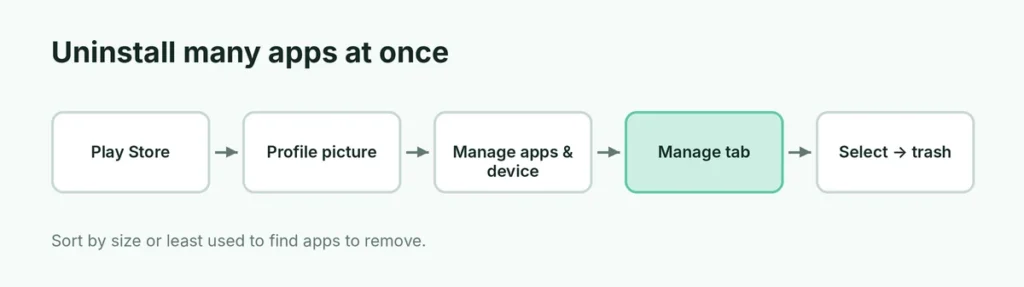
- Tap your profile picture (top right) → Manage apps & device.
- Tap the Manage tab.
- Tick the apps you want to remove. Sort by Size or Least used to find good candidates.
- Tap the trash icon → Uninstall.
Can’t uninstall an app? Disable it instead
Apps that came with your phone (from Google, Samsung or your carrier) often can’t be removed completely. You can disable them:
- Settings → Apps → tap the app.
- Tap Disable (or Turn off) → Disable app.
A disabled app disappears from your app list, stops running and stops getting updates. You can turn it back on the same way. Don’t disable core apps such as Phone, Settings, Google Play services or your keyboard, or parts of the phone may stop working.
The Uninstall button is grayed out
If Uninstall is grayed out, the app is probably a device admin app (for example, a work or security app):
- Open Settings and search for Device admin apps (often under Security → More security settings).
- Turn off admin access for that app.
- Go back and uninstall it.
Work phones managed by your company may block uninstalling some apps; ask your IT team.
Archive apps instead of uninstalling (Android 15 and later)
Newer Android versions can archive apps you rarely use: the app is removed to free space, but its icon and your data stay, and tapping the icon reinstalls it. You’ll see Archive next to Uninstall in the app’s menu or in Settings → Apps. The Play Store can also archive unused apps automatically (Settings → General → Automatically archive apps).
Does uninstalling delete my data?
Usually yes: uninstalling deletes the app’s data on the phone. Before removing apps with important information:
- WhatsApp: back up your chats first. Here’s how to back up WhatsApp chats.
- Games: make sure your progress is linked to a Google Play Games or game account.
- Notes or authenticator apps: export or sync your data.
Uninstalling an app does not cancel paid subscriptions. Cancel them in Play Store → profile → Payments & subscriptions → Subscriptions. For example, here’s how to cancel a ChatGPT subscription.
Which apps should you remove?
Good candidates:
- apps you haven’t opened in months (check Play Store → Manage → sort by Least used),
- duplicate apps (two flashlight, cleaner or file-manager apps),
- “booster”, “cleaner” and “battery saver” apps, which rarely help and often show ads,
- games you finished,
- apps from unknown sources you no longer trust.
Free up more space after uninstalling
Uninstalling large apps is one of the fastest ways to free space. For more tips, see what to do when Android storage is almost full. If the phone is slow or crashing because of a bad app, here’s how safe mode helps find the problem app.
Uninstall apps on Samsung Galaxy phones
Samsung offers a few extra ways:
- Home screen or Apps screen: press and hold the icon → Uninstall.
- Settings → Apps → tap the app → Uninstall (or Disable for Samsung apps).
- Galaxy Store: Menu → Updates or My apps to manage Samsung apps.
- Device care: Settings → Battery and device care → Storage → Unused apps shows apps you rarely use, ready to remove.
Uninstall apps on Xiaomi, Redmi and Poco
On Xiaomi phones, press and hold the icon → Uninstall, or open Settings → Apps → Manage apps → select the app → Uninstall. The Security app also has an option to uninstall several apps at once. Many pre-installed Xiaomi apps can now be uninstalled, while others can only be disabled.
Remove apps that keep coming back
If an app reinstalls itself after you remove it:
- It may be part of a work profile or managed by your company.
- A carrier or manufacturer app may be restored by updates; disable it instead.
- You might have auto-install turned on from another device: in the Play Store, check Settings → Network preferences and review app install prompts.
- If unknown apps keep appearing, scan the phone with Google Play Protect (Play Store → profile → Play Protect → Scan).
Uninstall apps you installed from outside Google Play
APK apps installed from websites are removed the same way (Settings → Apps → Uninstall). Afterward, it’s a good idea to turn off Install unknown apps for your browser and file manager: Settings → Apps → Special app access → Install unknown apps.
Reinstall an app you removed
Open the Play Store → profile picture → Manage apps & device → Manage → change Installed to Not installed. You’ll see apps you’ve had before and can reinstall them, including paid apps, at no extra cost.
Uninstall vs. disable vs. archive
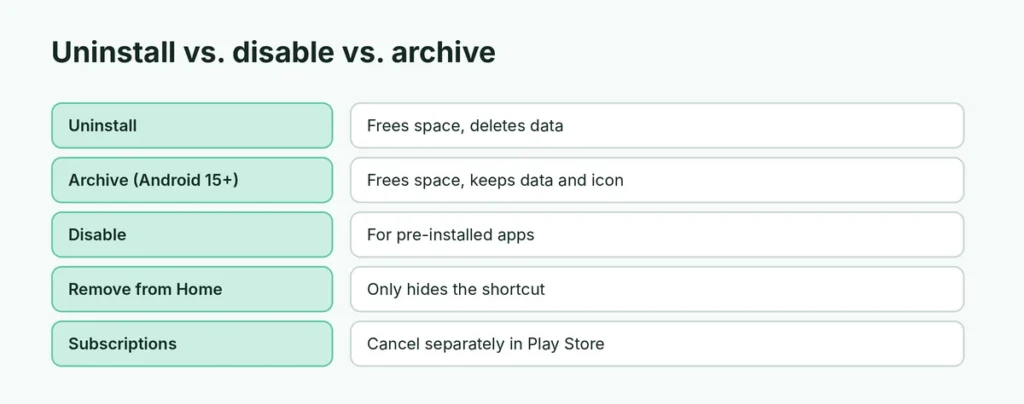
| Option | Frees space | Keeps data | Icon stays |
|---|---|---|---|
| Uninstall | Yes | No | No |
| Archive (Android 15+) | Most of it | Yes | Yes |
| Disable (pre-installed apps) | Removes updates only | Yes | No |
| Remove from Home screen | No | Yes | In app drawer only |
The short version
Press and hold the app icon and tap Uninstall, or go to Settings → Apps → the app → Uninstall. To remove many apps at once, use the Play Store → Manage apps & device → Manage. Pre-installed apps that can’t be removed can be disabled, and on Android 15 and later you can archive rarely used apps to free space while keeping your data. Back up important data and cancel subscriptions before you uninstall.