By
By 
Pressing F5 turns the volume down instead of refreshing the page? Or the opposite: you want brightness and volume keys but get F1–F12 instead? That’s Fn Lock (Function Lock) at work. Here’s how to turn off Fn Lock on Windows laptops (Dell, HP, Lenovo, ASUS, Acer and others) and how the same setting works on a Mac.
Short answer: on most laptops, press Fn + Esc (the Esc key often has a small lock or “FnLk” icon). Some laptops use a dedicated Fn Lock key, Fn + Caps Lock, or Fn + Shift. If no shortcut works, change Function Key Behavior (or Action Keys Mode) in the BIOS/UEFI or the maker’s app (like Lenovo Vantage, HP’s BIOS, Dell’s BIOS or MyASUS). On a Mac, go to System Settings → Keyboard → Keyboard Shortcuts → Function Keys and change Use F1, F2, etc. keys as standard function keys.
Applies to: Windows 11 and Windows 10 laptops, and Macs on macOS 26. Key combinations vary by model; check your laptop’s manual if unsure. Last checked in October 2026.
What does Fn Lock do?
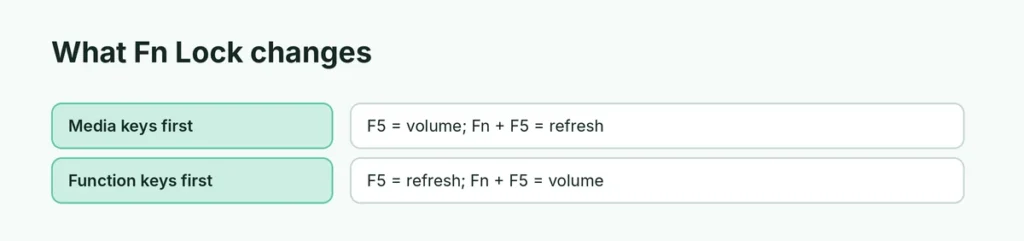
The top row of a laptop keyboard has two jobs:
| Mode | Pressing F5 alone does | Pressing Fn + F5 does |
|---|---|---|
| Media keys first (Fn Lock off on many laptops) | Volume, brightness, etc. | Real F5 (refresh) |
| Function keys first (Fn Lock on) | Real F5 (refresh) | Volume, brightness, etc. |
Fn Lock swaps these. Some brands label “on” and “off” the other way round, so just check which behavior you want.
Common Fn Lock shortcuts
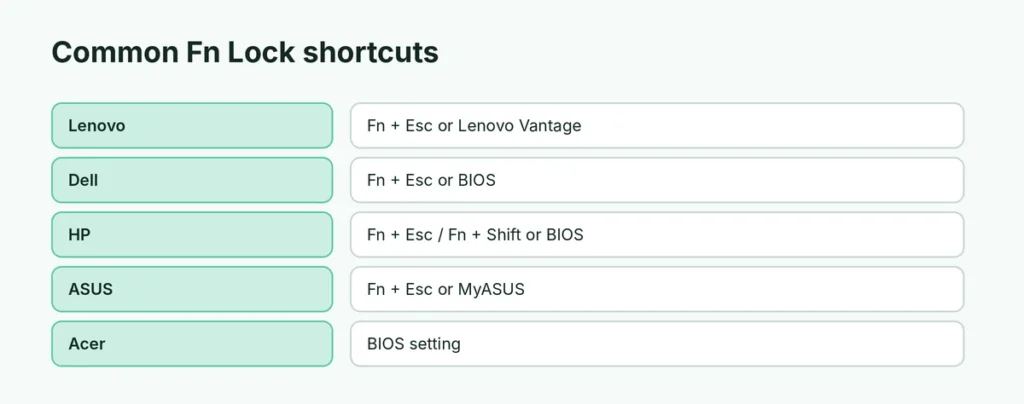
| Brand | Usual shortcut or setting |
|---|---|
| Lenovo | Fn + Esc (Esc light shows status); also in Lenovo Vantage |
| Dell | Fn + Esc; also Function Key Behavior in BIOS |
| HP | Fn + Esc or Fn + Shift on some models; Action Keys Mode in BIOS |
| ASUS | Fn + Esc; also in MyASUS → Customization |
| Acer | Often a BIOS setting (Function key behavior) |
| Microsoft Surface | Fn key toggles; a light on Fn shows status |
| External keyboards | Fn Lock key or Fn + Esc (varies) |
If Esc has a small padlock icon with “Fn”, that’s your Fn Lock key.
How to turn off Fn Lock in BIOS/UEFI
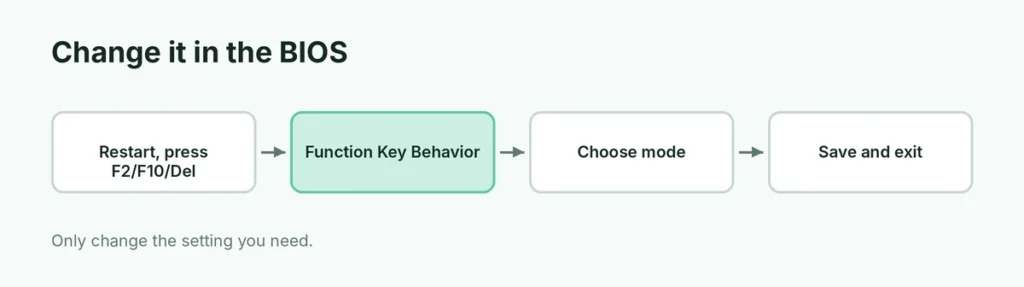
If shortcuts don’t work:
- Restart the laptop and press the setup key as it starts (often F2, F10, Del or F1, depending on the brand).
- Find Function Key Behavior, Action Keys Mode or Hotkey Mode (usually under Advanced, Configuration or System Configuration).
- Choose Multimedia Key / Enabled (media first) or Function Key / Disabled (F1–F12 first).
- Save and exit (often F10).
Be careful in the BIOS: only change the setting you need.
How to change function keys on a Mac
- Open System Settings.
- Click Keyboard → Keyboard Shortcuts.
- Click Function Keys in the left list.
- Turn Use F1, F2, etc. keys as standard function keys on or off.
When it’s on, hold fn (or the globe key) to use brightness and volume.
Fn key stuck or not working?
- Restart the laptop.
- Update the maker’s keyboard or hotkey driver (often called “Hotkey” or “System Interface” drivers).
- Check the maker’s app (Lenovo Vantage, MyASUS, Dell or HP support apps).
- Make sure Sticky Keys isn’t on. Here’s how to turn off Sticky Keys.
Fn Lock vs. Num Lock vs. Caps Lock
- Fn Lock: swaps the F1–F12 row.
- Num Lock: turns part of the keyboard or keypad into number keys.
- Caps Lock: capital letters.
On small laptops, Num Lock can make letters type numbers, which feels like a “stuck Fn”.
Related guides
- How to turn off Sticky Keys
- How to install Windows 11
The short version
Press Fn + Esc on most laptops to toggle Fn Lock. If that doesn’t work, look for an Fn Lock key, use the maker’s app, or change Function Key Behavior / Action Keys Mode in the BIOS. On a Mac, use Keyboard → Keyboard Shortcuts → Function Keys.
Sources
- Apple Support: How to use the function keys on your Mac