By
By 
With iOS 26, your iPhone can screen calls from unknown numbers: it answers for you, asks the caller who they are and why they’re calling, and shows you the answer before you pick up. It’s great against spam, but it can also confuse delivery drivers, doctors’ offices and anyone calling from a new number. Here’s how to turn off call screening on iPhone, or switch it to a gentler setting.
Short answer: go to Settings → Apps → Phone, tap Screen Unknown Callers and choose Never to turn it off. You can also choose Silence (unknown calls go straight to voicemail quietly) or keep Ask Reason for Calling (the screening feature). If calls still go silent, also check Silence Unknown Callers, Focus modes and Call Blocking & Identification.
Applies to: iPhone on iOS 26 and iOS 27. Last checked in October 2026.
Screen Unknown Callers options
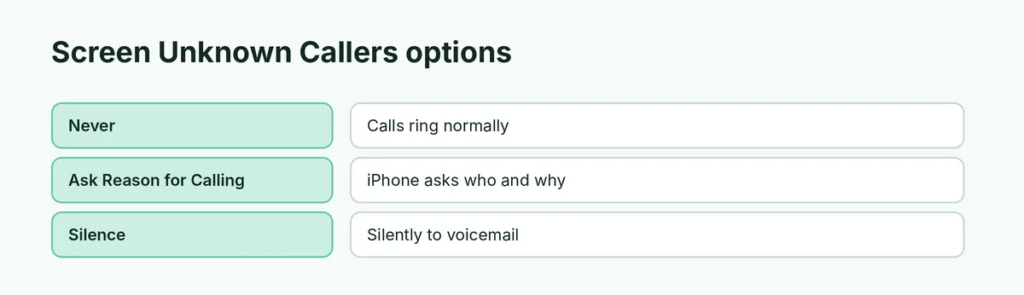
| Option | What happens to unknown numbers |
|---|---|
| Never | Calls ring normally (call screening off) |
| Ask Reason for Calling | iPhone answers, asks the caller’s name and reason, then rings you with a transcript |
| Silence | Calls go silently to voicemail and appear in Recents |
“Unknown” means numbers not in your Contacts, not in recent outgoing calls, and not found in apps like Mail or Messages.
How to turn off call screening on iPhone
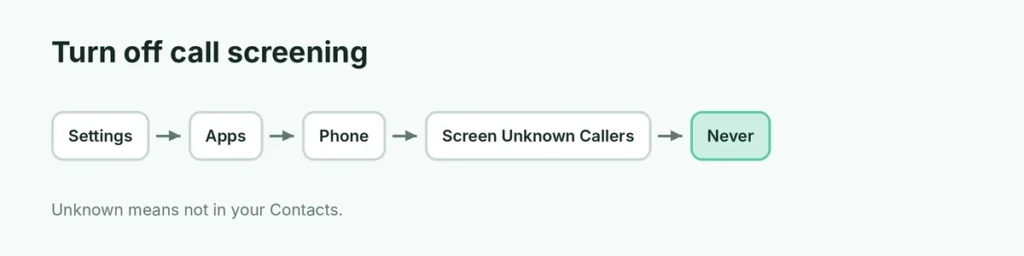
- Open Settings.
- Tap Apps (scroll to the bottom), then Phone.
- Scroll to Screen Unknown Callers.
- Choose Never.
Unknown callers will now ring your phone normally.
Calls still going silent?
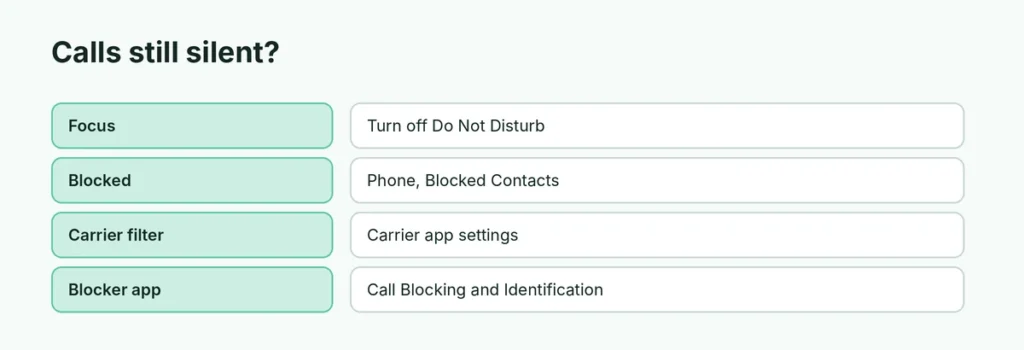
| Check | Where |
|---|---|
| Silence Unknown Callers (older iOS) | Settings → Apps → Phone |
| Do Not Disturb or another Focus | Control Center → Focus. Here’s how to turn off Do Not Disturb |
| Blocked contact | Settings → Apps → Phone → Blocked Contacts |
| Carrier spam filter | Your carrier’s app or account settings |
| Third-party call blocker | Settings → Apps → Phone → Call Blocking & Identification |
Hold Assist and Live Voicemail
iOS 26 has other call features that are easy to confuse with screening:
- Hold Assist: stays on hold for you and alerts you when a person answers.
- Live Voicemail: shows a live transcript while someone leaves a voicemail. Turn it off in Settings → Apps → Phone → Live Voicemail.
Filter unknown messages too
Messages has a similar feature. Settings → Apps → Messages → Screen Unknown Senders moves texts from unknown senders to a separate list. Turn it off if you miss texts like delivery codes.
Call screening on Android
Google Pixel and Samsung phones have their own screening features:
- Pixel: Phone app → three dots → Settings → Spam and Call Screen.
- Samsung: Phone app → three dots → Settings → Caller ID and spam protection, or Bixby text call settings.
Should I turn off call screening?
If you get lots of spam, Ask Reason for Calling is a good balance: real callers explain themselves, robocalls usually hang up. If you often get important calls from new numbers (job applications, doctors, deliveries), choose Never or add those numbers to Contacts so they ring through.
Related guides
The short version
Go to Settings → Apps → Phone → Screen Unknown Callers and choose Never to turn off call screening. Silence sends unknown calls quietly to voicemail; Ask Reason for Calling keeps screening on. If calls still don’t ring, check Focus, blocked contacts and call-blocking apps.
Sources
- Apple: iPhone User Guide