By
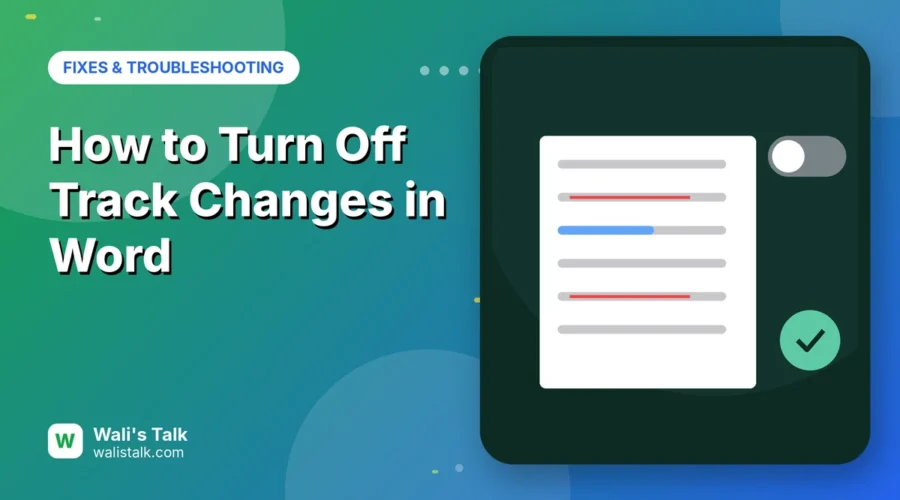
Track Changes in Microsoft Word marks every edit in color with strike-throughs and comments in the margin. Useful for reviewing, but confusing when you just want a clean document. Here’s how to turn off Track Changes in Word, remove the existing marks (accept or reject them), and fix it when the button is locked.
Short answer: go to the Review tab and click Track Changes so it’s no longer highlighted (or press Ctrl + Shift + E on Windows, Command + Shift + E on Mac). Turning it off doesn’t remove old marks: to clean the document, click Accept → Accept All Changes (or Reject → Reject All Changes). Delete comments with Delete → Delete All Comments in Document. If the button is greyed out, the file is protected with Lock Tracking or Restrict Editing.
Applies to: Word for Microsoft 365 (Windows and Mac), Word 2021/2024 and Word for the web, October 2026.
How to turn off Track Changes
- Open the document.
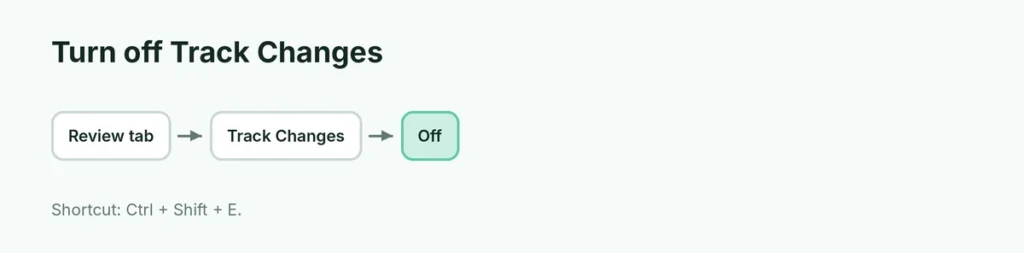
- Click the Review tab.
- Click Track Changes so it’s not highlighted (on some versions, choose Off from the drop-down).
Shortcut: Ctrl + Shift + E (Windows) or Command + Shift + E (Mac).
Word for the web: Review → Track Changes → choose Off (or switch the mode from Reviewing to Editing at the top right).
Remove all tracked changes (make the document clean)
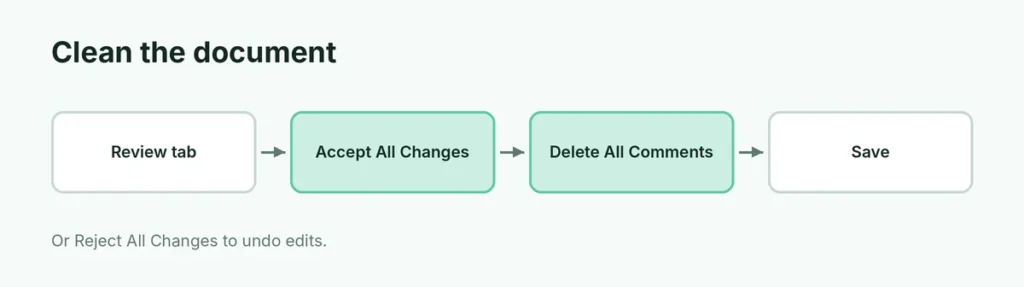
Turning off tracking only stops new changes being marked. To remove old marks:
- Review tab → Accept (arrow) → Accept All Changes (keeps the edits), or
- Reject → Reject All Changes (undoes the edits).
- Delete (in the Comments group) → Delete All Comments in Document.
Save the file.
Accept or reject one change at a time
Click Next in the Changes group to move through edits, then Accept or Reject each one.
Hide marks without removing them
From the Display for Review box, choose No Markup to see the clean version. The changes are still there and will show again for other people. Before sending a final file, accept or reject them instead.
Track Changes button greyed out?
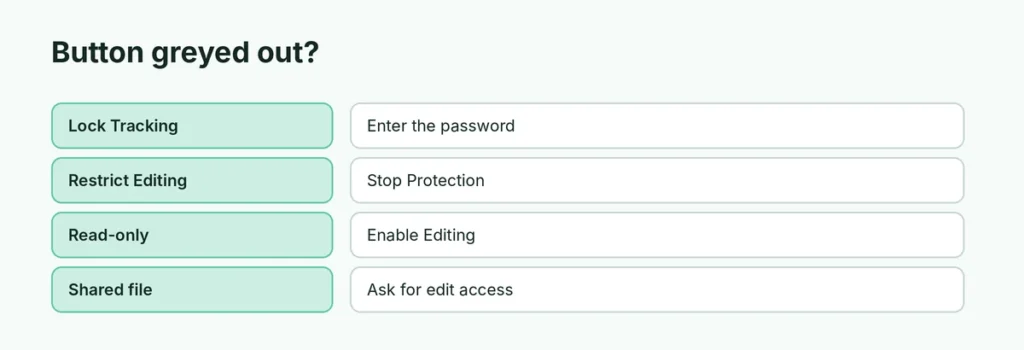
| Cause | Fix |
|---|---|
| Lock Tracking is on | Track Changes drop-down → Lock Tracking → enter the password |
| Restrict Editing | Review → Restrict Editing → Stop Protection |
| File opened read-only | Enable Editing or save a copy |
| Shared file you can’t edit | Ask the owner for edit access |
Tracking turns back on every time?
The setting is saved with the document. Turn it off, save, close and reopen to check. Templates or company add-ins can also turn it on; check with your IT team.
Before sending a document
Use File → Info → Check for Issues → Inspect Document to find hidden tracked changes, comments and personal info before you share it.
Related guides
- How to turn off Copilot in Word
- How to turn off dark mode in Word
The short version
Click Review → Track Changes to stop marking edits. Then use Accept All Changes or Reject All Changes and Delete All Comments to clean the document. If the button is greyed out, remove Lock Tracking or Restrict Editing.
Sources
- Microsoft Support: Track changes in Word