By
Suddenly your Windows PC is reading everything out loud and a blue box follows your mouse? That’s Narrator, Windows’ built-in screen reader. It’s easy to turn on by accident with a keyboard shortcut. Here’s how to turn off Narrator on Windows 11 and Windows 10, and stop it from starting again.
Short answer: press Windows key + Ctrl + Enter to turn Narrator off instantly. Or press Caps Lock + Esc (the Narrator key + Esc) while it’s running. To stop it coming back, go to Settings → Accessibility → Narrator, turn off Narrator, then turn off Keyboard shortcut for Narrator and Start Narrator after sign-in.
Applies to: Windows 11 and Windows 10, October 2026.
Quick ways to turn off Narrator
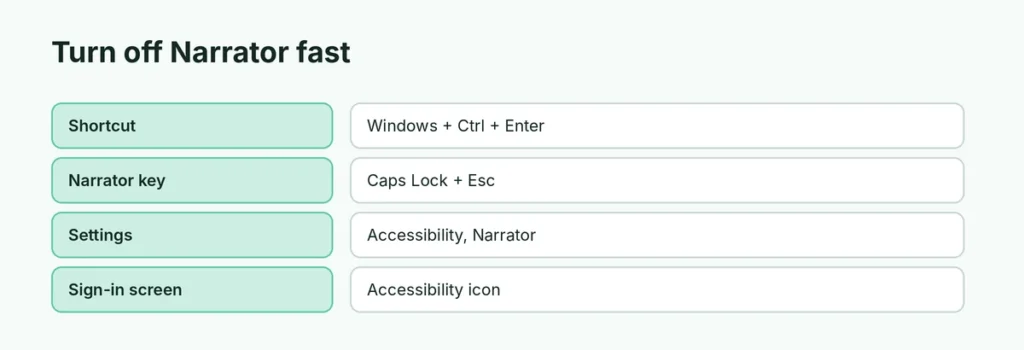
| Method | How |
|---|---|
| Shortcut | Windows + Ctrl + Enter |
| Narrator key | Caps Lock + Esc (or Insert + Esc) |
| Settings | Settings → Accessibility → Narrator → off |
| Quick Settings | Click the network/volume icons → Accessibility → Narrator off |
| Sign-in screen | Click the Accessibility icon (bottom right) → turn off Narrator |
How to turn off Narrator in Settings (Windows 11)
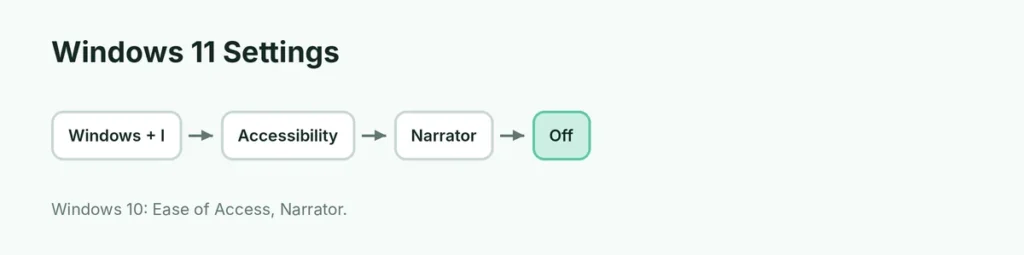
- Press Windows + I to open Settings.
- Click Accessibility.
- Click Narrator (under Vision).
- Turn off Narrator.
Stop Narrator turning on by accident
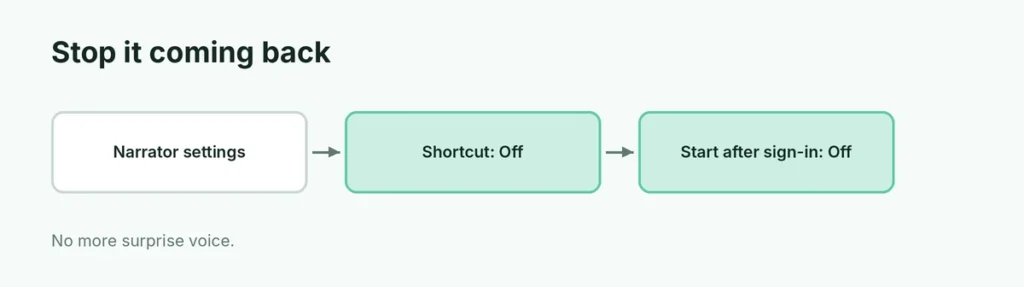
On the same Narrator settings page:
- Turn off Keyboard shortcut for Narrator (so Windows + Ctrl + Enter does nothing).
- Under Start Narrator, turn off after sign-in and before sign-in options.
Windows 10
- Settings → Ease of Access → Narrator.
- Turn off Use Narrator.
- Uncheck Allow the shortcut key to start Narrator.
Narrator keeps turning on?
- Accidental shortcut: turn off the keyboard shortcut (above).
- Start at sign-in: turn off the startup options.
- Ease of Access Center: Control Panel → Ease of Access Center → Use the computer without a display → uncheck Turn on Narrator → Apply.
- Keyboard key stuck: a stuck Ctrl or Windows key can trigger shortcuts.
Turn off the voice but keep other accessibility features
If you only want the voice quieter, in Narrator settings you can change the voice, speed and volume, or press Caps Lock + Ctrl + minus to lower Narrator’s volume. Other features like Magnifier and Live Captions are separate.
Similar screen readers on other devices
- Mac: VoiceOver — press Command + F5 (or triple-press Touch ID) to turn it off.
- iPhone: VoiceOver — Settings → Accessibility → VoiceOver, or triple-click the side button if the shortcut is set.
- Android: TalkBack — hold both volume keys for 3 seconds.
Related guides
The short version
Press Windows + Ctrl + Enter to turn off Narrator, or Caps Lock + Esc while it’s talking. In Settings → Accessibility → Narrator, turn off Narrator, its keyboard shortcut and the start-at-sign-in options so it doesn’t come back.
Sources
- Microsoft Support: Complete guide to Narrator